<?xml version="1.0" encoding="UTF-8"?>
<rss version="2.0"
	xmlns:content="http://purl.org/rss/1.0/modules/content/"
	xmlns:wfw="http://wellformedweb.org/CommentAPI/"
	xmlns:dc="http://purl.org/dc/elements/1.1/"
	xmlns:atom="http://www.w3.org/2005/Atom"
	xmlns:sy="http://purl.org/rss/1.0/modules/syndication/"
	xmlns:slash="http://purl.org/rss/1.0/modules/slash/"
	>

<channel>
	<title>Doug&#039;s AppleScripts for iTunes &#187; Managing Files</title>
	<atom:link href="http://dougscripts.com/itunes/category/managing-files/feed/" rel="self" type="application/rss+xml" />
	<link>http://dougscripts.com</link>
	<description>AppleScripts for iTunes</description>
	<lastBuildDate>Thu, 09 Feb 2012 15:10:46 +0000</lastBuildDate>
	<generator>http://wordpress.org/?v=2.8.4</generator>
	<language>en</language>
	<sy:updatePeriod>hourly</sy:updatePeriod>
	<sy:updateFrequency>1</sy:updateFrequency>
	<cloud domain='dougscripts.com' port='80' path='/itunes/?rsscloud=notify' registerProcedure='' protocol='http-post' />
		<item>
		<title>TIP: Your iTunes Match Scheme Leaves Duplicate Files</title>
		<link>http://dougscripts.com/itunes/2011/12/tip-your-itunes-match-scheme-leaves-duplicate-files/</link>
		<comments></comments>
		<pubDate>Sat, 17 Dec 2011 15:20:44 +0000</pubDate>
		<dc:creator>dougscripts</dc:creator>
				<category><![CDATA[Managing Files]]></category>
		<category><![CDATA[iTunes Match]]></category>

		<guid isPermaLink="false">http://dougscripts.com/itunes/?p=1457</guid>
		<description><![CDATA[If you are using iTunes Match to update your music to the higher-quality Store stuff you may run into a duplicate file problem if you don&#8217;t Trash the original files first. For example, I&#8217;ve got an album of MP3s I ripped in 2002 at 128K and now want the 256K AACs that I can download [...]]]></description>
			<content:encoded><![CDATA[<p>If you are using iTunes Match to update your music to the higher-quality Store stuff you <em>may</em> run into a duplicate file problem if you don&#8217;t Trash the original files first. For example, I&#8217;ve got an album of MP3s I ripped in 2002 at 128K and now want the 256K AACs that I can download with iTunes Match. The trick here (<a href="http://www.macworld.com/article/163620/2011/11/how_to_upgrade_tracks_to_itunes_match_fast.html">explained</a> by Macworld&#8217;s Jason Snell) is to delete the tracks <strong>and</strong> Trash the files from iTunes, but not from the cloud. Then I can click the tracks&#8217; cloud icon to download the new files from the Store. However, if I don&#8217;t Trash the files they will remain in my iTunes Media folder heirarchy and when the new AACs are downloaded I&#8217;ll have the original MP3s alongside the new AACs.</p>
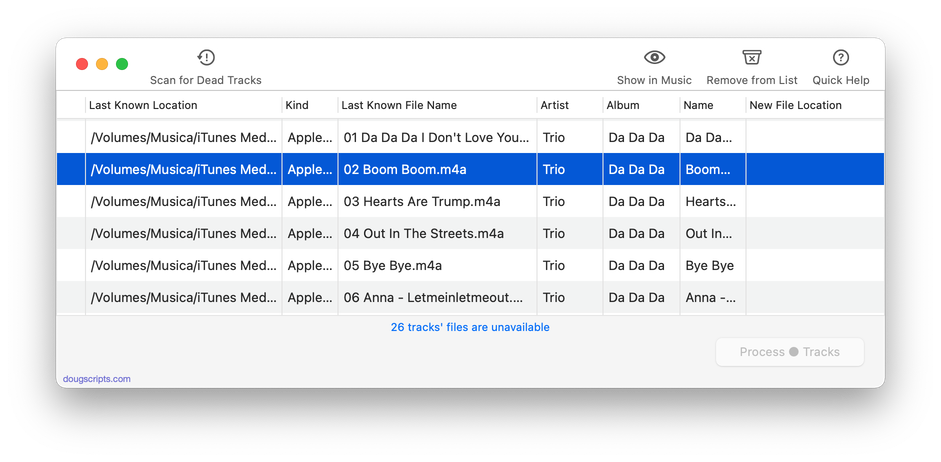
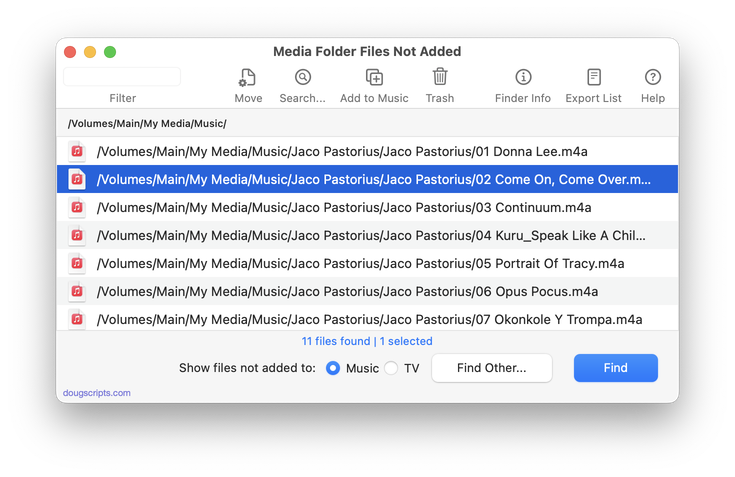
<p>But, if you get yourself into this situation you can easily find and remove the files that are no longer in your iTunes library (but which are still in your iTunes Media folder) with <a href="http://dougscripts.com/itunes/scripts/ss.php?sp=musicfolderfilesnotadded2" title="App displays files in iTunes Media folder which are not in iTunes library">Music Folder Files Not Added</a>. This app will list the files in your designated iTunes Media folder which are not in your current iTunes library so that you can Trash them (or add them, if you like).</p>
<hr/><small><a href="http://dougscripts.com/itunes/dougsupdated.rss" title="Take me to your reader">30 Most Recent RSS Feed</a> | <a href="http://dougscripts.com/itunes/scripts/scriptcount.php?sortBy=Name&op=y">Script Stats Page</a> by <a href="http://dougscripts.com/itunes/scripts/scriptcount.php?sortBy=Name&op=y">Name</a>, <a href="http://dougscripts.com/itunes/scripts/scriptcount.php?sortBy=Most Recent&op=y">Most Recent</a>, <a href="http://dougscripts.com/itunes/scripts/scriptcount.php?sortBy=Download Count&op=y">Download Count</a></small>]]></content:encoded>
			</item>
		<item>
		<title>UPDATED: Music Folder Files Not Added v3.0</title>
		<link>http://dougscripts.com/itunes/2011/11/updated-music-folder-files-not-added-v3-0/</link>
		<comments></comments>
		<pubDate>Sat, 12 Nov 2011 16:24:27 +0000</pubDate>
		<dc:creator>dougscripts</dc:creator>
				<category><![CDATA[Cocoa-AppleScript]]></category>
		<category><![CDATA[Managing Files]]></category>

		<guid isPermaLink="false">http://dougscripts.com/itunes/?p=1405</guid>
		<description><![CDATA[Music Folder Files Not Added v3.0 is a Cocoa-AppleScript applet that will list the file paths of the audio and video files in your designated &#8220;iTunes Media&#8221; folder which are not in iTunes&#8217; library. 

Additionally, you can select a different parent folder and its contents will be compared to the iTunes library. Includes options to [...]]]></description>
			<content:encoded><![CDATA[<p><a href="http://dougscripts.com/itunes/scripts/ss.php?sp=musicfolderfilesnotadded2" title="App displays files in iTunes Media folder which are not in iTunes library">Music Folder Files Not Added</a> v3.0 is a Cocoa-AppleScript applet that will list the file paths of the audio and video files in your designated &#8220;iTunes Media&#8221; folder which are not in iTunes&#8217; library. </p>
<p><img src="http://dougscripts.com/itunes/pix/musicfolderfilesnotadded2.png" /></p>
<p>Additionally, you can select a different parent folder and <em>its</em> contents will be compared to the iTunes library. Includes options to Add a selection of found files to iTunes, move them to the Trash, and&#8212;new in this version&#8212;export to a text file.</p>
<p>(An earlier version of this script, <a href="http://dougscripts.com/itunes/scripts/ss.php?sp=musicfolderfilesnotadded" title="App displays files in iTunes Music folder which are not in iTunes library">Music Folder Files Not Added v1.1</a>, runs on pre-10.6 systems. Also, this script replaces the functionality available in <a href="http://dougscripts.com/itunes/scripts/ss.php?sp=listnotadded" title="List files in chosen folder(s) which aren't in iTunes">List Music Folder Files Not Added</a>.)</p>
<hr/><small><a href="http://dougscripts.com/itunes/dougsupdated.rss" title="Take me to your reader">30 Most Recent RSS Feed</a> | <a href="http://dougscripts.com/itunes/scripts/scriptcount.php?sortBy=Name&op=y">Script Stats Page</a> by <a href="http://dougscripts.com/itunes/scripts/scriptcount.php?sortBy=Name&op=y">Name</a>, <a href="http://dougscripts.com/itunes/scripts/scriptcount.php?sortBy=Most Recent&op=y">Most Recent</a>, <a href="http://dougscripts.com/itunes/scripts/scriptcount.php?sortBy=Download Count&op=y">Download Count</a></small>]]></content:encoded>
			</item>
		<item>
		<title>UPDATED: Quick Convert 3.0</title>
		<link>http://dougscripts.com/itunes/2011/08/updated-quick-convert-3-0/</link>
		<comments></comments>
		<pubDate>Sun, 14 Aug 2011 17:01:27 +0000</pubDate>
		<dc:creator>dougscripts</dc:creator>
				<category><![CDATA[Cocoa-AppleScript]]></category>
		<category><![CDATA[Controlling iTunes]]></category>
		<category><![CDATA[Managing Files]]></category>

		<guid isPermaLink="false">http://dougscripts.com/itunes/?p=1348</guid>
		<description><![CDATA[Quick Convert v3.0 will convert all or just the selected tracks of the selected Playlist using your choice of available iTunes encoders, restoring your Preferences-set encoder afterwards. 

Works with importing selected CD tracks, too.

Choose to delete and/or Trash the original tracks and/or files
Copy all converted/imported tracks to a new playlist
Optionally save AAC encoded tracks as [...]]]></description>
			<content:encoded><![CDATA[<p><a href="http://dougscripts.com/itunes/scripts/ss.php?sp=quickconvert" title="Convert or import tracks with any encoder on the fly">Quick Convert</a> v3.0 will convert all or just the selected tracks of the selected Playlist using your choice of available iTunes encoders, restoring your Preferences-set encoder afterwards. </p>
<p><img src="http://dougscripts.com/itunes/pix/quickconvert.png" /></p>
<p>Works with importing selected CD tracks, too.</p>
<ul>
<li>Choose to delete and/or Trash the original tracks and/or files</li>
<li>Copy all converted/imported tracks to a new playlist</li>
<li>Optionally save AAC encoded tracks as M4B &#8220;bookmarkable&#8221; and re-add the converted files to the Books library</li>
</ul>
<p>This latest version consolidates all options into a single window and displays progress during track processing.</p>
<p><a href="http://dougscripts.com/itunes/scripts/ss.php?sp=quickconvert" title="Convert or import tracks with any encoder on the fly">Quick Convert</a> v3.0 is for <strong>OS X 10.6 or 10.7 only.</strong> Previous universal version for PowerPC machines available at the entry page.</p>
<hr/><small><a href="http://dougscripts.com/itunes/dougsupdated.rss" title="Take me to your reader">30 Most Recent RSS Feed</a> | <a href="http://dougscripts.com/itunes/scripts/scriptcount.php?sortBy=Name&op=y">Script Stats Page</a> by <a href="http://dougscripts.com/itunes/scripts/scriptcount.php?sortBy=Name&op=y">Name</a>, <a href="http://dougscripts.com/itunes/scripts/scriptcount.php?sortBy=Most Recent&op=y">Most Recent</a>, <a href="http://dougscripts.com/itunes/scripts/scriptcount.php?sortBy=Download Count&op=y">Download Count</a></small>]]></content:encoded>
			</item>
		<item>
		<title>UPDATED: PDF Adder v4.0</title>
		<link>http://dougscripts.com/itunes/2011/08/updated-pdf-adder-v4-0/</link>
		<comments></comments>
		<pubDate>Sat, 06 Aug 2011 21:01:01 +0000</pubDate>
		<dc:creator>dougscripts</dc:creator>
				<category><![CDATA[Books]]></category>
		<category><![CDATA[Cocoa-AppleScript]]></category>
		<category><![CDATA[Managing Files]]></category>
		<category><![CDATA[iPad]]></category>
		<category><![CDATA[iPhone]]></category>

		<guid isPermaLink="false">http://dougscripts.com/itunes/?p=1340</guid>
		<description><![CDATA[Some smart-guy at Apple thought to include an alias to the iTunes.app in the /Library/PDF Services folder to make it easy to add PDFs to iTunes from the Print Dialog. But then if you want to add tags to the PDF you have to go into iTunes, dig up the track and do a Get [...]]]></description>
			<content:encoded><![CDATA[<p>Some smart-guy at Apple thought to include an alias to the iTunes.app in the /Library/PDF Services folder to make it easy to add PDFs to iTunes from the Print Dialog. But then if you want to add tags to the PDF you have to go into iTunes, dig up the track and do a Get Info.</p>
<p>Regular visitors will already be aware of the &#8220;Add as PDF to iTunes&#8221; PDF Service that is part of my three-script <a href="http://dougscripts.com/itunes/scripts/ss.php?sp=pdfadder" title="Assists with tagging and adding PDF files to the iTunes "Books" library ">PDF Adder</a> collection. I&#8217;ve just updated these as Cocoa-AppleScripts (for OS X 10.6 and 10.7 only).</p>
<p>These three AppleScripts assist with adding PDF files to iTunes as &#8220;digital booklet&#8221; PDF tracks. Each provides a method for easily supplying <strong>Author</strong> (artist), <strong>Album</strong>, <strong>Category</strong> (genre), <strong>Year</strong>, <strong>Rating</strong> and <strong>Description</strong> tag data which is then applied to the newly-added PDF track:</p>
<ul>
<li><strong>Add as PDF to iTunes</strong> is a PDF Service workflow that, when installed, will be available in the PDF pop-up menu of the Print Dialog. It allows you to save the current document as a PDF file (from any application that uses the Print Dialog) and add it to iTunes. <a href="http://dougscripts.com/itunes/2010/07/pdf-adder-and-safari-reader/">I describe here</a> how I use it with Safari Reader.</li>
<li><strong>PDF Adder</strong> is an applet that will let you choose an existing PDF file and add it to iTunes. It can be installed in iTunes&#8217; Scripts folder for easy access from iTunes Script menu.</li>
<li><strong>PDF Dropper</strong> is a droplet that lets you add a PDF file to iTunes by drag-and-drop.</li>
</ul>
<p>PDFs added to iTunes with these scripts will appear in the &#8220;Books&#8221; library and can sync with the iBooks app on <strong>iPhone</strong> or <strong>iPad</strong>. </p>
<hr/><small><a href="http://dougscripts.com/itunes/dougsupdated.rss" title="Take me to your reader">30 Most Recent RSS Feed</a> | <a href="http://dougscripts.com/itunes/scripts/scriptcount.php?sortBy=Name&op=y">Script Stats Page</a> by <a href="http://dougscripts.com/itunes/scripts/scriptcount.php?sortBy=Name&op=y">Name</a>, <a href="http://dougscripts.com/itunes/scripts/scriptcount.php?sortBy=Most Recent&op=y">Most Recent</a>, <a href="http://dougscripts.com/itunes/scripts/scriptcount.php?sortBy=Download Count&op=y">Download Count</a></small>]]></content:encoded>
			</item>
		<item>
		<title>UPDATED: Convert and Export v2.0</title>
		<link>http://dougscripts.com/itunes/2011/07/updated-convert-and-export-v2-0/</link>
		<comments></comments>
		<pubDate>Thu, 28 Jul 2011 22:19:17 +0000</pubDate>
		<dc:creator>dougscripts</dc:creator>
				<category><![CDATA[Managing Files]]></category>

		<guid isPermaLink="false">http://dougscripts.com/itunes/?p=1338</guid>
		<description><![CDATA[Convert and Export v2.0 converts the files of the selected tracks in iTunes using an encoder of your choice on-the-fly (restoring your Preferences-set encoder afterwards). The newly converted files are then moved to a new location of your choice, and their tracks removed from iTunes.
This latest version is updated to be compatible with OS X [...]]]></description>
			<content:encoded><![CDATA[<p><a href="http://dougscripts.com/itunes/scripts/ss.php?sp=convertandexport" title="Convert selected tracks and export the converted files to a new folder">Convert and Export</a> v2.0 converts the files of the selected tracks in iTunes using an encoder of your choice on-the-fly (restoring your Preferences-set encoder afterwards). The newly converted files are then moved to a new location of your choice, and their tracks removed from iTunes.</p>
<p>This latest version is updated to be compatible with OS X 10.7.</p>
<hr/><small><a href="http://dougscripts.com/itunes/dougsupdated.rss" title="Take me to your reader">30 Most Recent RSS Feed</a> | <a href="http://dougscripts.com/itunes/scripts/scriptcount.php?sortBy=Name&op=y">Script Stats Page</a> by <a href="http://dougscripts.com/itunes/scripts/scriptcount.php?sortBy=Name&op=y">Name</a>, <a href="http://dougscripts.com/itunes/scripts/scriptcount.php?sortBy=Most Recent&op=y">Most Recent</a>, <a href="http://dougscripts.com/itunes/scripts/scriptcount.php?sortBy=Download Count&op=y">Download Count</a></small>]]></content:encoded>
			</item>
		<item>
		<title>UPDATED: Drop to Add and Give Info v2.0</title>
		<link>http://dougscripts.com/itunes/2011/07/updated-drop-to-add-and-give-info-v2-0/</link>
		<comments></comments>
		<pubDate>Wed, 27 Jul 2011 14:57:22 +0000</pubDate>
		<dc:creator>dougscripts</dc:creator>
				<category><![CDATA[Cocoa-AppleScript]]></category>
		<category><![CDATA[Lion]]></category>
		<category><![CDATA[Managing Files]]></category>
		<category><![CDATA[Updates]]></category>

		<guid isPermaLink="false">http://dougscripts.com/itunes/?p=1328</guid>
		<description><![CDATA[Drop to Add and Give Info v2.0 is a Cocoa-AppleScript Droplet. Drag audio files to its icon in the Finder (or Finder bar) and a multi-edit window will allow you to set many common tags before the script adds the files to iTunes, after which your tag info will be applied to the new tracks. [...]]]></description>
			<content:encoded><![CDATA[<p><a href="http://dougscripts.com/itunes/scripts/ss.php?sp=droptoaddandgiveinfo" title="Drag and drop files and enter multi-edit tag info before files are added to iTunes">Drop to Add and Give Info</a> v2.0 is a Cocoa-AppleScript Droplet. Drag audio files to its icon in the Finder (or Finder bar) and a multi-edit window will allow you to set many common tags before the script adds the files to iTunes, after which your tag info will be applied to the new tracks. Saves trips to iTunes when batch-adding files.  Additionally, tracks can be copied to a new or existing playlist.</p>
<p><img src="http://dougscripts.com/itunes/pix/droptoaddandgiveinfo.png" /></p>
<p>For OS X 10.6 or 10.7 only. The previous universal version is available via direct download at the script&#8217;s <a href="http://dougscripts.com/itunes/scripts/ss.php?sp=droptoaddandgiveinfo" title="Drag and drop files and enter multi-edit tag info before files are added to iTunes">entry page</a>.</p>
<hr/><small><a href="http://dougscripts.com/itunes/dougsupdated.rss" title="Take me to your reader">30 Most Recent RSS Feed</a> | <a href="http://dougscripts.com/itunes/scripts/scriptcount.php?sortBy=Name&op=y">Script Stats Page</a> by <a href="http://dougscripts.com/itunes/scripts/scriptcount.php?sortBy=Name&op=y">Name</a>, <a href="http://dougscripts.com/itunes/scripts/scriptcount.php?sortBy=Most Recent&op=y">Most Recent</a>, <a href="http://dougscripts.com/itunes/scripts/scriptcount.php?sortBy=Download Count&op=y">Download Count</a></small>]]></content:encoded>
			</item>
		<item>
		<title>Bevy of Updates</title>
		<link>http://dougscripts.com/itunes/2011/07/bevy-of-updates/</link>
		<comments></comments>
		<pubDate>Wed, 27 Jul 2011 13:22:41 +0000</pubDate>
		<dc:creator>dougscripts</dc:creator>
				<category><![CDATA[Lion]]></category>
		<category><![CDATA[Managing Artwork]]></category>
		<category><![CDATA[Managing Files]]></category>
		<category><![CDATA[Managing Track Info]]></category>
		<category><![CDATA[Updates]]></category>

		<guid isPermaLink="false">http://dougscripts.com/itunes/?p=1324</guid>
		<description><![CDATA[I&#8217;ve just updated the last batch of scripts most recently posted to account for iTunes&#8217; full-screen mode in Lion. My good friend Kirk McElhearn is a devoted iTunes-in-full-screen-mode user and he describes the situation so elegantly that you might as well read about it at his site.
The latest scripts re-posted with quick updates are: Super [...]]]></description>
			<content:encoded><![CDATA[<p>I&#8217;ve just updated the last batch of scripts most recently posted to account for iTunes&#8217; full-screen mode in Lion. My good friend Kirk McElhearn is a devoted iTunes-in-full-screen-mode user and he <a href="http://www.mcelhearn.com/2011/07/26/itunes-full-screen-view-and-applescript-applets/">describes the situation so elegantly</a> that you might as well read about it at his site.</p>
<p>The latest scripts re-posted with quick updates are: <a href="http://dougscripts.com/itunes/scripts/ss.php?sp=removedeadsuper" title="Remove missing (!) tracks from entire Library">Super Remove Dead Tracks</a> v3.1, <a href="http://dougscripts.com/itunes/scripts/ss.php?sp=removenchars" title="Delete characters from the beginning or ending of selected tracks' name, artist, album, comments, composer, or show tags">Remove n Characters From Front or Back</a> v4.1, <a href="http://dougscripts.com/itunes/scripts/ss.php?sp=savealbumart" title="Export artwork of selected tracks to parent or specified folder">Save Album Art to Album Folder</a> v4.1, <a href="http://dougscripts.com/itunes/scripts/ss.php?sp=savealbumartjpeg" title="Export album artwork as folder.jpg to Album folder">Save Album Art as folder.jpg</a> v2.1, and <a href="http://dougscripts.com/itunes/scripts/ss.php?sp=reapplydownsized" title="Resample selected tracks' artwork to user-set size limit">Re-Apply Downsized Artwork</a> v2.1.</p>
<p>So, if you picked any of those up in the past couple of days, you may want to re-up to the latest versions.</p>
<hr/><small><a href="http://dougscripts.com/itunes/dougsupdated.rss" title="Take me to your reader">30 Most Recent RSS Feed</a> | <a href="http://dougscripts.com/itunes/scripts/scriptcount.php?sortBy=Name&op=y">Script Stats Page</a> by <a href="http://dougscripts.com/itunes/scripts/scriptcount.php?sortBy=Name&op=y">Name</a>, <a href="http://dougscripts.com/itunes/scripts/scriptcount.php?sortBy=Most Recent&op=y">Most Recent</a>, <a href="http://dougscripts.com/itunes/scripts/scriptcount.php?sortBy=Download Count&op=y">Download Count</a></small>]]></content:encoded>
			</item>
		<item>
		<title>NEW: Drop to Add and Give Info</title>
		<link>http://dougscripts.com/itunes/2011/05/new-drop-to-add-and-give-info/</link>
		<comments></comments>
		<pubDate>Sat, 28 May 2011 20:19:48 +0000</pubDate>
		<dc:creator>dougscripts</dc:creator>
				<category><![CDATA[Managing Files]]></category>
		<category><![CDATA[iTunes 10]]></category>

		<guid isPermaLink="false">http://dougscripts.com/itunes/?p=1262</guid>
		<description><![CDATA[I often have to add files to iTunes that I&#8217;ve received as mail, iChat, or Skype attachments or from other disparate sources. They&#8217;re usually audio files that friends or colleagues have generated and aren&#8217;t necessarily song files. They usually don&#8217;t have any ID3 Tag info other than the file name/track name. I just drag &#8216;em [...]]]></description>
			<content:encoded><![CDATA[<p>I often have to add files to iTunes that I&#8217;ve received as mail, iChat, or Skype attachments or from other disparate sources. They&#8217;re usually audio files that friends or colleagues have generated and aren&#8217;t necessarily song files. They usually don&#8217;t have any ID3 Tag info other than the file name/track name. I just drag &#8216;em to iTunes, select a batch after they&#8217;re added and multi-edit their tags. But somehow this workflow doesn&#8217;t feel right to me. If I were ripping a CD, I&#8217;d enter the tags in the CD tracks <em>before</em> importing. Likewise, when I use <a href="http://dougscripts.com/itunes/scripts/ss.php?sp=pdfadder" title="Assists with tagging and adding PDF files to the iTunes "Books" library ">PDF Adder</a> I&#8217;m obliged to enter any tag info first.</p>
<p>But when I&#8217;m importing the files from the Finder I can only edit the tag info <em>after</em> the files are added. Thus, I have to find them in iTunes, select them, press Command-I to get the multi-edit window, and <em>then</em> I can start tag editing. Doesn&#8217;t feel right.</p>
<p>So I put together a droplet called <a href="http://dougscripts.com/itunes/scripts/ss.php?sp=droptoaddandgiveinfo" title="Drag and drop files and multi-edit tags before files are added to iTunes">Drop to Add and Give Info</a> that launches a GUI for multi-editing after you drop files on it but <em>before</em> the files are added to iTunes:</p>
<p><span id="more-1262"></span><img src="http://dougscripts.com/itunes/pix/droptoaddandgiveinfo.png" /></p>
<p>That&#8217;s no AppleScript <strong>display dialog</strong>. The GUI is handled by a helper app in the droplet&#8217;s bundle. After tag info is entered and the screen&#8217;s dismissed, the droplet manages adding the files I dropped on it to iTunes and then applying the tag info I set in the window to the new tracks. The only thing I may still want to edit are the track numbers, but most of the other tags are already set. In fact, I don&#8217;t really need to work in iTunes at all since the bulk of the important tags for the new tracks are okay for now. I can fix-up track numbers some other time (<a href="http://dougscripts.com/itunes/scripts/ss.php?sp=ialbumize" title="Renumber playlist tracks to play order">Albumize</a> and <a href="http://dougscripts.com/itunes/scripts/ss.php?sp=albumizeselection" title="Renumber order of selected tracks">Albumize Selection</a> are good for this).</p>
<p><a href="http://dougscripts.com/itunes/scripts/ss.php?sp=droptoaddandgiveinfo" title="Drag and drop files and multi-edit tags before files are added to iTunes">Drop to Add and Give Info</a>. </p>
<hr/><small><a href="http://dougscripts.com/itunes/dougsupdated.rss" title="Take me to your reader">30 Most Recent RSS Feed</a> | <a href="http://dougscripts.com/itunes/scripts/scriptcount.php?sortBy=Name&op=y">Script Stats Page</a> by <a href="http://dougscripts.com/itunes/scripts/scriptcount.php?sortBy=Name&op=y">Name</a>, <a href="http://dougscripts.com/itunes/scripts/scriptcount.php?sortBy=Most Recent&op=y">Most Recent</a>, <a href="http://dougscripts.com/itunes/scripts/scriptcount.php?sortBy=Download Count&op=y">Download Count</a></small>]]></content:encoded>
			</item>
		<item>
		<title>All Those Audio Formats</title>
		<link>http://dougscripts.com/itunes/2011/01/all-those-audio-formats/</link>
		<comments></comments>
		<pubDate>Tue, 18 Jan 2011 15:10:08 +0000</pubDate>
		<dc:creator>dougscripts</dc:creator>
				<category><![CDATA[Managing Files]]></category>
		<category><![CDATA[Tips and Info]]></category>

		<guid isPermaLink="false">http://dougscripts.com/itunes/?p=1202</guid>
		<description><![CDATA[Via Lifehacker, this How-To Geek article is a great primer on the differences among digital audio formats.
]]></description>
			<content:encoded><![CDATA[<p>Via <a href="http://lifehacker.com/5736526/learn-the-difference-between-all-those-audio-formats">Lifehacker</a>, this <a href="http://www.howtogeek.com/howto/40465/htg-explains-what-are-the-differences-between-all-those-audio-formats/">How-To Geek article</a> is a great primer on the differences among digital audio formats.</p>
<hr/><small><a href="http://dougscripts.com/itunes/dougsupdated.rss" title="Take me to your reader">30 Most Recent RSS Feed</a> | <a href="http://dougscripts.com/itunes/scripts/scriptcount.php?sortBy=Name&op=y">Script Stats Page</a> by <a href="http://dougscripts.com/itunes/scripts/scriptcount.php?sortBy=Name&op=y">Name</a>, <a href="http://dougscripts.com/itunes/scripts/scriptcount.php?sortBy=Most Recent&op=y">Most Recent</a>, <a href="http://dougscripts.com/itunes/scripts/scriptcount.php?sortBy=Download Count&op=y">Download Count</a></small>]]></content:encoded>
			</item>
		<item>
		<title>Get a Track Reference from a File Path</title>
		<link>http://dougscripts.com/itunes/2010/12/get-a-track-reference-from-a-file-path/</link>
		<comments></comments>
		<pubDate>Tue, 28 Dec 2010 17:19:14 +0000</pubDate>
		<dc:creator>dougscripts</dc:creator>
				<category><![CDATA[Managing Files]]></category>
		<category><![CDATA[Managing Tracks]]></category>

		<guid isPermaLink="false">http://dougscripts.com/itunes/?p=1184</guid>
		<description><![CDATA[Correspondent Wayne B. recently wondered if there is a way to get a reference to a track in iTunes based on its file path. Well, unfortunately, you can&#8217;t do something like this:

tell application "iTunes"
	set trackRef  to (get some file track of library playlist 1 whose location is "some/file/path.ext")
end tell

That will generate an error. But [...]]]></description>
			<content:encoded><![CDATA[<p>Correspondent Wayne B. recently wondered if there is a way to get a reference to a track in iTunes based on its file path. Well, unfortunately, you <em>can&#8217;t</em> do something like this:</p>
<pre style="margin-bottom:1em;">
<span style="color:blue;"><b>tell</b></span> <span style="color:blue;">application</span> "iTunes"
	<span style="color:blue;"><b>set</b></span> <span style="color:green;">trackRef </span> <span style="color:blue;"><b>to</b></span> (<span style="color:blue;"><b>get</b></span> <span style="color:blue;"><b>some</b></span> <span style="color:blue;">file</span> <span style="color:blue;">track</span> <span style="color:blue;"><b>of</b></span> <span style="color:blue;">library</span> <span style="color:blue;">playlist</span> 1 <span style="color:blue;"><b>whose</b></span> <span style="color:blue;">location</span> <span style="color:blue;"><b>is</b></span> "some/file/path.ext")
<span style="color:blue;"><b>end</b></span> <span style="color:blue;"><b>tell</b></span>
</pre>
<p>That will generate an error. But you can trick iTunes into giving you the track reference by using the <strong>add</strong> command&#8211;if you are certain the file is already in iTunes&#8217; database. When you <strong>add</strong> the file iTunes will check its database for the the corresponding library track <em>for you</em> and if it exists will give up the reference&#8211;and it <em>won&#8217;t</em> re-add it:</p>
<pre style="margin-bottom:1em;">
<b>set</b> <span style="color:green;">theFile</span> <b>to</b> choose file
<span style="color:gray;">--</span> <span style="color:gray;">or</span> <span style="color:gray;">however</span> <span style="color:gray;">you</span> <span style="color:gray;">get</span> <span style="color:gray;">the</span> <span style="color:gray;">file</span> <span style="color:gray;">path</span>

<b>tell</b> <span style="color:blue;">application</span> "iTunes"
	<b>try</b>
		<b>set</b> <span style="color:green;">trackRef</span> <b>to</b> (<span style="color:blue;"><b>add</b></span> <span style="color:green;">theFile</span> <b>as</b> <span style="color:blue;">alias</span>)
		<b>tell</b> <span style="color:green;">trackRef</span>
			<span style="color:blue;"><b>log</b></span> (<b>get</b> <span style="color:purple;">name</span>)
			<span style="color:gray;">#</span> <span style="color:gray;">and</span> <span style="color:gray;">so</span> <span style="color:gray;">on</span>...
		<b>end</b> <b>tell</b>
	<b>end</b> <b>try</b>
<b>end</b> <b>tell</b>

<a href="applescript://com.apple.scripteditor?action=new&#038;script=set theFile to choose file%0D-- or however you get the file path%0D%0Dtell application %22iTunes%22%0D%09try%0D%09%09set trackRef to %28add theFile as alias%29%0D%09%09tell trackRef%0D%09%09%09log %28get name%29%0D%09%09%09%23 and so on%2E%2E%2E%0D%09%09end tell%0D%09end try%0Dend tell" title="Click to open in AppleScript Editor. Works via most modern Mac browsers."><img src="http://dougscripts.com/itunes/pix/clickscriptsmall.jpg" alt="" /></a>
</pre>
<p>But remember that if the file <em>isn&#8217;t</em> already in iTunes&#8217; database then iTunes will add the file as a matter of course, <em>which may not be what you want</em>. So this trick may work best only when you know a file is currently in your library.</p>
<p>You will not want to use the <strong>open</strong> command instead of <strong>add</strong>, because <strong>open</strong> will compel iTunes to play the file in addition to any <strong>add</strong>-housekeeping.</p>
<hr/><small><a href="http://dougscripts.com/itunes/dougsupdated.rss" title="Take me to your reader">30 Most Recent RSS Feed</a> | <a href="http://dougscripts.com/itunes/scripts/scriptcount.php?sortBy=Name&op=y">Script Stats Page</a> by <a href="http://dougscripts.com/itunes/scripts/scriptcount.php?sortBy=Name&op=y">Name</a>, <a href="http://dougscripts.com/itunes/scripts/scriptcount.php?sortBy=Most Recent&op=y">Most Recent</a>, <a href="http://dougscripts.com/itunes/scripts/scriptcount.php?sortBy=Download Count&op=y">Download Count</a></small>]]></content:encoded>
			</item>
	</channel>
</rss>