
 Apple Music Profile
 YouTube Channel
 RSS Feed
 Play Play
 Murph
Murph Yer Stack
 Block Party Weekend
 30 Most Recent RSS Feed
Project: Gather Partially Played Tracks
I got an email from Correspondent Sherwood Botsford asking if there was any way to round up his partially played audiobooks. What he wanted to do was maintain a playlist of recently added audiobook tracks that he hadn't finished listening to and sync it to his iPhone. He'd gotten the recently added stuff okay by using a Smart Playlist. But Smart Playlists don't include any criteria for detecting how far along a track has been played, and Last Skipped may not necessarily have been set if a track was simply stopped rather than skipped.
If a track's "Remember playback position" setting in its Get Info's Options tab has been checkmarked—presumably, your audiobooks are "bookmarkable" by default or you have set the "remember" option manually—a track's bookmark property will contain the number of seconds the track had been played before it was stopped. Thus, if any tracks have a bookmark value greater than zero then they've been partially played.
So here's a script that will gather all those partially played tracks into a new playlist named "Partially Played" and that playlist can be the source for the Smart Playlist:
OS X 10.7.4 Quarantine Issue?
Two users have reported that after updating to Lion 10.7.4, downloaded script applets from this site would bounce in the Dock when launched and would not open. It turns out that the users had previously disabled the quarantine system. This normally alerts you when a new application or document has been downloaded from the internet as you are about to open it for the first time. For some reason this setting was not picked up in 10.7.4—or something—and logs an error like this to Console.app:
posix_spawn("path/to/the/app",...): Operation not permitted
Topher Kessler has an article at cnet (published before this 10.7.4 issue arose) that explains how the quarantine setting works and how you can reset it in order to get the downloaded apps running correctly.
UPDATED: This Tag That Tag v3.1
This Tag That Tag will assist with swapping, copying, and appending data between two user-chosen tags in selected tracks or tracks in the selected playlist:
Swap - swap data between tags, ex: ARTIST<->COMPOSER
Copy - copy data from one to another tag, ex: ARTIST->COMPOSER ARTIST
Append - append data from one tag to the end of another, ex: ARTIST->COMPOSER - ARTIST
Prepend - prepend data from one tag to the beginning of another, ex: ARTIST->ARTIST - COMPOSER
The latter three actions also provide an option to delete the info from the first tag after the copy.
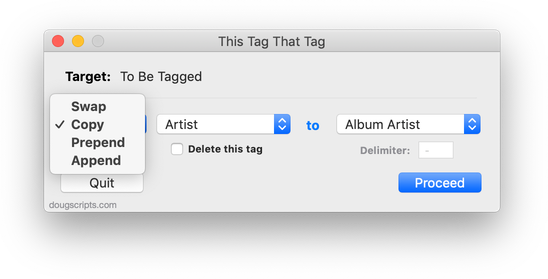
This latest version allows numerical tag data to be copied (for example, the Year tag's data can be copied to the Comments tag).
UPDATED: Batch Export Playlists v1.1
Batch Export Playlists will export each selected plain, Smart, and Genius playlist as individual XML or M3U files to a user selected directory. Such files can be imported into iTunes again later.
This latest version correctly handles forward slashes in playlist names and has other minor code finesses.
The iTunes Guy Macworld Podcast
Kirk McElhearn is Macworld's "iTunes Guy" and he recently chatted with Senior Editor Chris Breen in a Macworld Podcast. Subjects include a variety of iTunes issues and a couple of scripts Kirk uses in his regular iTunes workflow.
TrackSift v1.2 Now Available via the Mac App Store
TrackSift v1.2 is now available. TrackSift brings together nine fun and useful Tools for iTunes in one attractive, simple to install and easy to use app:
- Delete "dead" tracks, delete empty playlists, and delete unwanted Genre names
- Find songs without album art, without lyrics, and not in playlists
- Create "One-Hit Wonder", "Two-Fer", and "Three-Fer" playlists
New in version 1.2:
- New De-Genre tool replaces Podcasts tool
- Fixes issues with large libraries (50K+ tracks)
- Fixes issues with preliminary library scan
- Fixes issues with iTunes Match tracks
- Speeds-up no artwork tool
- Improvements to Delete Empty Playlists tool
- Improvements to Not In Playlist tool
- Improvements to One-Hit Wonders tool
- Minor GUI enhancements
Nine tools, one app—just $1.99 on the Mac App Store.
iTunes 10.6.1 Released
Apple has released iTunes 10.6.1. It features a variety of bug fixes including a TV Show sorting glitch when browsing the library on Apple TV, unexpected quits during video plays, changing Grid view, or photo syncing to devices.
iTunes 10.6 Available
Apple has released iTunes 10.6 which features some iTunes Match fixes and accomodation for 1080p video to go along with the new AppleTV.
UPDATED: Save Album Art as folder.jpg v2.2
Save Album Art as folder.jpg v2.2 will export the artwork of the selected tracks or tracks in the selected playlist as a JPEG image file named folder.jpg to the folder which contains each selected track's file--presumably the track's Album folder.
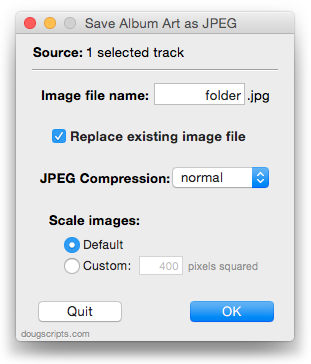
Many third-party music players and systems (Sonos, for example) may look for a "folder.jpg" here to use as display artwork.
This latest version is basically a maintenance update and is now a stay-open app that will float above iTunes while running.
Custom Playlist Column Views, Sorta
Here's something I'm often asked which Correspondent Rob Falk put succinctly: "Is there a way to clone a playlist view...other than the Library [using Assimilate View Options]? I frequently need to create a playlist that has a specific set of columns, that are not the same as the library, and was looking for a way to automate that."
There sorta kinda is.
My first thought was to use AppleScript to just duplicate an existing playlist that already had the requisite view settings. (The duplicate command is typically used to copy a track from one playlist to another.) Unfortunately, when iTunes' AppleScript duplicate command is used to copy a playlist it—bafflingly—creates a new untitled and empty playlist using the properties and views of the Music library playlist. Same as just creating a new playlist. That doesn't seem right, does it? You'd think—well, I thought anyway—that using duplicate to copy a playlist would behave the same as the playlist contextual menu command "Duplicate" (control-click or right-click on the name of the playlist):
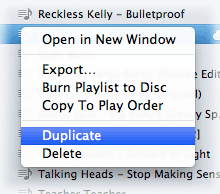
So, my next thought was...just use "Duplicate". The playlist will be perfectly duplicated, column views and all, and selected in the Source list. Now you'll have a new playlist named the same as the original with a "1" at the end and which is populated with the original's tracks (if it had any). You could create a bunch of playlists with columns set the various ways you like and then "Duplicate" them when you required one. Just rename the new duplicated playlist and delete any tracks. And that part can be automated.
The workflow, then, is to "Duplicate" a playlist manually with the contextual menu command and then run this script right afterwards:
