
 Apple Music Profile
 YouTube Channel
 RSS Feed
 Play Play
 Murph
Murph Yer Stack
 Block Party Weekend
 30 Most Recent RSS Feed
Bevy of Updates
I've just updated the last batch of scripts most recently posted to account for iTunes' full-screen mode in Lion. My good friend Kirk McElhearn is a devoted iTunes-in-full-screen-mode user and he describes the situation so elegantly that you might as well read about it at his site.
The latest scripts re-posted with quick updates are: Super Remove Dead Tracks v3.1, Remove n Characters From Front or Back v4.1, Save Album Art to Album Folder v4.1, Save Album Art as folder.jpg v2.1, and Re-Apply Downsized Artwork v2.1.
So, if you picked any of those up in the past couple of days, you may want to re-up to the latest versions.
Macworld's Info on QuickTime Player 7 and Lion
Chris Breen to the rescue. In case you require QuickTime Player 7 on your Lion installation, Chris explains which version you need and how to get it in his latest Mac 911 column at Macworld.
UPDATED: Remove n Characters from Front or Back v4.0
Remove n Characters From Front or Back v4.0 helps you delete a specified number of characters from either the beginning or the ending of the Song Name, Album, Artist, Comments, Composer or Show tag (or their "Sort" siblings) of each selected track. For example, delete the initial digits and the space from "01 First Track", "02 Second Track", and so on.
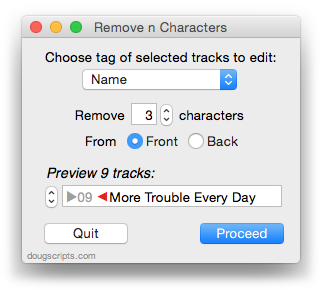
This latest version is written as a Cocoa-AppleScript Applet and can only run in OS X 10.6 or 10.7. As you can see from the pic above, it consolidates all settings into a single window and provides an example that is updated as the settings are changed. Text between the arrows would be removed.
UPDATED: Re-Apply Downsized Artwork
Re-Apply Downsized Artwork v2.0 will examine the display artwork of each selected track and if greater than a user-set default size (n x n) will resample the image to that default size. Artwork already at the default size or smaller will not be affected.
This latest version is written as a Cocoa-AppleScript Applet for OS X 10.6 and 10.7 only. It has an improved progress indicator and is generally faster.
Status of Lion Updates
Since OS X 10.7 was released on July 20, the number of visitors to this site using Lion has grown from less than 3 percent to about 25 percent—and growing. Apple reported a million downloads of Lion on the first day alone. Therefore, I expect that a lot of Saturday Geek Dads (and Moms and Kiddies) will be updating to Lion this coming weekend.
Several of my applications are not yet ready for Lion. Those with the largest install-base (Dupin and Join Together) and those apps available on the Mac App Store have been updated. However, Daypart, iTunes Library Manager, and ScriptPal have not and I will be working on those in the coming days. (Actually, I expect to finish a new version of Daypart by the end of August.) And, of course, I need to update any AppleScripts that require compatibility with Lion.
Perhaps needless to say: I'm going to be very busy.
I'm pretty much aware of what needs updating and what doesn't, but if you run into a particular problem, I won't mind getting a quick email. Please don't tweet troubles, though. It's impossible to troubleshoot via Twitter. I'd much rather keep a record using email. Thanks.
UPDATED: Save Album Art as folder.jpg v2.0
Save Album Art as folder.jpg v2.0 will export the artwork of the selected tracks or tracks in the selected playlist as a JPEG image file named folder.jpg to the folder which contains each selected track's file--presumably the track's Album folder. Many third-party music players and systems (Sonos, for example) may look for a "folder.jpg" file here to use as display artwork.
This latest version is written as a Cocoa-AppleScript Applet and can only run on OS X 10.6 and 10.7 systems (the previous universal version is available from the script's entry page). It consolidates all settings into a single preferences pane.
UPDATED: Save Album Art to Album Folder v4.0
Save Album Art to Album Folder v4.0 is a script that will export the artwork data of the selected tracks or tracks in the selected playlist as an image file to the folder which contains each selected track's file—presumably the track's Album folder—or a specific user-selected folder. Additionally, you can customize various settings for the image file:
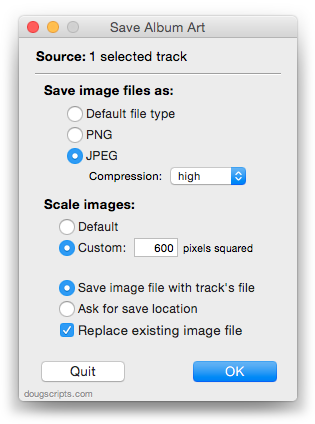
This latest version is a Cocoa-AppleScript Applet, so it can only be run on OS X 10.6 and 10.7.
iTunes 10.4 is Available
Obligatory post for the record: iTunes 10.4 is available, optimized for Lion--yes, that means it's 64-bit Cocoa!
Cocoa-AppleScript Applets/Droplets
Apple has given AppleScript Editor in Lion the ability to access Cocoa frameworks. In a nutshell, this means that AppleScript Editor can be used to create quite complex programs (which can run on Snow Leopoard and Lion only). But as far as I'm concerned, the big bonus is the ability to create single-window UIs for some of my AppleScripts. Instead of using two or three display dialogs or choose from list boxes, a single pane incorporating many options settings can be used. I've already created some of these kinds of interfaces in the form of helper apps that I bundle with a script. But now, I can make these UIs a part of the script bundle itself, without the need to launch additional helper apps. Plus: wicked fast.
Look for these sorts of scripts and updates to scripts coming soon.
Installing AppleScripts Under OS X Lion
AppleScripts need to be installed in your [username]/Library/iTunes/Scripts/ folder. But, in case you hadn't noticed, the [username]/Library/ folder is hidden in OS X Lion. The theory is that since the ~/Library folder contains a lot of important configuration files Apple doesn't want to give users the opportunity to inadvertently screw anything up. For the most part, I suppose this is a good idea. Whatever. However, AppleScripts for iTunes--among other sorts of plug-ins--have to be installed in the ~/Library folder by the user*.
To access the ~/Library folder, you can do a couple of things:
- The easiest method: Hold the Option key while clicking the Finder's "Go" menu and "Library" will appear in the drop down menu. Select it to bring the ~/Library/ folder frontmost. Then navigate to ~/Library/iTunes/Scripts/ and copy your iTunes scripts to this folder. (As usual: if no "Scripts" folder is there then create one.)
- Geekier: Type "chflags nohidden Library" in Terminal while the prompt is at your home directory. This will make the ~/Library/ folder visible at all times.
- *Alternative: Install scripts in the [startup disk]/Library/iTunes/Scripts/ folder (which will make scripts available to all users on your machine) rather than the user's [username]/Library/iTunes/Scripts/ folder. That Library folder is always visible and accessible in Lion.
If you need regular access, once the ~/Library/ folder is visible, drag it to the Finder sidebar or put an alias to it in the Finder's toolbar.
Update: You can download this AppleScript applet that will make your ~/Library visible, using the command mentioned above. It takes less than a second to run it.
