
 Apple Music Profile
 YouTube Channel
 RSS Feed
 Play Play
 Murph
Murph Yer Stack
 Block Party Weekend
 30 Most Recent RSS Feed
Album Art Makes My Year In Review
The Photos app just notified me that it has prepared a special "Year In Review" album or something. The notification also contained a sample photo, no doubt meant to trigger a longing to see all them pitchers I took this year. But the picture was the cover of Bruce Springsteen's "Darkness on the Edge of Town" album. Which on first glance was bewildering.
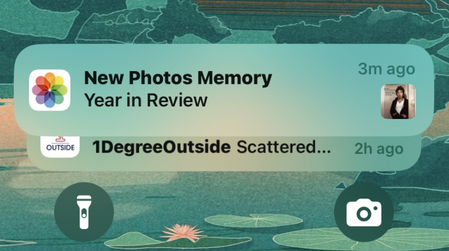
I forgot that I exported a kabillion album covers into Photos with the Save Album Art to Photos script.
Swap Light-Dark Modes
Just did some fiddlin' with the site to make it a little responsive to dark mode settings. So, to celebrate, here's a script to swap modes rather than jogging into System Settings whenever. I have it in the system-wide Scripts menu.
tell application "System Events"
tell appearance preferences
set dark mode to not dark mode
end tell
end tell

Folder Action to Add Files to Year/Month Folders
So now that I'm a Playlist XML exportin' maniac, I created a Folder Action to automatically file the exports to my "Playlist Exports" folder into Year/Month folders, according the date of save. Here it is. When a file is added to the folder the script is attached to, it moves it to a newly-created or existing Year/Month hierarchy:
on adding folder items to thisFolder after receiving theseItems
repeat with anItem in theseItems
tell me to processThis(anItem, thisFolder)
end repeat
end adding folder items to
to processThis(anItem, thisFolder)
set yearMonthPath to (do shell script "date '+%Y:%m_%b'") as text
-- Y=year, m=month number (for sorting), b=month abreviation. eg, 2025:06_Jun
try
set folderPath to (thisFolder & yearMonthPath) as text
tell application "Finder"
try
exists folder (folderPath as POSIX file as alias)
on error
do shell script "mkdir -p " & quoted form of POSIX path of (folderPath as text)
end try
move anItem to folder folderPath with replacing
end tell
end try
end processThis
UPDATED: Playlist XML Viewer v1.1
It occurred to me I ought to add drag-and-drop to Playlist XML Viewer.
Open (or drag-and-drop) and view the contents of a playlist XML file exported from the Music app in a conventional table layout. Includes options to send (import) the XML in the Music app, export a TXT, CSV or M3U version, copy info to clipboard and reveal existing files in the Finder. (Not for use with exported Library XML files.)
Also see Playlist XML Librarian which can manage a folder-full of exported Playist XML files.
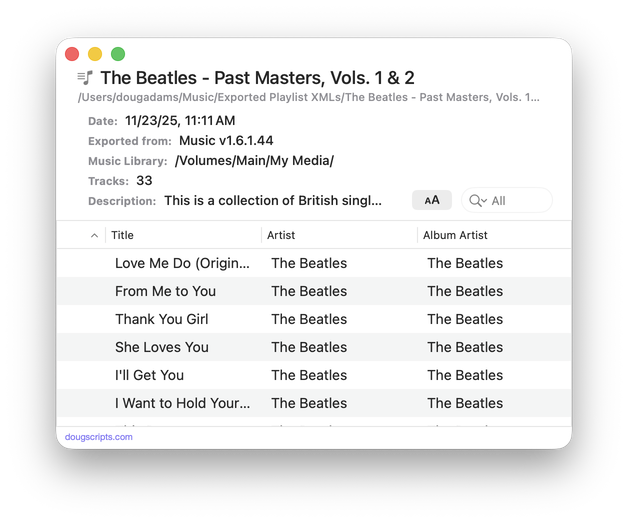
Latest version:
- A single XML file can be drag-and-dropped onto the window to open it
- Adds XML size and total time of tracks to window display
- Adds more versatility to columns
More information for Playlist XML Viewer v1.1 and download link is here.
NEW: Playlist XML Librarian
I don't know what I've been thinking over the years not using exported Playlist XMLs to offload and store superfluous playlists.
For a couple of years recently, I did a weekly two hour streaming radio show. I created a playlist of songs for a each show and kept the playlists in a "Shows Folder" in the Music app. All one hundred or so of them. I didn't want to delete them. But having them around, even inside a Playlist Folder, didn't make a lot of sense either. So it occurred to me to just export them as XML files and keep them Just In Case.
After exporting a few, as mentioned previously, I assigned a Command-E keyboard shortcut to Music app's File->Library->Export Playlist... command. That restored about six weeks to my life.
Once all the playlists were offloaded and deleted from Music, Man, oh Boy, did I feel great.
But then it occurred to me that if or when I ever wanted to reload a Playlist XML I wouldn't be able to know what tracks were in it. Unless I loaded it in Music first. That would be dumb. So I whipped up Playlist XML Viewer, which could load an exported Playlist XML so I could look at it in a table format. Boy, was I cruising on a wave of joy.
But then it occurred to me that...
Well. Perhaps you can imagine what I needed to do:
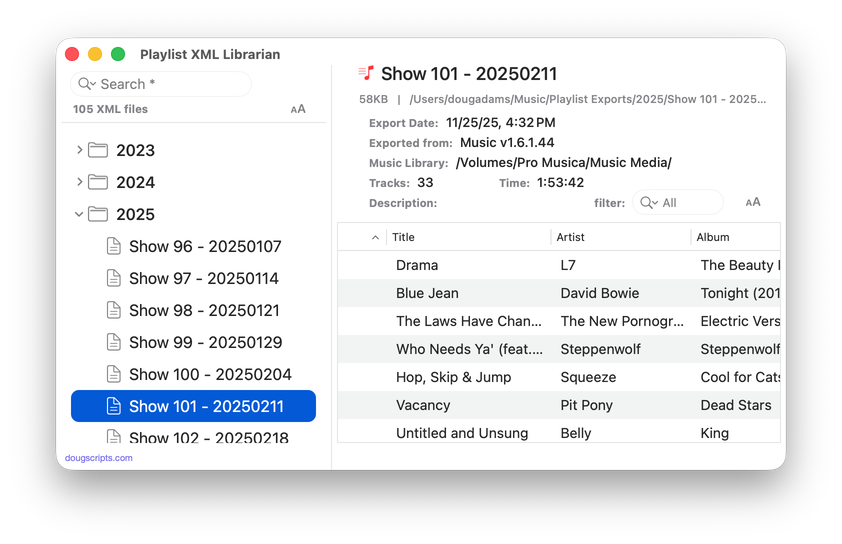
Playlist XML Librarian will list the exported Playlist XML files collected in a specified folder with options to view, search and send (import) them to the Music app. Makes it easy to maintain an organized stockpile of exported Playlist XMLs to reduce the number of onboard Music playlists.
More information for Playlist XML Librarian and download link is here.
Select None Lives
Did I say there was no "Select None" in Music app's Edit menu? Something had to be done.
tell application "Music"
tell (get view of front browser window)
try
reveal track 1 of it
reveal track 1 of it
end try
end tell
end tell
Run this when tracks are selected in a playlist and muscle memory has you going for Shift-Command-A. It first selects (reveal) the first track of the playlist, which clears any other selection. Then, (because of a bug?) the reveal command run a second time de-selects the first track, leaving no tracks selected.
Bug or Feature: No Shortcut to Delete a Playlist
Now one of the Things a Music app playlist doesn't do lately is obey a Delete keypress. Used to be a Delete or Command-Delete or something like that would delete the selected playlist. Magical. Nowadays, we have to right-click on it for the contextual menu and choose "Delete From Library"—which is wicked loaded title for a playlist contextual menu item lemma tell you just sayin'. So what a guy like me does is make a piddly little AppleScript:
tell application "Music"
tell (get view of front browser window)
if special kind of it is none then
try
delete it
end try
end if
end tell
end tell
Click the script icon above to open this script in your Script Editor, save it with the File Format of "Script" named "Delete Selected Playlist" in your ~/Library/Music/Scripts/ folder.
And then you just know I'm going to tell you to assign it a Shift-Command-D shortcut.

There's also no "Select None" in any Edit menus anywhere. But I digress.
NEW: Export Playlist as CSV v1.0
I like the look of QuickLook'd CSV files so much, I made a thing.
Export Playlist as CSV will export abridged info from each track in the selected playlist to a CSV (comma-separated values) formatted text file, which can be viewed in a spreadsheet app, like "Numbers". Or QuickLook 'em like yer Mama do.
Latest version:
- Initial release
More information for Export Playlist as CSV v1.0 and download link is here.
NEW: Playlist XML Viewer v1.0
I got those XMLs I was talking about offloaded. They're easy to reload back into Music and the Music app is less cluttered.
But its kinda hard to tell what's actually listed in an exported playlist XML file. Maybe you like scrolling through XML formatting like a caveman but not me.
Playlist XML Viewer v1.0 can open and view the contents of a playlist XML file exported from the Music app in a conventional table layout. Includes options to load the XML in the Music app, export a TXT, CSV or M3U version (highly recommend the CSV export), copy info to clipboard and reveal existing files in the Finder. (Not for use with exported Library XML files.)
Latest version:
- Initial release
More information for Playlist XML Viewer v1.0 and download link is here.
Playlist XML Onloader
There came a time at my house when I had to get rid of a bunch of playlists. Like about 100. That I was very attached to. So I didn't really want to trash them. Instead, I exported each one as an XML file.
But wait! After exporting just three of them (click "File", click "Library", click "Export Playlist...", click "Save"), the first thing I did was assign a Command-E keyboard shortcut to the "Export Playlist..." menu item. Are you kidding? Of course I did.
Then it occurred to me that if I could only export one playlist at a time, what are the chances that I can only import them one at a time. Unfortunately, the chances are excellent for that.
So I wrote a really simple script that can choose a batch of exported playlist XML files—providing they are all in the same folder, like ~/Music/Export Playlist XMLs/ or something—and load them into the Music app.
try
set thePaths to (choose file with prompt "Choose one or more Playlist XML files:" of type {"xml"} with multiple selections allowed)
on error
return
end try
repeat with f in thePaths
tell application "Music"
try
add POSIX path of (f as text)
on error m
display dialog m with title "Music sez:" with icon 2
end try
end tell
end repeat
Click on the little script icon there to open this in your Script Editor and then save it as a "Script Bundle" named whatever you like, perhaps "Playlist XML Onloader". Save it in ~/Library/Music/Scripts/ so that it will appear in the Music app's "Script" menu.
