
 Apple Music Profile
 YouTube Channel
 RSS Feed
 Play Play
 Murph
Murph Yer Stack
 Block Party Weekend
 30 Most Recent RSS Feed
UPDATED: Filenames to Song Names v3.0
Filenames to Song Names v3.0 will rename the selected tracks in iTunes with their filenames (minus the extension). There is no accounting for prefixed track numbers or other extraneous text; whatever text is in the filename gets pasted to the Name tag as-is.
This update is a maintenance release (last update was in 2011) and is codesigned for your protection.
Spotify Artwork
Remember that script I posted a while back that exports the currently playing iTunes track's artwork?
Well, this one works with Spotify's desktop app:
tell application "Spotify"
try
if player state is not stopped then
set alb to (get album of current track)
set rawData to (get artwork of current track)
else
return
end if
on error
display dialog "Problem getting track info." buttons {"OK"}
return
end try
end tell
try
set baseLoc to choose folder
on error
return
end try
set newPath to ((baseLoc as text) & (my replaceChars(alb, ":", "_")) & ".tiff") as text
try
set fileRef to (open for access newPath with write permission)
write rawData to fileRef starting at 0
tell me to close access fileRef
on error m number n
log n
log m
try
tell me to close access fileRef
end try
end try
on replaceChars(txt, srch, repl)
set text item delimiters to srch
set item_list to every text item of txt
set text item delimiters to repl
set txt to item_list as string
set text item delimiters to ""
return txt
end replaceChars

Spotify has a pretty basic sdef but you can get some info from the current track, including artwork.
UPDATED: Show In Playlists v1.1
Show In Playlists displays a persistent floating window that will list the playlists containing the selected or playing tracks in iTunes.
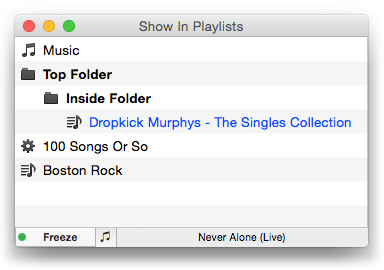
This latest version adds a toggle to monitor just selected tracks or just playing tracks. I also had to pull support for OS X 10.8 since it doesn't seem to like a few modern coding features. I may not be able to fix that.
Here's a short video showing how to make it go:
Show In Playlists is free to use for ten days and $1.99 to purchase. More information and download is here.
UPDATED: Multi-Item Edit v4.0
Multi-Item Edit v4.0 allows you to edit most tags (and some additional options) of the selected track(s) in a single always-available floating window using single-edit mode (one selected track) or multi-edit mode, which emulates the pre-iTunes 12 "multiple items" format; that is, a checkbox adjacent to each tag allows you to select which changes are to be applied to the selection's tags.
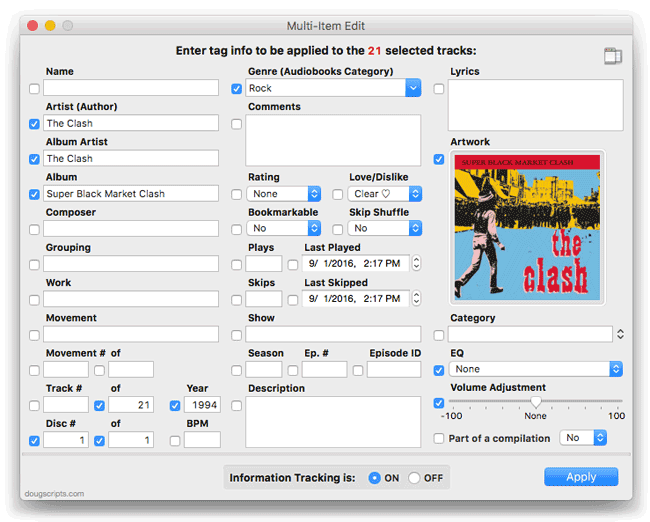
This version adds Save and Load options so that a configuration of tag and options settings can be stored for later recall and use; adds Information Tracking toggling; adds a "Clear" feature; minor performance fixes.
Multi-Item Edit is free to use full-featured for ten days, $1.99 thereafter. More info and download is here.
Check out the video demo:
NEW: Show In Playlists
Show In Playlists puts up a floating window that lists the playlists that contain the current track selection. Whenever you select a track in iTunes, bam! The playlists that contain it will be listed:
It's sort of like iTunes' own "Show In Playlist" without the right-clicking and scrolling. In the screenshot, I've selected a track in the "Dropkick Murphys - The Singles Collection" playlist and the window displays the other playlists that contain the selected track. Select multiple tracks, as you might for an entire album or artist, and only the playlists that contain the entire track selection will be listed.
You can go through a list of tracks pretty fast. But I've also found it handy just having it hang-out off to the side of iTunes when I'm working on tracks. I've found a few strays that way.
Clicking a playlist in the list selects it in iTunes and, if there's just a single track in the selection, that track will be selected in the selected playlist.
The routine can be toggled off ("Freeze") such that the current list of playlists will remain fixed and selectable, so you can refer to the playlists in the list or navigate tracks and playlists in iTunes without the list updating.
Show In Playlists is free to try full-featured for ten days, $1.99 to purchase. More info and download is here.
Books, PDFs Playlists?
Working with a script to get all the names of the playlists in iTunes, I noticed that two playlist names popped up in the latest iTunes 12.1 that aren't actually visible in my Playlists: "Books" and "PDFs". Here's a script that illustrates:
tell application "iTunes"
get every playlist whose name = "Books"
--> {user playlist id 60870 of source id 80}
get every playlist whose name = "PDFs"
--> {user playlist id 60873 of source id 80}
end tell
While I almost certainly have had "PDFs" playlists in the past, this doesn't appear to be some artifact from a past library. These playlists aren't in the XML either, but they have persistent IDs and low index numbers. I tried using AppleScript's delete command to remove them but it didn't work, which leads me to believe these are hard-coded and are supposed to exist. Not sure what this is about (iTunes does use invisible playlists from time to time) but it may be inconvenient and inaccurate if you use a script that lists playlists.
UPDATE: Kirk speculates that ebooks may be returning to iTunes.
iTunes 12.1
Apple has released iTunes 12.1 with fixes to device syncing and a new widget for controlling iTunes in Notification Center.
Things fixed: selection object for selected tracks in Audiobooks library works, reference to Audiobooks library via "get view of front window" command works. Things not fixed: View Options for CD display, Command-I shortcut for CD "Get Info". More as it develops.
NEW: Playlists Info
Playlists Info will display a sortable list of playlists in the current library (or in the selected source) along with their size, time and number of tracks. I've been finding this handy for eyeballing playlist sizes when managing music between iTunes and devices.
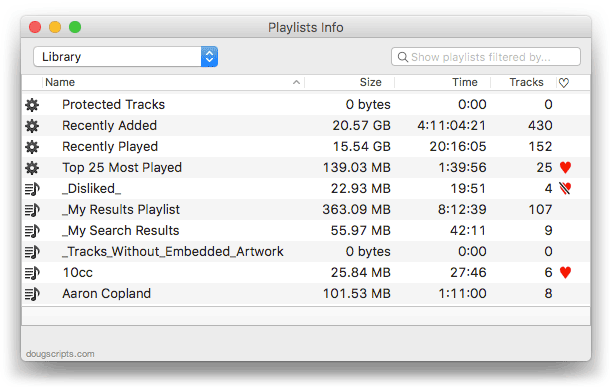
Additionally, the script can export a text file listing that information.
More info and download is here.
UPDATED: Batch Export Playlists v1.4
iTunes can only export a single playlist at a time using the File > Library > Export Playlist... command. My mouse finger's inter-phalangeals are achy just thinking about exporting more than a few that way. Batch Export Playlists v1.4 will export each selected plain, Smart, and Genius playlist as individual XML or M3U files to a user selected directory. Such files can be re-imported into iTunes again later or into other devices or apps.
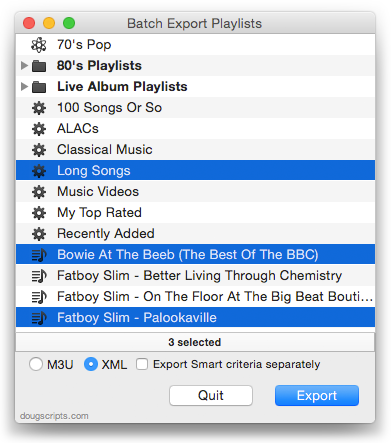
As a bonus, Smart playlist XML files can be exported as two files, with one containing just the Smart criteria.
This latest version adds a heirarchical view for Playlist Folders which more closely emulates iTunes' playlist view and has some minor tweaks for better compatibility with OS X 10.10 and iTunes 12.
More information and download is here.
NEW: Duplicate Playlist Folder as Playlist
iTunes turns fourteen years old today which makes it about a month older than this website. And I think I've only just noticed that Playlist Folders don't have a duplicate command. (Technically, Playlist Folders were introduced in September 2007 with version 5.0. I'm still surprised I hadn't noticed. I probably just forgot. Yeah. That's it.) Recently, I wanted to get rid of a bunch of Playlist Folders and dump their tracks into plain playlists and I figured a duplicate command might do that.
I suppose it's easy enough to just select all the tracks in a selected Playlist Folder and use "Playlist From Selection" (Shift-Command-N) but I also wanted to delete the original Playlist Folder in the same swoop. And doing all that that turns into a mittful of keypresses and mouse-arounds. Which makes my scripty-sense tingle.
Duplicate Playlist Folder as Playlist will copy all the tracks in a selected Playlist Folder to a new "plain" playlist, essentially duplicating the tracks as viewed when the Playlist Folder is selected.
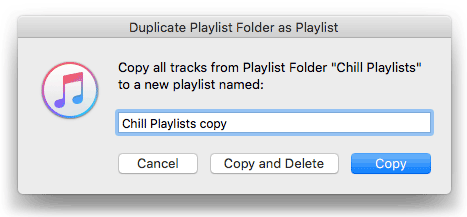
Optionally, it will delete the selected source Playlist Folder and its contents (of course, the tracks remain in your library, but any playlists and sub-Playlist Folders it contains will be deleted).
Codesigned, free, and nagless, more info and download is here.
