 Apple Music Profile
 YouTube Channel
 RSS Feed
 Play Play
 Murph
Murph Yer Stack
 Block Party Weekend
 30 Most Recent RSS Feed
iTunes Status Display Sees Your Selection
Rob Griffiths points out that in iTunes 9, as you are selecting or de-selecting tracks in any playlist or library, the size and time in the status display along the bottom of the iTunes browser window increases or decreases respectively. Neat!
UPDATED: Drop to Playlist v1.1
My friend David Bills asked that Drop to Playlist include the "Purchased" playlist in its selection settings. Done! (boodely-OOP!).
Drop to Playlist v1.1 is an AppleScript droplet that will add files dropped on it to your iTunes library and copy them to a specific user playlist set in the droplet's preferences. The preference setting is accessed by double-clicking the droplet, and can be changed when required. Handy when placed in the Finder toolbar or sidebar.
UPDATED: I Hate That iTunes Done Chime! v2.0
OK. I suppose I don't actually hate it. But you might find it convenient to change the "done" chime that sounds whenever you import or convert files in iTunes. I Hate That iTunes Done Chime! v2.0 will let you select a new sound to replace "boodely-OOP!" -- which is actually named "complete.aif". You can choose from any of the default system sounds (ping, sosumi, submarine, and so on), no sound, or your own AIFF sound file.
This latest version is simply a maintenance release and is saved as universal binary.
UPDATED: Change Hidden iTunes Preferences v2.1
Ooops. I had to update Change Hidden iTunes Preferences v2.1 because the toggle behavior for "Changing view setting is global" was reversed. It behaves as expected now.
UPDATED: Change Hidden iTunes Preferences v2.0
Change Hidden iTunes Preferences v2.0 will allow you to invoke hidden iTunes preferences:
- Show "Library" playlist
- Changing view setting is global
- Allow half-stars in ratings
- Show arrow links -- to either search the iTunes Store or search your library
- Load complete iTunes Store preview before playing
- Create playlists for purchased song collections
- Play songs while importing or converting
- Create file names with track number
- Maintain grid view for Search results
- Option-click zoom button for Mini Player
For iTunes 9 in OS 10.5 or better only.
NEW: Drop to Playlist
If you like the "Automatically Add to iTunes" folder that is created with iTunes 9, which allows you to drop files to it to add to iTunes, you may like Drop to Playlist. This is a droplet that will add files dropped on it to your iTunes library and then copy them to a specific user playlist that you set in the droplet's preferences. The preference setting is accessed by double-clicking the droplet, and can be changed when required. Handy when placed in the Finder toolbar or sidebar.
Rosetta Redux
As you may know: to run AppleScripts that were compiled on a PowerPC machine on Intel machines (and therefore Snow Leopard) requires Rosetta—an optional install on your SL install disc. While Rosetta is a fairly small install, some people have expressed an interest in staying Rosetta-free. There are quite a few of these types of AppleScripts here on the site and I'm working on updating them to Universal Binary (although a good percentage of these in the Retro Scripts category probably won't be updated by virtue of being obsolete). Long-time visitors may also have some of these scripts in their collections.
While you could wait for me to update these kinds of scripts to UB—disclosure: one of these days I will get around to admitting that I am a notorious procrastinator—you can update these scripts yourself by doing what I would do: open the script in AppleScript Editor, noting whether it is a compiled Script (.scpt) or an Application (.app), and re-save it. It will be re-compiled for your machine type, and if it is an Intel machine, will run without Rosetta. The "Run Only" and "Startup Screen" checkboxes can be left unchecked. Script Applications that use idle handlers need to be checked "Stay Open".
During the Save, if AppleScript Editor informs you that the "Document Format is Read Only: This script application is in a format that is no longer supported...", the case for non-bundled applications compiled pre-SL, just click the "Save As" button, and proceed with the save. In Snow Leopard, single-file-type apps are no longer supported. The defacto Application type is a bundle.
The AppleScript Release Note: 10.6 Changes page at Apple has more on this.
NEW: Dumb Down Genius Mix Playlist v1.0
Dumb Down Genius Mix Playlist will copy the tracks of a playing Genius Mix playlist to a new "dumb" (regular) playlist, which, for example, can be copied/sync'd to older iPods that do not accommodate Genius Mixes. You can subsequently copy the contents of additional Genius Mix playlists to the new playlist, refill it, or create more. (Each Genius Mix playlist only references about 70 tracks maximum, which is why you may have several, say, "Rock Mix" playlists.)
Thanks to Correspondent Pedro Espinosa for coming up with the basic work for this clever script.
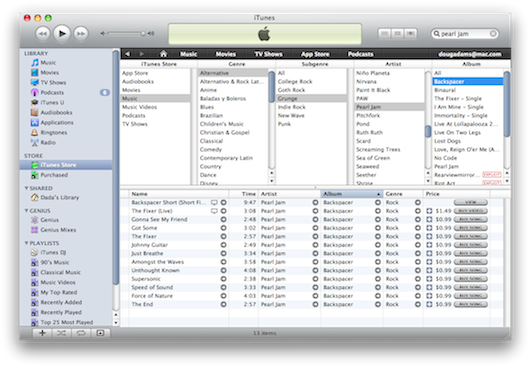
Copy iTunes Store Tracks in Browse Mode
You may have been (prematurely) lamenting the inability to drag tracks from the iTunes Store to a playlist on your machine for later purchase because of the new format. Well, just put the store in Browse mode (Command-B). Tracks will be available the old-fashioned way, more or less: