 30 Most Recent RSS Feed
 Apple Music Profile
 YouTube Channel
 RSS Feed
 Play Play
 Murph
Murph Yer Stack
 Block Party Weekend
 Elevendy
 Dupin v4.0.0
 Join Together
 M3Unify
Miscellaneous
Exploding Music Libraries
From 2001, a Correspondent writes: “Dear Doug. Maybe you can help me. I have a large library (2000 tracks) and…”
From 2006, another Correspondent writes: “Doug, my large library (6000 tracks) has started to…”
From 2010, some other Correspondent writes: “Doug. Huge library (20,000 tracks). What can I…”
From 2016, Correspondent reports: “My ginormous library (75,000 tracks) just went…”
From 2022, the guy from 2001 writes: “Doug, my library has exploded over the years to 150,000 tracks and…
Maybe you see how this has been going.
(more…)
UPDATED: Doug’s Check For All Updates v2.0
This applet will survey your computer for AppleScripts downloaded from dougscripts.com and create a report, locally stored and viewable in your web browser, listing the scripts for which updates are available.
Note: previous versions of this script will cease to work on January 1, 2027.
Latest version:
- UI updates, maintenance
More information for Doug’s Check For All Updates v2.0 and download link is here.
UPDATED: Doug’s Check For All Updates v1.8
This script will survey your computer for AppleScripts downloaded from dougscripts.com and create a report, locally stored and viewable in your web browser, listing the scripts for which updates are available and links to download them. (Scripts written for the old iTunes app, if any exist on your machine, will be ignored.)
Latest version:
- Updated accommodation for macOS Sonoma
- Now ignores old-style iTunes scripts
- Fixes issue at launch checking versions
More information for Doug’s Check For All Updates v1.8 and download link is here.
UPDATED: Flush Apple Music Cache Files v2.1
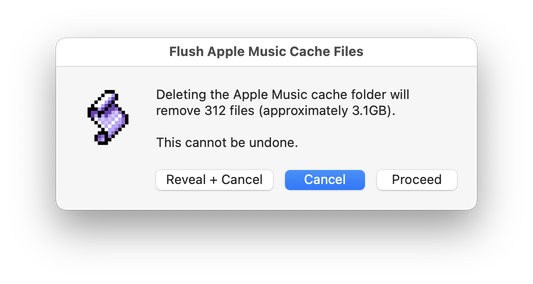
Apple Music stores the audio files it plays in ~/Library/Caches/com.apple.Music/SubscriptionPlayCache/. This script will simply delete that folder.
The files in this folder are specially protected audio files that are downloaded and cached when you play a track from Apple Music on your Mac. They can’t be user-played and are only useful to Apple Music, ostensibly so they needn’t be re-downloaded if they are played again. (This cache folder doesn’t pertain to Radio music. Or to Apple Music you’ve added to your library for offline listening, the files of which are stored in your “Media” folder.)
Latest version:
- Minor UI and performance improvements
More information for Flush Apple Music Cache Files v2.1 and download link is here.
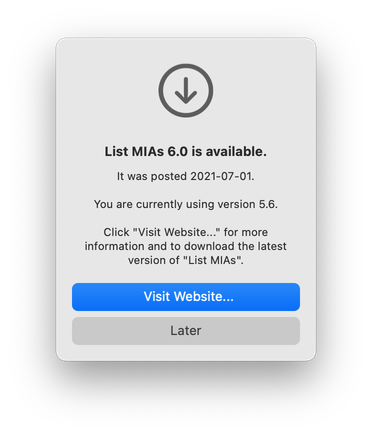
UPDATED: Doug’s Check for Update v2.1
Apps and some AppleScript applets from this website already have a “Check for Update…” menu command. But for those that don’t, this applet can check for the latest version. Simply drag-and-drop an AppleScript to this applet’s icon or double-click to it launch and choose an AppleScript on your machine via an Open Panel to initiate the check.
Latest version:
- Officially compiled as Universal
- Commensurate improvements for M1 Macs
More information for Doug’s Check for Update v2.1 and download link is here.
UPDATED: Doug’s Check For All Updates v1.5
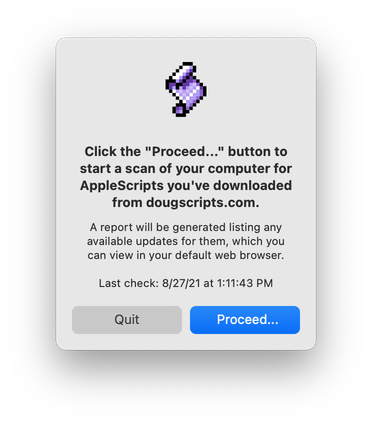
For macOS 10.14 and later. This script will survey your computer for AppleScripts downloaded from dougscripts.com and create a report, locally stored and viewable in your web browser, listing the scripts for which updates are available and links to download them.
Latest version:
- General maintenance update
- Accommodations for macOS 11 and later
More information for Doug’s Check For All Updates v1.5 and download link is here.
Have a Quick Look
I was going to write this up for downloading but it’s almost too simple.
Select a track in the Music app and run this script to open a Quick Look panel displaying the track’s file, ready to play.
tell application “Music”
try
set sel to selection
if sel is {} then return
set theTrack to item 1 of sel
tell me to doQuickLook(POSIX path of ((get theTrack’s location) as text))
on error
return
end try
end tell
on doQuickLook(loc)
try
do shell script “qlmanage -p ” & quoted form of loc & ” >& /dev/null &”
end try
end doQuickLook

UPDATED: Doug’s Check For All Updates v1.3
For macOS 10.10 and later. This script will survey your computer for AppleScripts downloaded from dougscripts.com and create a report, locally stored and viewable in your web browser, listing the scripts for which updates are available and links to download them
Latest version:
- Maintenance update
More information for Doug’s Check For All Updates v1.3 and download link is here.
Do Some (Very) Rough Audio Editing in iTunes
This is not a tip for everyone.
You may be aware that Apple added some editing capabilities to Quick Look. For instance, Markup is available to edit text and image documents and Trim is available to edit video and audio files.
Using the script Have a Quick Look, a track can be selected in iTunes and its file displayed in a Quick Look window, via the qlmanage command:
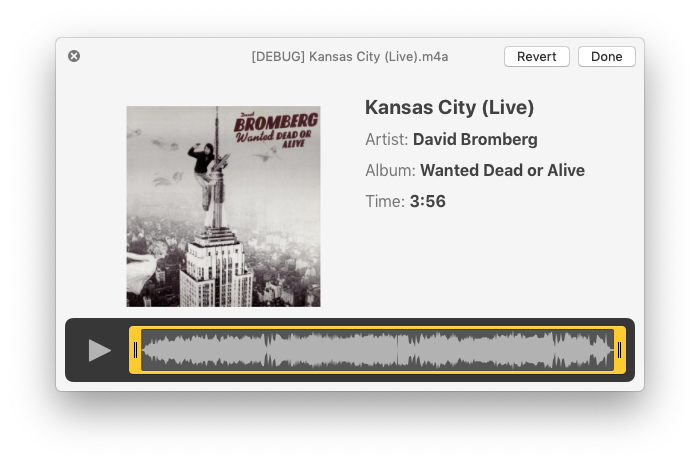
The scrub/trim area becomes available after clicking the Trim button which initially appears in the upper-right corner of the window.
If this suggests to the suggestible reader that this makes a handy audio editor, think twice: editing this way is not very precise and accepted changes are permanent. But, for trimming large audio files of “dead air” or crowd noise or what have you, some may find it convenient.
NEW: Launch at Login v1.0
It is often convenient and desirable to have your designated iTunes Media folder—the folder pointed to in the “Advanced” tab of iTunes’ Preferences—located on a large external drive or server. Those of you who do this know the advantages.
But.
An issue that has been known to occur with this configuration is that if the volume or server containing the designated iTunes Media folder does not mount during the computer’s startup before iTunes launches, iTunes will presume that this folder is inaccessible and it will default to using the ~/Music/iTunes/iTunes Media/ folder instead. It does this because it needs a definitive place in which to save CD rips (which still happen at my house), converted files and Store purchases.
(More modern versions of iTunes are much better at reverting to the designated iTunes Media folder if its volume is mounted later. But for years this was always dicey and still can be.)
This swapping of designated iTunes Media folders can be problematic. It can render tracks in the iTunes library dead, duplicated, missing, orphaned. And so on.
My podcast partner, Kirk McElhearn, and I discuss this issue on an upcoming episode of The Next Track podcast concerning using a network-attached storage device (NAS) to store iTunes media. In conjunction with that episode, I wrote a script applet to be used as a “Login Item”, Launch at Login, that will attempt to mount the volume at startup, confirm it is actually mounted and only then launch iTunes.
Typically, AppleScript can use the mount volume command, which under some circumstances requires providing a username and password. I didn’t want to do that because 1) it is difficult for AppleScript to securely manage storing that data and 2) it is awkward having users edit the script to “hard-code” their username and password. But this script avoids having to do that—and not in any devious way—by attempting to open a folder on the volume pointed to by an alias to it in a specific local folder on the startup drive. In order to open this alias’d folder the operating system will be obliged to mount the volume/server it is on; the script will wait until that folder is accessible and then will launch iTunes. If, for some reason, the folder does not become accessible within a reasonable amount of time because the volume didn’t mount, the script will not launch iTunes and will display an alert saying so. At that point the user can decide what to do; presumably, mount the server and then launch iTunes manually.
The anxious part of me feels obliged to note that this script does not use any security (other than being signed with my Developer ID) so if you do not want a volume or server to be mounted in unattended startup situations then do not use it.
There are some simple yet specific instructions and caveats to heed before using the script at your house so be sure to read the documentation that accompanies the script in the download. More information about the Launch at Login applet and download is on this page.
