
 Apple Music Profile
 YouTube Channel
 RSS Feed
 Play Play
 Murph
Murph Yer Stack
 Block Party Weekend
 30 Most Recent RSS Feed
UPDATED: File Renamer v4.9
For macOS 11 and later only. This script will rename the files of the selected tracks (or the files of the tracks in the selected playlist) using a substitution pattern that you formulate from the tracks' tag data. Optionally, export a copy of the files to a chosen location and rename the files in that location.
Works optimally with "Keep Media folder organized" un-checked.
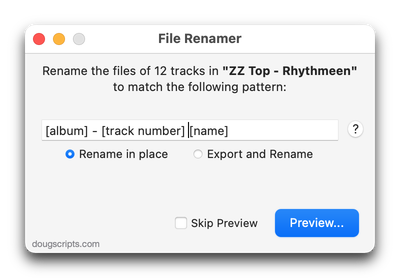
Latest version:
- New logic for previewing/processing
- Additional accommodations for macOS 11.3
More information for File Renamer v4.9 and download link is here.
UPDATED: Save Album Art to Album Folder v6.10
For macOS 11 and later only. This script will export the artwork of the selected tracks (or the tracks in a selected playlist) as an image file to the folder which contains each selected track's file--presumably each track's Album folder--or a single user-selected folder. If multiple album tracks are selected, the script will make sure only one artwork file per Album is exported.
Also see Save Album Art as folder.jpg.
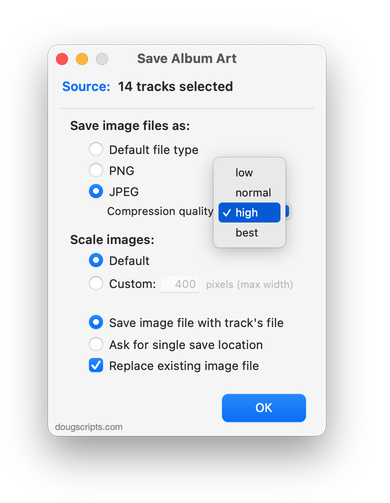
Latest version:
- Accommodations for macOS 11.3
More information for Save Album Art to Album Folder v6.10 and download link is here.
UPDATED: Save Album Art as folder.jpg v4.6
For macOS 11 and later only. This script will export the artwork of the selected tracks or tracks in the selected playlist as a JPEG image file named folder.jpg to the folder which contains each selected track's file--presumably the track's Album folder. Many third-party music players and systems (Sonos, for example) may look for a "folder.jpg" here to use as display artwork. If multiple album tracks are selected, the script will make sure only one image file per Album is exported.
Also see Save Album Art to Album Folder.
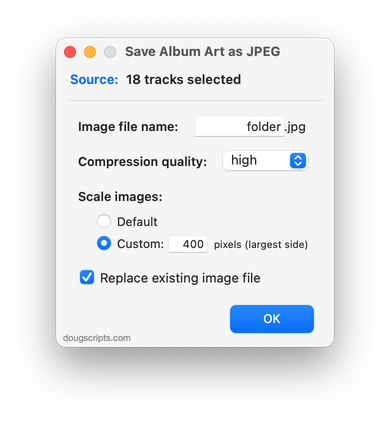
Latest version:
- Additional accommodations for macOS 11.3
More information for Save Album Art as folder.jpg v4.6 and download link is here.
UPDATED: Restore Artwork from Album Folder v4.4
For macOS 11 and later only. This script will look for an image file in the parent folder of each selected track's file--presumably its Album folder in which you have previously placed an image file of some sort--and apply the data from that image file as artwork for the track.
Also see Save Album Art to Album Folder and Save Album Art as folder.jpg which assist with exporting album artwork as image files.
Latest version:
- Additional accommodations for macOS 11.3
More information for Restore Artwork from Album Folder v4.4 and download link is here.
UPDATED: Copy Tag Info Tracks to Tracks v6.5
For macOS 11 and later only. This applet will copy specific tag data from one set of selected tracks to a second set of selected tracks. You can copy any combination of Checkmark, Song Title, Artist, Album Artist, Album, Genre, Year, Disc and Track, Composer, Grouping, Work, Movement, BPM, Comments, Lyrics, Rating, Loved/Disliked, Plays/Skips, Artwork and Compilation.
Use with thoughtfulness. Both sets of selected tracks should be sorted by Play Order/Playlist Order (or at the very least using the same sorting) so the tag info is copied in the correct order from and to the intended tracks.
Only tracks in the local Media library are accessible. Tracks in the Apple Music interface are inaccessible.
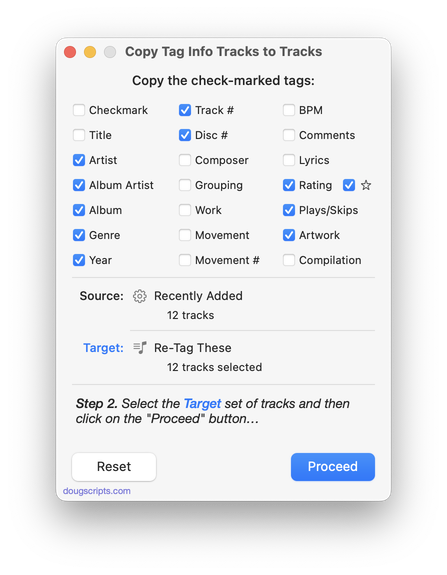
Latest version:
- Additional accommodations for macOS 11.3
- Performance and UI enhancements
More information for Copy Tag Info Tracks to Tracks v6.5 and download link is here.
UPDATED: Coverscope v2.3
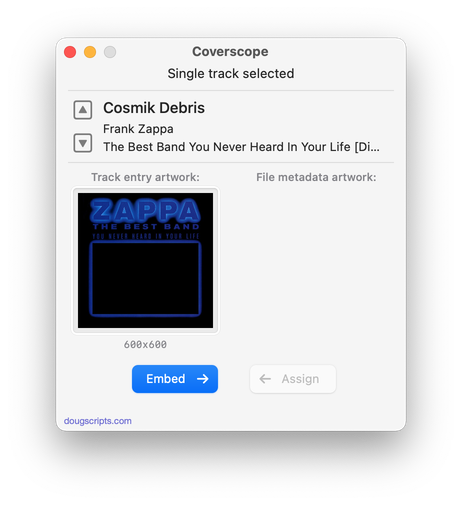
For macOS 11 and later only. This applet will show both the assigned track artwork and the local file's metadata artwork (if any exists) for the selected track. The Track entry artwork well supports copy, paste and drags. Pasting or dragging image data immediately applies the image to the selected track's artwork and attempts to embed it. Additional tools can Embed or Apply artwork between track and file.
Latest version:
- Additional accommodations for macOS 11.3
- Performance and UI enhancements
More information for Coverscope v2.3 and download link is here.
UPDATED: Search Results to Playlist v3.3
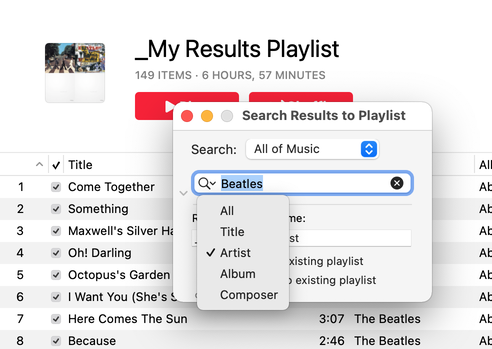
For macOS 11 and later only. Search the entire Music app library, or a selected playlist, for user-entered text by All, Song Title, Artist, Album, or Composer tag and copy the track results to a Search Results playlist, which will be created automatically if necessary. Can optionally re-create or append to the Search Results playlist on each run.
Latest version:
- Additional accommodations for macOS 11.3
- Performance and UI enhancements
More information for Search Results to Playlist v3.3 and download link is here.
UPDATED: Make A Text List v6.4
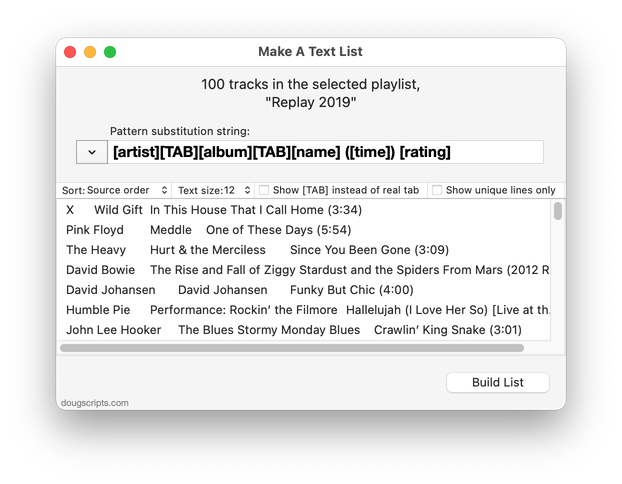
For macOS 10.15 and later only. This script can assemble a list of tag information about the selected tracks (or tracks in the selected playlist) using a configurable pattern substitution string and provides the ability to export this formatted text to the clipboard, a text file or the Print Dialog from where it can be printed, previewed, printed-to-PDF and so on.
Latest version:
- Fixes printing issue under macOS 11.3
- Fixes minor issue accessing CD track information
- Performance and UI enhancements
More information for Make A Text List v6.4 and download link is here.
Can't Believe I'm Posting About GUI Scripting
It is a fact universally acknowledged—in my house—that GUI Scripting stinks. But the flip side of that is that sometimes it can be the only way to automate something with AppleScript. Especially so if the developers of the app you are 'scripting have long been ignoring your suggestions. Again, my house.
GUI Scripting is a way to write AppleScript that works by simulating mouse clicks, selections, key presses and other "touches" of the GUI elements of an app in order to get the app to do what those clicks and presses do. For instance, you can simulate a mouseclick on a menu item in a menu and whatever happens when you usually click that menu item will happen. GUI Scripting is clunky to work with for a number of reasons, but the two most discouraging are that it's tough to know what and how and where to click and press for the Thing you want to do; and that if the developer changes an app's layout in the future the scripts could break because something isn't where it was before.
Despite all that, I've been playing with GUI Scripting lately. It's what I use to change playlist views in Playlist Manager and how Needle Drop clicks the "Clear" button in the Playing Next panel. If you've used those scripts, you've had to give permission in "Accessibility" to allow those scripts to use the "System Events" app. System Events is what enables AppleScript to target GUI elements.
Here's a little scripting project that uses some GUI Scripting to do three things that I like to do somewhat regularly in the Music app: open the selected playlist in its own window; change the playlist View to "as Songs"; reposition the playlist window to a standard place, rather than BANG right over the main browser window. (Note that I could only get it to work on the latest version of Big Sur with the latest version of Music, which bears out my thoughts above about clunkiness.)
UPDATED: This Tag That Tag v5.7
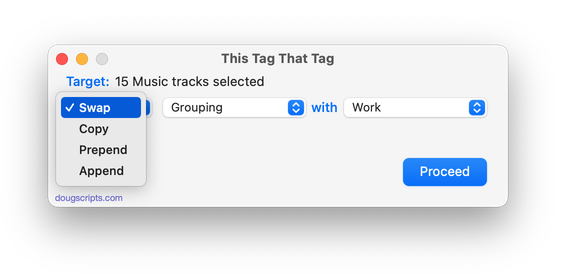
For macOS 11 and later only. This applet will assist with swapping, copying, and appending data between two user-chosen tags in selected tracks or tracks in the selected playlist:
Swap - swap data between tags, ex: ARTISTCOMPOSER
Copy - copy data from one to another tag, ex: ARTIST->COMPOSER ARTIST
Append - append data from one tag to the end of another, ex: ARTIST->COMPOSER - ARTIST
Prepend - append data from one tag to the beginning of another, ex: ARTIST->ARTIST - COMPOSER
The latter three actions also provide an option to delete the info from the first tag after the copy. Read Me explains all.
Latest version:
- Fixes fatal error in previous versions that may have prevented script from launching
- Adds toggle for "Are you sure"? confirmation dialog
- Minor UI and performance enhancements
More information for This Tag That Tag v5.7 and download link is here.
