
 Apple Music Profile
 YouTube Channel
 RSS Feed
 Play Play
 Murph
Murph Yer Stack
 Block Party Weekend
 30 Most Recent RSS Feed
Do Some (Very) Rough Audio Editing in iTunes
This is not a tip for everyone.
You may be aware that Apple added some editing capabilities to Quick Look. For instance, Markup is available to edit text and image documents and Trim is available to edit video and audio files.
Using the script Have a Quick Look, a track can be selected in iTunes and its file displayed in a Quick Look window, via the qlmanage command:
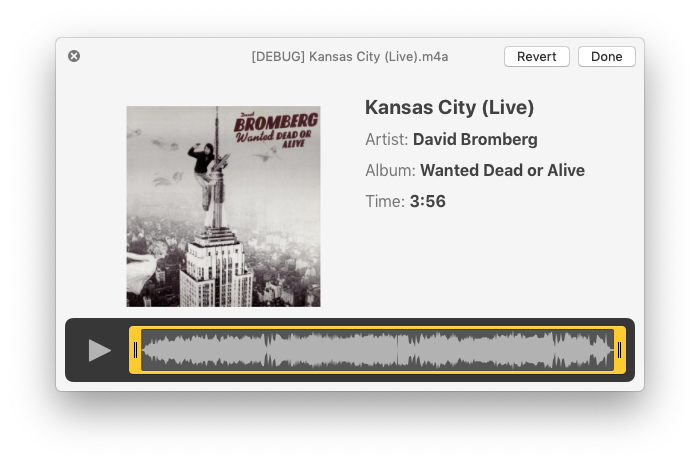
The scrub/trim area becomes available after clicking the Trim button which initially appears in the upper-right corner of the window.
If this suggests to the suggestible reader that this makes a handy audio editor, think twice: editing this way is not very precise and accepted changes are permanent. But, for trimming large audio files of "dead air" or crowd noise or what have you, some may find it convenient.
Applying Artwork in iTunes Corrupts Some MP3 Files
Over the past few months—I want to say since Mojave's release last year—I have gotten a few reports from users of my artwork scripts regarding a bizarre corruption issue when applying artwork to some types of MP3s.
Essentially, when artwork is applied to the MP3, its file "echoes" the last few seconds of audio data which increases the size of the file. Here is a screenshot sent to me by Correspondent Brandon Pfeiffer, showing the phenomenon in an audio editor (I think it's Fission; no matter, really):
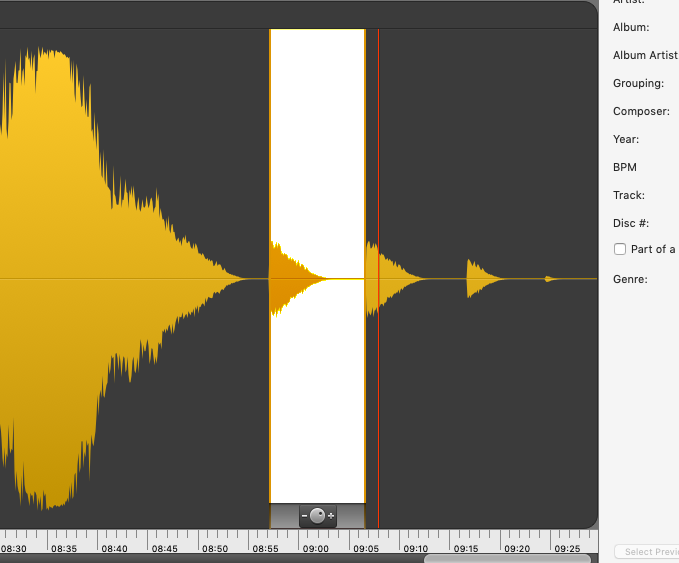
Each "echo" represents a single attempt to add artwork. The new size is reflected in the Size and Time for the file in iTunes as well.
I have not been able to replicate this myself so it has been very difficult to figure out what's going on. However, Brandon did some experimenting and discovered some details. First, it's probably not an issue with the AppleScripts, since Brandon was also able to see this issue when he "manually" applied artwork via a track's Info panel.
Some other observations:
- The source of the MP3s did not seem to make a difference (home rips, Amazon downloads, etcetera)
- The image file being applied may be a factor, its size, type, and so on. However, Brandon could not find a consistent factor in this regard.
- Changing the ID3 version in iTunes had no effect.
- Re-converting a corrupted MP3 to MP3 in iTunes restored the file to its un-corrupted length. (Subsequently adding artwork to such a file, however, eventually corrupted it again.)
- The new file encoded by iTunes did not appear to have the issue at first (the song duration did not change); however, closer inspection using an audio editor (or even just playing via QuickLook in Finder) revealed that the duration had in fact changed, but was yet to be reflected in iTunes.
- Re-encoding the corrupted file using FFmpeg produced several of the following errors: “Header missing - Error while decoding stream #0:0: Invalid data found when processing input”
- Re-encoding the original downloaded source MP3 using FFmpeg did not produce any errors.
Sure beats me. I'll have more follow-up as it develops.
[Update: Several Correspondents have emailed to confirm that they have seen this behavior after manually editing artwork; AppleScript was not a factor.]
Shortcuts and AppleScript on the Mac
Dr. Drang has posted some thoughts and questions about the future of automation on the Mac.
M3Unify v1.12.1
I just posted an update to M3Unify. Just a couple of minor fixes but if you're registered its always good to have the latest version.
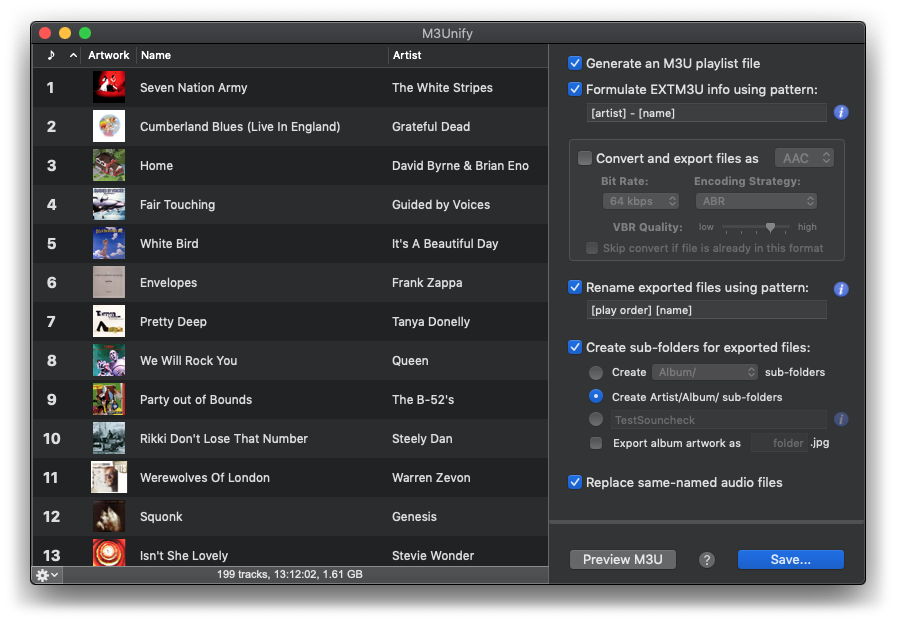
M3Unify is a flexible file exporter and M3U playlist creator that will allow you to sensibly off-load copies of your iTunes songs to a user-chosen location—separate folder, external drive, USB thumb drive, SD card and so on—the way you and your portable or car audio player want.
Download the free trial from this page and then purchase a registration for $5.00.
And many thanks to M3Unify's current users!
Metadata Not Sticking to MP3s? Might Be AirPlay and AppleTV
Over the past few months, probably since the release of Mojave and iTunes 12.9, I've occasionally received queries from Correspondents concerning a problem with changing the tags of MP3 tracks. The changes wouldn't be written to the MP3 files' metadata or would revert back to what they had been before the change. It affects MP3s only, not M4As.
I was not seeing this myself nor was I able to replicate it, but, as I say, I was asked if I knew about it a few times.
This post at Apple Support Communities appears to have discovered a factor involved: AirPlaying to AppleTV. When AirPlay to AppleTV is turned off tags would be written correctly to the associated MP3 files.
I'm wondering if this could be related to another MP3 issue I have heard about recently. And this is weird. Whenever a script of mine is used that applies artwork data to an MP3, the file is mangled in such a way that the last several seconds of audio is copied and added to the end of the audio file (I said it was weird). I could not replicate this either.
iTunes 12.9.4.94
Apple has updated macOS to 10.14.4. When you update you'll get an update to iTunes, version 12.9.4.94.
The previous version was 12.9.2.5.
I don't know exactly what's changed, probably mostly under-the-hood stuff.
UPDATED: Copy Rating Stars to Other Tag v1.1
The name of this script sort of looks like a word salad, now that I've enetered it as the title for this post. Oh well, it makes perfect sense.
A track's rating property is actually a number value between 0 and 100. iTunes creates the rating stars in its interface by converting this value into graphical stars and half-stars: v div 20 = number of stars and if (v mod 20 = 10) then add half-star.
To the vexation of some iTunes users, a track's rating value does not get written to its corresponding file's metadata. So if you're depending on a rating tag showing up in some other app in which you use your audio files (such as some DJs are) you have to figure out some other way of getting your iTunes track ratings to "travel" with your audio files.
An easy solution is to convert the rating value to Unicode text stars and dump it to some non-essential or lesser-used text tag—one that does get written to metadata by iTunes. And that's what Copy Rating Stars to Other Tag does:
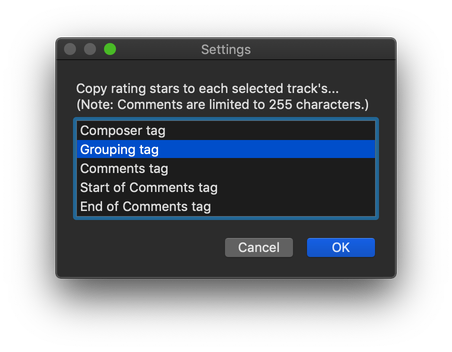
After running the script against a few tracks, copying the stars to the Composer tag, the metadata for the file should look something like this (as seen via Show Me The Metadata):
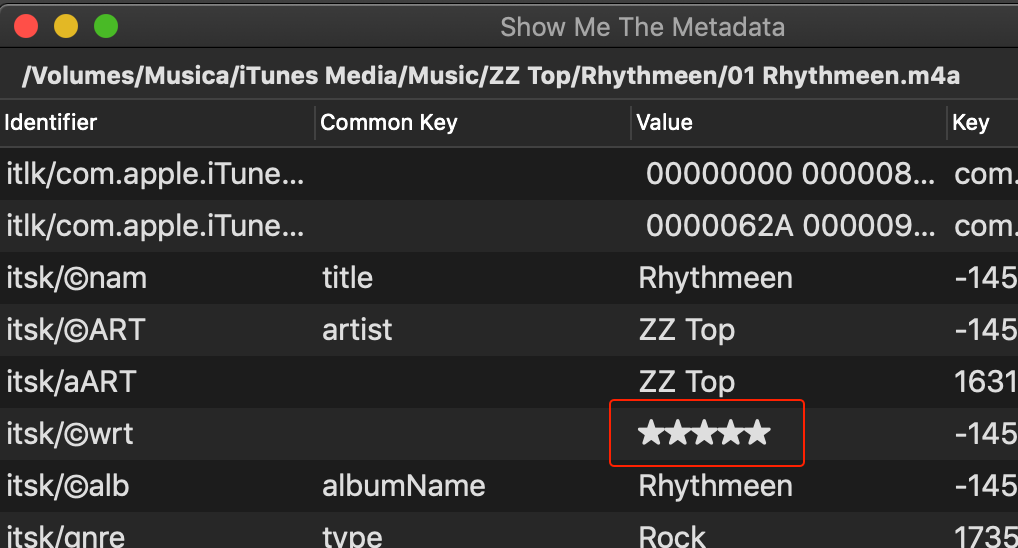
...and when the file is added or refreshed in another app, the text stars will display in that track's Composer field.
Presumably, DJs don't much care about Composer, Grouping and so on (title and artist, of course, and perhaps year and genre), so these tags may be available to accommodate ratings.
In fact, it was DJ'ing Correspondent who asked that I include Composer as an option in the initial version of Copy Rating Stars to Other Tag, and thus, this update.
Apple Provides iTunes v12.8.2
Apple has released iTunes 12.8.2, an update for users who have not updated to Mojave (macOS 10.14).
If you don't see it in the App Store app, here is a link to a stand-alone version.
It apparently fixes some issues with AirPlay and, of course, makes the obligatory performance enhancements, and so on.
Have a Happy New Year
repeat
if (get current date) > date ("January 1, 2019") then
exit repeat
else
delay 10
end if
end repeat
tell application "iTunes"
play (some track whose name is "Auld Lang Syne")
end tell

Updated Mono-Stereo Toggling
Apple changed a few things in System Preferences under Mojave which broke this script to toggle between Mono and Stereo output.
Here is the fix. You will note that it is a simple change to the line targeting the System Preferences' Accessibility window.
tell application "System Preferences"
reveal anchor "Hearing" of pane id "com.apple.preference.universalaccess"
end tell
tell application "System Events"
tell application process "System Preferences"
set frontmost to true
tell group 1 of window "Accessibility"
# pre-Mojave - replace the line above with the one below
# tell window "Accessibility"
set monoStereoCheckbox to checkbox "Play stereo audio as mono"
if (get value of monoStereoCheckbox) as boolean is true then
set ddMessage to "Switch to STEREO output?"
else
set ddMessage to "Switch to MONO output?"
end if
if button returned of (display dialog ddMessage buttons {"No", "Yes"} default button 2) is "Yes" then
tell monoStereoCheckbox to click
end if
end tell
end tell
end tell
if application "System Preferences" is running then
tell application "System Preferences" to quit
end if
For more details, read the original post.
