
 Apple Music Profile
 YouTube Channel
 RSS Feed
 Play Play
 Murph
Murph Yer Stack
 Block Party Weekend
 30 Most Recent RSS Feed
No Script Joy for "Show composer in all views"
The new Get Info panel setting, "Show composer in all views" does not have AppleScript support, unfortunately. I suppose we can hope it might be added in the future. It can still be batch-set by selecting tracks and editing information for multiple items.
UPDATED: Dupin v2.10.2
I've posted a minor maintenance update to Dupin, the iTunes duplicates manager. I had to fix a minor incompatibility issue with how OS X 10.11 displays a Quick Look window.
Did you know that Dupin even used Quick Look? You can select a track in Dupin's track list, press Space Bar, and a Quick Look panel will display whereby the track can be played:
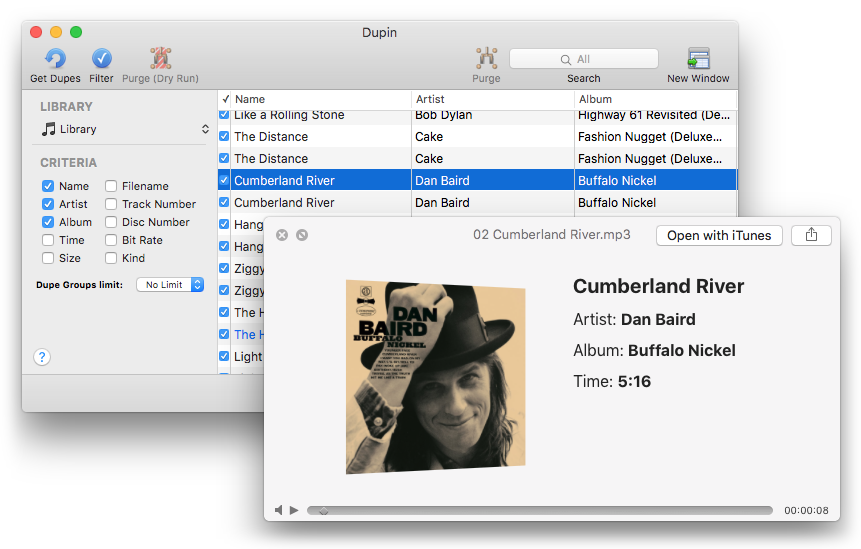
Comes in handy when you need to audition the tracks without having to locate them in iTunes first.
Dupin ($15.00) has many other features that will help you manage (and perhaps eventually Trash) your iTunes duplicates, like flexible dupe filtering, Re-Playlisting, "dead" track removal, and more. And it's compatible with iCloud Music Library tracks. This latest version (v2.10.2) is a free update for registered users.
iTunes 12.3.3 Released
Apple has released an update to iTunes that accommodates the just-announced iPhone SE and 9.7-inch iPad Pro. It's available from the Mac App Store under the Updates tab. Kirk has a rundown of new (somewhat minor) features.
Use Overcast and Join Together to Listen to Audiobooks
Marco Arment's Overcast iOS podcast app has been updated to v2.5. I use Overcast exclusively for podcast listening. It's fantastic. The latest version of Overcast has a great new feature: file uploads. Patrons of Overcast are allowed 2GB of cloud space in which to upload files up to 250MB each. This is a great way to get audiobooks into Overcast from iTunes whereby you can take advantage of Overcast's playback effects, like smart speed and voice boost.
And a great way to prepare audio files for upload to the Overcast cloud is to use use my Join Together app to consolidate the files of an audiobook to just a single file (or a small batch of individual files) under 250MB. In fact, it's likely you could get about eight hours of decent-sounding spoken word audio in a single audio file under that limit when it's encoded at 64kbps.
First, you need to be a patron of Overcast. Which means you've made an in-app payment in the Overcast app and registered. I'm an annual patron at $11.99 per year, but there are three-month and six-month patronage plans available also. Only patrons will be able to upload files to the Overcast cloud.
Use Join Together to create a Music file from a batch of tracks in iTunes (I had trouble with one m4b audiobook file created with Join Together and I'm not sure what the issue was. If I manually changed the extension to m4a in the Finder there was no problem.) Join Together will display the approximate final file size as tracks are dragged to it or the bit rate settings are changed. You want to make sure to keep your final file under 250MB (as underlined in red, below).
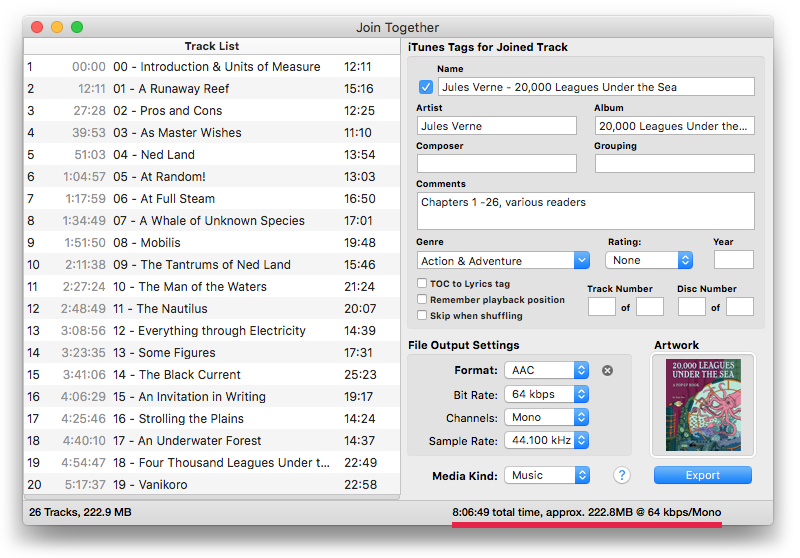
Also, since this file is only going to be used with Overcast, rather than add the final file to iTunes, you may want to use Join Together's Advanced Session Options (Option-Export) to save the final joined file to the Desktop. Once you upload it to Overcast, you can remove it from the Desktop.
When the appropriately-sized audio file has been exported from Join Together, go to the Overcast uploads webpage. Navigate to the file you created with Join Together and send it to the cloud.
Go to Overcast app. In Settings make sure "File uploads" is on. Refresh. Your uploaded file(s) should appear in "Uploads" at the top of the Podcasts section, where it will play like any podcast episode.
Just to be clear, I'm not affiliated with Overcast or Marco Arment. I just like listening to good stuff in a clever way on great iOS software.
UPDATED: Join Together v7.6
Join Together 7.6 will create and export a single AAC or ALAC audio file from the audio data of tracks dragged from iTunes or files dragged from the Finder, leaving the original source tracks and files intact.
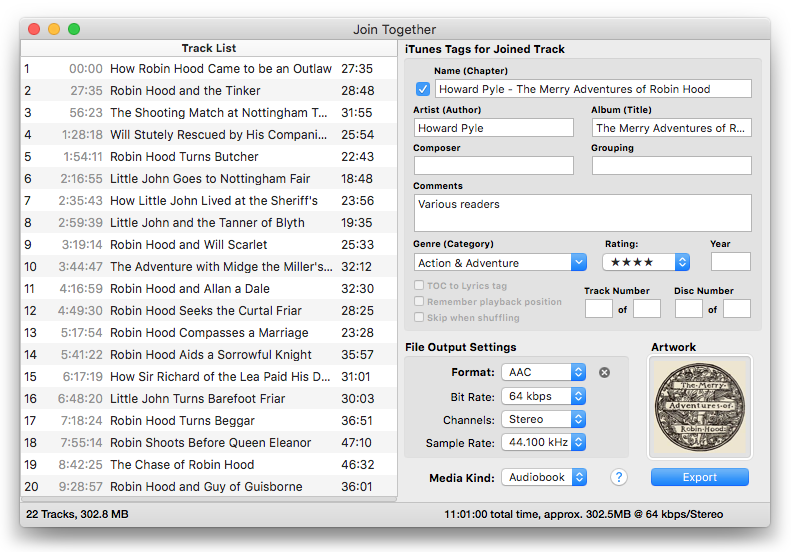
This latest version will honor an iTunes track's user-set Start and Stop Times (which are accessible in the track's Get Info > Options panel), the presumption being that the abridged version of a track is how you prefer to listen to it. But this behavior can be over-ridden in the Advanced Session Options (Option-Export) so that the Start and Stop Times are ignored and the complete duration of a track will be incorporated into the final joined track.
I've also fixed a few minor bugs and done a little low-level maintenance.
The unregistered version of Join Together will operate in Demo Mode during which all of its features are available and unrestricted. However, in Demo Mode the volume-level of the exported file will be sharply reduced after a few minutes and through the duration of the file. A registration code for Join Together is $5.00. This is a free update for registered users.
UPDATED: Smarts v1.3.1
Smarts will save and store the criteria of an iTunes Smart Playlist — the smarts of a Smart Playlist — as a template so you can reload it into iTunes later.
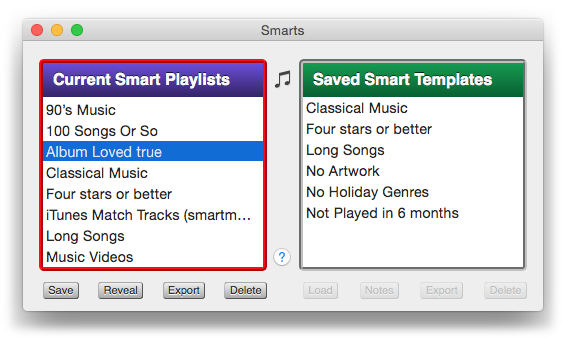
This latest version fixes an issue with distinguishing between Smart and Genius playlists in modern versions of iTunes.
Smarts is a free download from the Mac App Store. More information is available on this page.
Name New Playlist From Selection
(This a repost from October 25, 2011. The previous post reminded me of it.)
I use the iTunes File > New > Playlist from Selection command a lot to create temporary playlists. Actually, I use the Shift-Command-N shortcut more often than clicking the command in the File menu. But I'm irritated at all the dancing I have to do to name the new "untitled playlist". It takes my attention away from what I was intending to do with the tracks. So, I rigged the script below to the keyboard shortcut Shift-Command-N—and, luckily, it works. Sometimes assigning a shortcut that iTunes is already using doesn't override the original command. The script does exactly what "Playlist from Selection" does except now I can enter the name for the playlist before it's created.
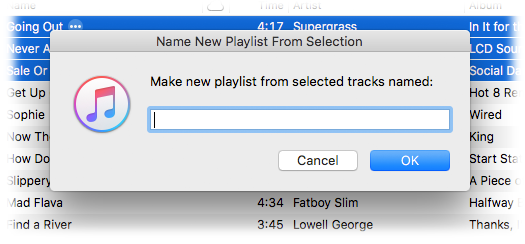
Here's the script:
tell application id "com.apple.iTunes"
try
set sel to selection
set theSource to container of view of front browser window
if sel is {} then error
set opt to (display dialog ¬
"Make new playlist from selected tracks named:" default answer ¬
"" with title "Name New Playlist From Selection" with icon 1)
set newName to (text returned of opt)
if newName is "" then error
on error
return
end try
set newPlaylist to (make new playlist at theSource with properties {name:newName})
repeat with t in sel
try
duplicate t to newPlaylist
end try
end repeat
reveal newPlaylist
end tell

I named it "Name New Playlist from Selection", saved it to ~/Library/iTunes/Scripts/ and gave it the shortcut using these instructions.
NEW: New Playlist from Selection to Folder
New Playlist from Selection to Folder will create a new playlist with the selected tracks in a chosen Playlist Folder—rather than at the top level where you'd otherwise have to locate it and drag it to a Playlist Folder.
Just select some tracks and then launch the script (you could assign the script a keyboard shortcut).
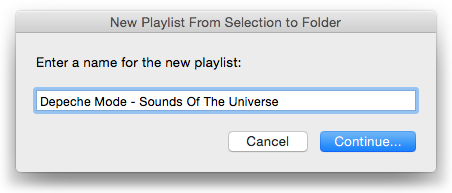
Enter a name to use for the new playlist and click "Continue...". A second panel listing the current Playlist Folders in iTunes will appear:
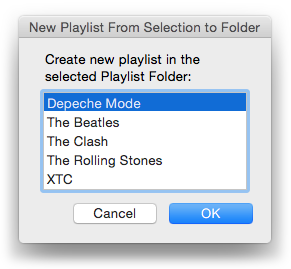
Select a Playlist Folder from the list and click "OK". The new playlist containing copies of the selected tracks will be created in the Playlist Folder.
More info and download is on this page.
UPDATED: Album Rating Reset v2.0
Album Rating Reset will allow you to set the Album Rating and/or Album Loved for the albums of the selected tracks or the albums associated with the tracks in a selected playlist.
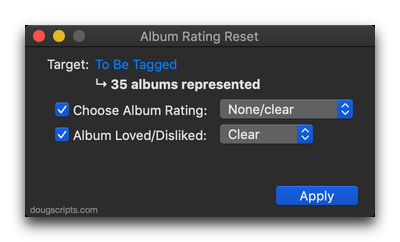
I had pretty much given up on Album Ratings as just more Songs View clutter. I'd hidden the Album Rating column in Songs View. When there's no avoiding it in Album Views I prefer the computed Album Rating that averages the album's track ratings. But now that I use Apple Music fairly regularly, the Loved settings for tracks, albums and playlists in my library actually work pretty well with shaping Apple Music recommendations.
So I updated Album Rating Reset from a version last updated in 2007 to include Album Loved. The older version would only work on one track a time. But this version works on the selected tracks' albums or the albums associated with the tracks in a selected playlist. I don't think there is a way in iTunes to apply an Album Rating or Album Love to multiple albums at a time except while in Albums View.
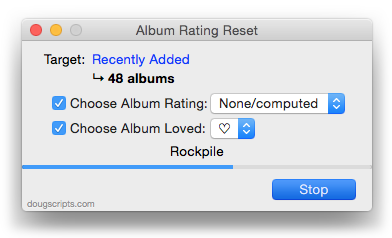
More information and download is on this page.
UPDATED: Show In Playlists v1.4
Show In Playlists is a stay-open applet that monitors iTunes and detects when library tracks have been selected and then displays a heirarchical list of the playlists containing the selected track(s) (emulating iTunes' "Show In Playlist").
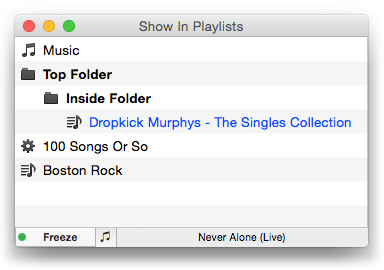
It can also be set to monitor only playing tracks (excepting "For You" and "New" Apple Music, alas). Clicking a playlist in the list chooses it in iTunes, and if a single track had been selected then it will be selected in the chosen playlist. Additionally, the monitoring routine can be toggled off temporarily so that the current list of playlists remains fixed yet still selectable.
This latest version fixes a problem resolving old and new-style iTunes Library.xml data which may have caused playlists to display erroneously.
Show In Playlists is free to use for ten days and $1.99 thereafter. This is a free update for registered users. More information and download is on this page.
