
 Apple Music Profile
 YouTube Channel
 RSS Feed
 Play Play
 Murph
Murph Yer Stack
 Block Party Weekend
 30 Most Recent RSS Feed
macOS 26
UPDATED: Playlist XML Librarian v1.2
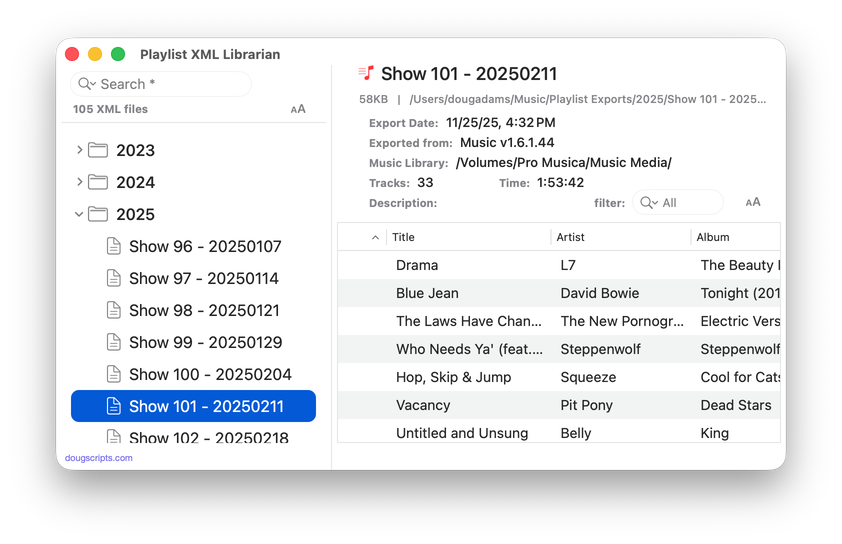
This applet will list the exported Playlist XML files collected in a specified folder with options to view, search and send (import) them to the Music app. Makes it easy to maintain an organized stockpile of exported Playlist XMLs to reduce the number of onboard Music playlists.
Also see Playlist XML Viewer which displays a single selected Playlist XML drag-and-dropped or chosen from any location.
This app is free to try in mostly full-featured Demo Mode. While in Demo Mode, only up to 3 playlists can be sent to Music per launch. If you like it you can purchase a code for $2.99 which will unlock the Demo Mode limitations. Launch the app and click "Register..." in its File menu to make an in-app purchase.
Latest version:
- Increased efficiency of XML parser
- Files in source list display appropriate playlist icon
- Added command to export just the "Smart Criteria" of a Smart playlist to an XML file
- v1.1 (dec 3 2025):
- Adds "Delete" command
- Added Expand/Collapse buttons for source list
- Adds setting to expand all folders at launch
- Better detection of loaded playlists
- Fixed problem with progress bar traveling
- Fixed issue with correct Total Time calculation
- Fixed some autoresizing issues
More information for Playlist XML Librarian v1.2 and download link is here.
NEW: Albumizer v1.0
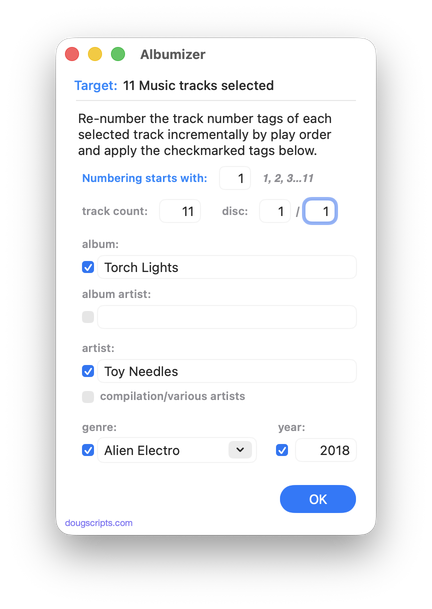
This script will renumber the track number tag of the selected tracks incrementally in their play order, as well as providing track count, disc number and disc count tags and, optionally, additional album-oriented tags.
Also see the simpler Albumize Selection or the more general Increment Number Tags.
Latest version:
- Initial release
More information for Albumizer v1.0 and download link is here.
NEW: Tracks by Name Length to CSV v1.0
The award for longest track title in my library goes to Slim Gaillard for his 238-character "Opera in Vout (Groove Juice Symphony) (live): Part 1: Introduzione Pianissimo (Softly, Most Softly) / Part 2: Recitativo E Finale (Of Much Scat) / Part 3: Andante Cantabile In Modo De Blues / Part 4: Presto Con Stomp (With A Floy Floy)".
The reason I know that is because I ran in to a few other long-titled tracks and thought they really don't need all that crap in there. Some of them have entire Wikipedia entries for titles. Who needs 'em? I'll sort 'em up and chop 'em down. But then my brain sent a memo reminding me that you can't sort by title length.
Tracks by Name Length to CSV will make a CSV (comma-separated-values) text file listing tracks sorted by the length of their title (greater than 50 characters). The CSV will list the title, album and artist of the tracks as well as the title length.
Of course, a lot of Classical albums are up there length-wise. I won't edit those. It's the weird Zappa and Slim Gaillard stuff that better beware.
More information for Tracks by Name Length to CSV v1.0 and download link is here.
UPDATED: Albums Amiss v1.4
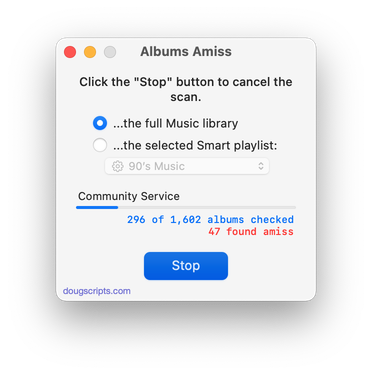
This script uses track information to calculate whether a particular batch of tracks with the same Album title represent an incomplete or over-complete album, with either too few or too many requisite album tracks. Also, albums with missing Track and Disc information will be considered "amiss". Such batches will be copied to a discrete results playlist where they can be examined. The entire Music library or a selected Smart playlist can be scanned. (To be clear: the script does not check some kind of online database; it uses the extant local track entry information. Thus, tag accuracy is essential.)
Latest version:
- Fixed an issue displaying 0 results
- Accommodation for macOS 26/Tahoe
More information for Albums Amiss v1.4 and download link is here.
UPDATED: Playlist XML Librarian v1.1
Playlist XML Librarian will list exported Playlist XML files collected in a specified folder with options to view, search and send (import) them to the Music app. Makes it easy to maintain an organized stockpile of exported Playlist XMLs to reduce the number of onboard Music playlists.
I use this thing regularly myself. So, you can imagine.
Also see Playlist XML Viewer which displays a single selected Playlist XML drag-and-dropped or chosen from any location.
Latest version:
- Adds "Delete" command
- Added Expand/Collapse buttons for source list
- Adds setting to expand all folders at launch
- Better detection of loaded playlists
- Fixed problem with progress bar traveling
- Fixed issue with correct Total Time calculation
- Fixed some autoresizing issues
More information for Playlist XML Librarian v1.1 and download link is here.
UPDATED: Playlist XML Viewer v1.1
It occurred to me I ought to add drag-and-drop to Playlist XML Viewer.
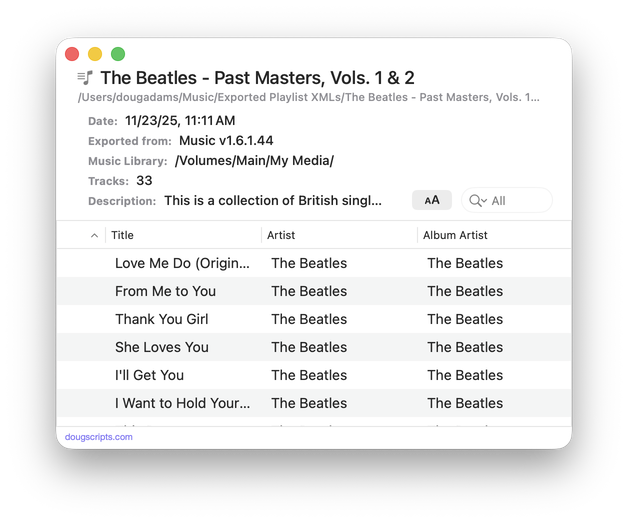
Open (or drag-and-drop) and view the contents of a playlist XML file exported from the Music app in a conventional table layout. Includes options to send (import) the XML in the Music app, export a TXT, CSV or M3U version, copy info to clipboard and reveal existing files in the Finder. (Not for use with exported Library XML files.)
Also see Playlist XML Librarian which can manage a folder-full of exported Playist XML files.
Latest version:
- A single XML file can be drag-and-dropped onto the window to open it
- Adds XML size and total time of tracks to window display
- Adds more versatility to columns
More information for Playlist XML Viewer v1.1 and download link is here.
NEW: Export Playlist as CSV v1.0
I like the look of QuickLook'd CSV files so much, I made a thing.
Export Playlist as CSV will export abridged info from each track in the selected playlist to a CSV (comma-separated values) formatted text file, which can be viewed in a spreadsheet app, like "Numbers". Or QuickLook 'em like yer Mama do.
Latest version:
- Initial release
More information for Export Playlist as CSV v1.0 and download link is here.
NEW: Playlist XML Viewer v1.0
I got those XMLs I was talking about offloaded. They're easy to reload back into Music and the Music app is less cluttered.
But its kinda hard to tell what's actually listed in an exported playlist XML file. Maybe you like scrolling through XML formatting like a caveman but not me.
Playlist XML Viewer v1.0 can open and view the contents of a playlist XML file exported from the Music app in a conventional table layout. Includes options to load the XML in the Music app, export a TXT, CSV or M3U version (highly recommend the CSV export), copy info to clipboard and reveal existing files in the Finder. (Not for use with exported Library XML files.)
Latest version:
- Initial release
More information for Playlist XML Viewer v1.0 and download link is here.
NEW: Show Me the Track Info v1.0
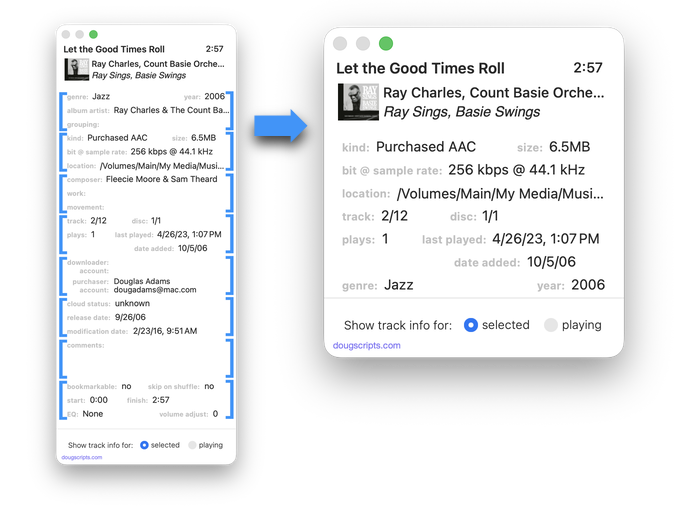
You ever need to look at a track's Info panel and go hip-hopping through the panels to see what you need to know? You ever have to do this for a lot of tracks?
Show Me the Track Info will display track info from the playing or selected track in a floating window that can be configured to show information in a user-configured order. Eight sections within the window can be drag-arranged by their hierarchical importance. The window can then re-sized to only display as much of the information as is necessary. Handy for quickly surveying tracks without having to click-click-click for the Music app's Info panel.
Latest version:
- Initial release
More information for Show Me the Track Info v1.0 and download link is here.
UPDATED: Playlist Manager v5.0
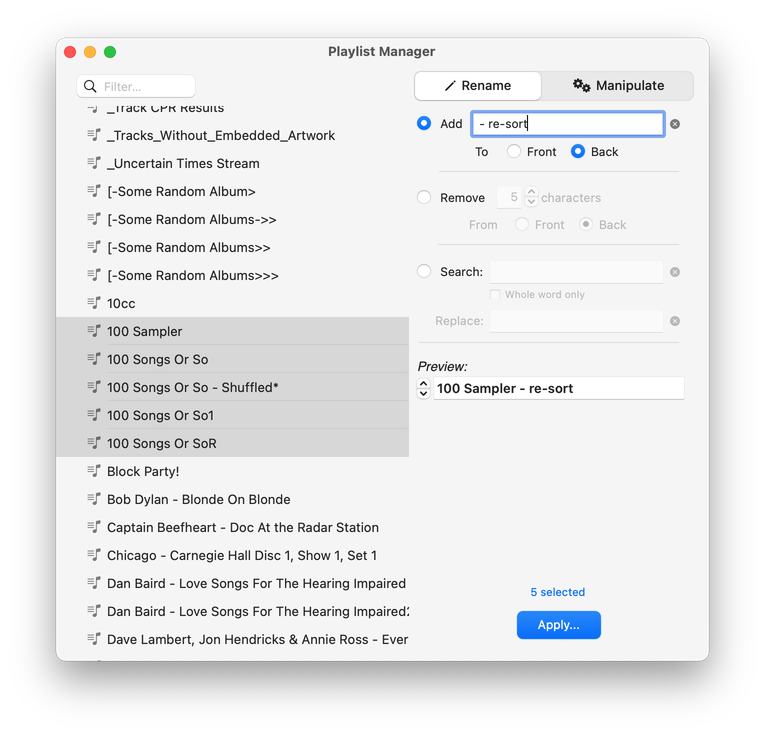
The Music app only allows one playlist to be selected at a time. This applet can perform common useful tasks on a multiple selection of playlists: playlist title renaming (add text, remove text, search and replace text, text transforms), change View, duplicate, delete, export, move to Playlist Folder, merge playlists and remove track copies.
This app is free to try full-featured in Demo Mode. While in Demo Mode, only up to 10 playlists can be manipulated per launch. If you like it you can purchase a code for $2.99 which will unlock the Demo Mode limitation. Launch the app and click "Register..." in its File menu to make an in-app purchase.
Latest version:
- Accommodations for macOS 26/Tahoe
- Adds Text Transformations
- Adds Set View options
- Adds Remove copies of tracks option
- Adds CSV as an export-as-file option
- Adds "Edit Info" panel to edit names and descriptions
- Preview field larger
- Fixes a number of regressions
More information for Playlist Manager v5.0 and download link is here.
