 30 Most Recent RSS Feed
 Apple Music Profile
 YouTube Channel
 RSS Feed
 Play Play
 Murph
Murph Yer Stack
 Block Party Weekend
 Elevendy
 Dupin v4.0.0
 Join Together
 M3Unify
macOS 26
UPDATED: Remove n Characters From Front or Back v8.0
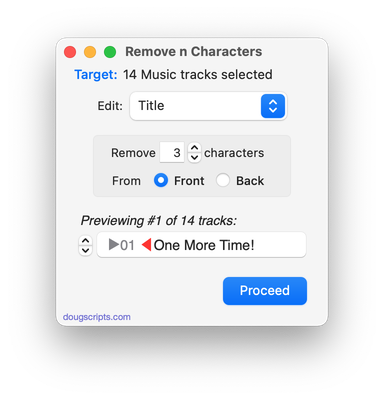
This script will delete a specified number of characters from either the beginning or the ending of the Title, Album, Album Artist, Artist, Category, Comments, Composer, Grouping,Movement or Work tag of each selected track. For example, delete the initial digits and the space from “01 First Track”, “02 Second Track”, and so on.
Latest version:
- UI and layout updates
- Removes support for TV app
- Preview displays to-be-removed text in strikethrough
- Icon and docs updat
More information for Remove n Characters From Front or Back v8.0 and download link is here.
UPDATED: Search-Replace Tag Text v8.0
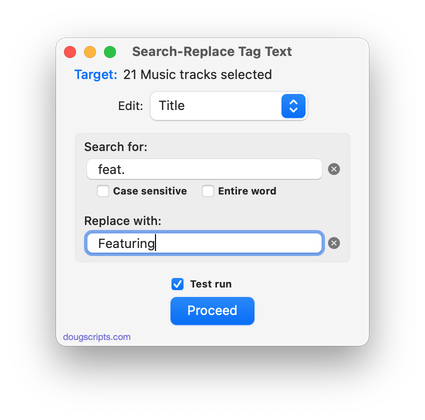
Performs a search-and-replace on the text in your choice of track tags in the Music or TV app (Title, Artist, Album Artist, Album, Composer, Comments, Genre, Grouping, Movement or Work) in the selected tracks or all the tracks in the selected Playlist. Features case sensitivity and whole word match options and “Test run” preview.
Latest version:
- UI updates for macOS 26 and later
- Removes support for TV app
- Icon and docs update
More information for Search-Replace Tag Text v8.0 and download link is here.
UPDATED: This Tag That Tag v7.0
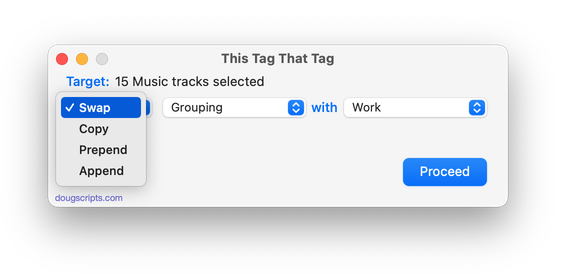
This applet will assist with swapping, copying, and appending data between two user-chosen tags in selected tracks or tracks in the selected playlist:
Swap – swap data between tags, ex: ARTIST<->COMPOSER
Copy – copy data from one to another tag, ex: ARTIST->COMPOSER ARTIST
Append – append data from one tag to the end of another, ex: ARTIST->COMPOSER – ARTIST
Prepend – append data from one tag to the beginning of another, ex: ARTIST->ARTIST – COMPOSER
The latter three actions also provide an option to delete the info from the first tag after the copy. Read Me explains all.
Latest version:
- UI updates for macOS 26 Tahoe and later
- Drops support for TV app
- Icon and docs updated
More information for This Tag That Tag v7.0 and download link is here.
UPDATED: Append to Selected Tag v6.5
Append the same user-entered text to the beginning or ending of the existing text in the chosen tag–Title, Artist, Album Artist, Album, Composer (or their Sort siblings), Comments, Genre, Grouping, Work or Movement–in each selected track.
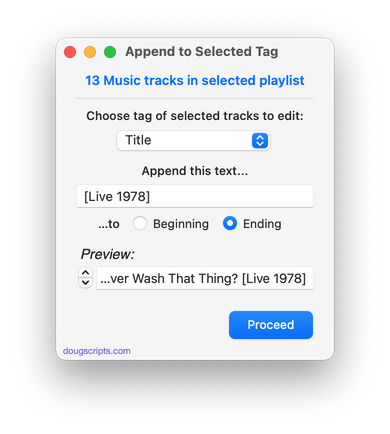
Latest version:
- UI and layout updates
- Removes support for TV app
More information for Append to Selected Tag v6.5 and download link is here.
UPDATED: Insert Text into Tag v1.5
This script will insert the same user-entered text at a specific position in the designated tag of each selected track.
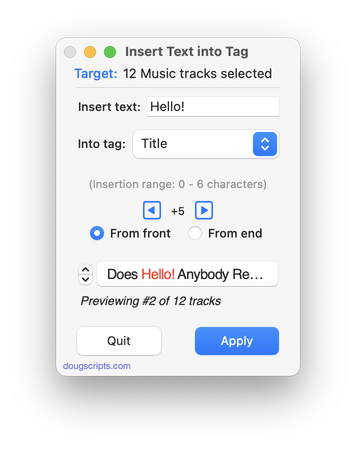
Latest version:
- UI and layout updates
- Adds confirmation panel
- Additional keyboard shortcuts
- Removes support for TV app
- Icon and docs updates
More information for Insert Text into Tag v1.5 and download link is here.
UPDATED: Remove Leading-Trailing Spaces v3.5
This script will remove any number of extra space characters at the beginning and ending of chosen tags (Title, Artist, Album Artist, Album, Composer, Comments, Genre, Grouping, Movement and Work) in the selected tracks.
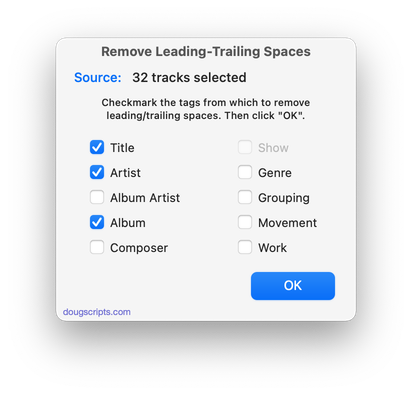
Latest version:
- UI and layout updates
- Fixed progress miscount
- Adds Comments tag
- Removes support for TV app
More information for Remove Leading-Trailing Spaces v3.5 and download link is here.
UPDATED: Export Files From Playlists v3.6
This applet will export copies of the files of the tracks in one or more selected playlists to a single user-selected folder.
Also see M3Unify, an app that provides many more options for exporting/converting files from the Music app.
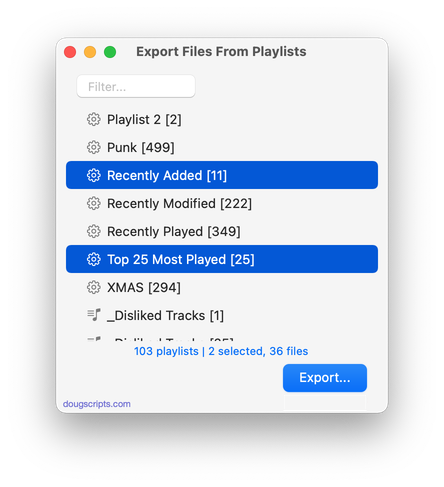
Latest version:
- UI updates for macOS Tahoe and later
- Updates Filter feature
More information for Export Files From Playlists v3.6 and download link is here.
UPDATED: New Last Played Date v6.3
Set Last Played/Last Skipped date of selected tracks to a new date, with option to increase or decrease Plays/Skips, or set to “never played” with no dates and no Plays/Skips.
Also see Add or Subtract Play Count.
Works best when Sync Library is disengaged due to a possible bug.
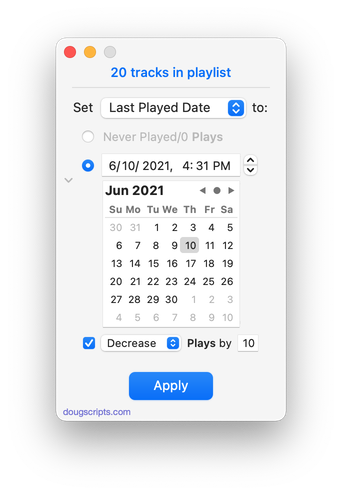
Latest version:
- UI updates for macOS 26 and later
- Removes disclosure/window resize
More information for New Last Played Date v6.3 and download link is here.
UPDATED: Album Rating Reset v5.6
This script will allow you to batch set or clear the Album Rating and/or Album Favorite/Suggest Less for the albums of the selected tracks or the albums associated with the tracks in a selected playlist (note that only a single track from any album need be selected in order to change the album rating or favorited of the entire album). Handy for clearing batches of albums of their user-set album ratings, or re-rating batches of albums.
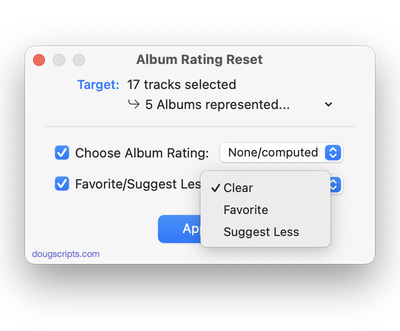
Latest version:
- UI updates
- Fixes problem with Settings panel
- Drops support for half-stars
More information for Album Rating Reset v5.6 and download link is here.
UPDATED: Apply Embedded Artwork v3.0
This script will examine each selected track’s local file for image metadata and apply it as the track’s album artwork.
Latest version:
- UI adjustments for macOS 27
- Displays operative artwork when available
- Maintenance and regression removals
More information for Apply Embedded Artwork v3.0 and download link is here.
