
 Apple Music Profile
 YouTube Channel
 RSS Feed
 Play Play
 Murph
Murph Yer Stack
 30 Most Recent RSS Feed
Music app
NEW: Work and Movement Scripts v2.0
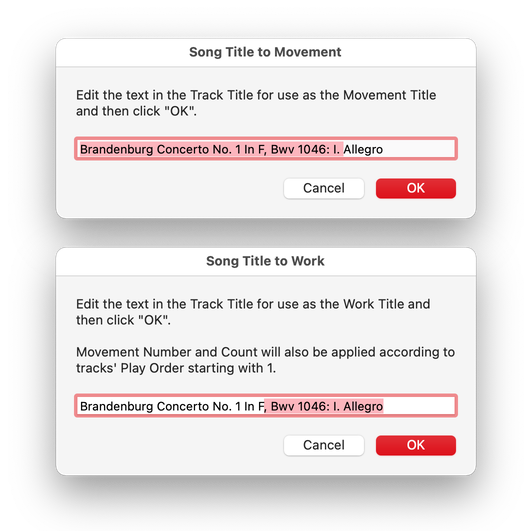
For OS X 10.15 or later only. These are three simple scripts that will assist with editing Work and Movement tags using the current tag data in track Title and Grouping tags:
- Song Title to Work - select the text from the track Title to apply to the Work tag of the selected tracks
- Song Title to Movement - select the text from the track Title to apply to the Movement tag of the selected track
- Copy Grouping to Work - copy the text of the Grouping tag to the Work tag of selected tracks
These were originally posted as script listings (and further described here and here), but some users may prefer to download the compiled scripts.
Latest version:
- Accommodations for macOS 10.15 and later
- Performance, UI and security enhancements
More information for Work and Movement Scripts v2.0 and download link is here.
NEW: View-Edit Playlist Description v1.0
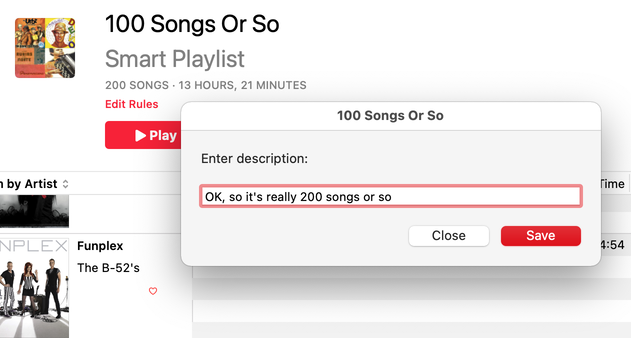
A playlist's description tag is only visible/user-editable when the playlist is viewed "as Playlist". This script will allow you to view and edit the description of a playlist no matter what View is selected. (Unfortunately, a bug prevents AppleScript from changing this tag for Playlist Folders.)
Latest version:
- Initial release
More information for View-Edit Playlist Description v1.0 and download link is here.
Toggle Views Via Keyboard Shortcut
I'm re-posting/reconstituting this tip with a more obvious title because I can never find it to forward to a Correspondent whenever I'm searching for it on my own website!
* * *
Correspondent David K. turned me on to this trick, which I had never seen before:
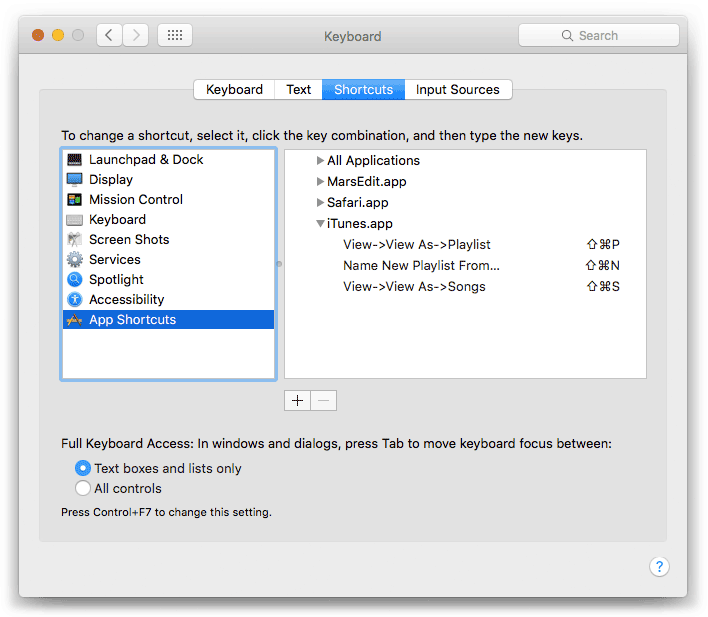
As you may know, you can assign Keyboard Shortcuts to application menu commands in System Preferences > Keyboard > Shortcuts. Conventionally, you would select the name of the app, the name of the menu command, and a keyboard shortcut combination in this preference tab. What I didn't know is that you can designate the precise menu heirarchy for a command by entering something like Top Menu->Submenu->Command, with "->" between each menu title, instead of just the name of the command.
The reason I want to do this in iTunes is that I'd like to set a shortcut for the "Songs" playlist view. But, because the word "Songs" is also in the Controls > Shuffle submenu, simply entering "Songs" in the keyboard shortcut panel would invariably toggle the Shuffle Songs option.
But by entering View->View As->Songs, the keyboard shortcut knows I mean that "Songs" and not the Controls > Shuffle > Songs.
Hoy!
Then I did the same for Playlist view:
The shortcuts also appear adjacent to the commands in their menu.
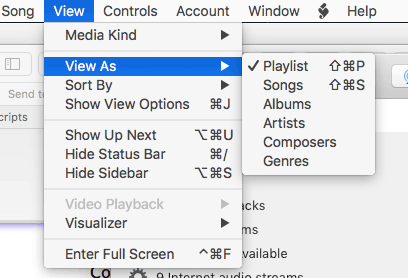
And an AppleScript could probably fire the shortcut via System Events.
UPDATE for The Music app: These instructions are pretty much the same except you will note that the names of the menu items in the View menu are "as Songs" and "as Playlist". Thus, use View->as Songs, View->as Playlist .
UPDATED: Play Random Album v4.1
For macOS 10.15 and later only. This script scans your library, creates a playlist of a complete single album chosen at random and begins playback of the playlist created. Works great when assigned a keyboard shortcut
Latest version:
- Accommodations for macOS 11 Big Sur
- Performance, UI and security enhancements
More information for Play Random Album v4.1 and download link is here.
UPDATED: Artist to Last-First v5.3
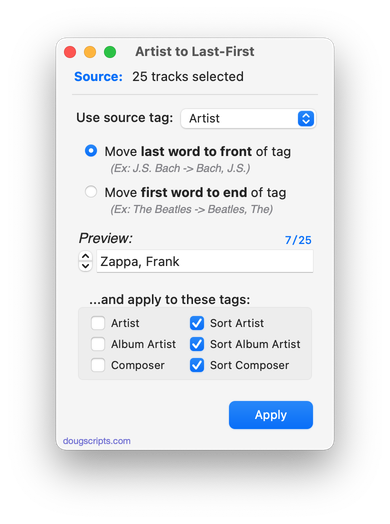
For macOS 10.15 and later only. This applet will parse the text of the chosen tag (Artist, Album Artist, Composer or one of their Sort siblings) of a selection of tracks:
Move the LAST word of the tag to the beginning, eg:
OR Move the FIRST word of the tag to the end, eg:
Then, the newly configured text can be copied back to your choice of Artist, Album Artist, Composer, Sort Artist, Sort Album Artist and/or Sort Composer tag(s).
Latest version:
- Restores support for CD tracks
- v5.2 (oct 31, 2020):
- Additional accommodations for macOS 11 Big Sur
More information for Artist to Last-First v5.3 and download link is here.
UPDATED: CD Text to CD Info v5.5
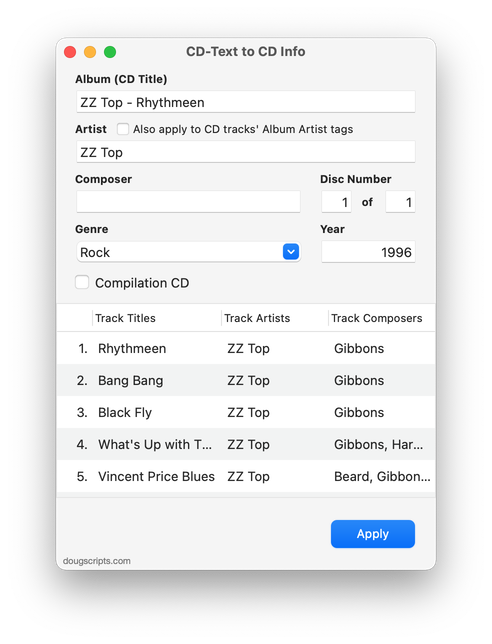
For macOS 10.15 and later only. This applet will attempt to extract the CD Text information from the selected audio CD in the Music app and apply it to the CD's disc and track tags.
Some commercial CDs and commercial CD burning software (including the Music app) can use CD Text as a method of including text data on an audio CD. This data can include Artist (Performer), Album, Composer, Track Title, and Genre info. See the Read Me for more information.
Latest version:
- Fixes a bug with entering text into the disc count field
- v5.4 (nov 1, 2020):
- Additional accommodations for macOS 11 Big Sur
More information for CD Text to CD Info v5.5 and download link is here.
UPDATED: Playlist Manager v3.3
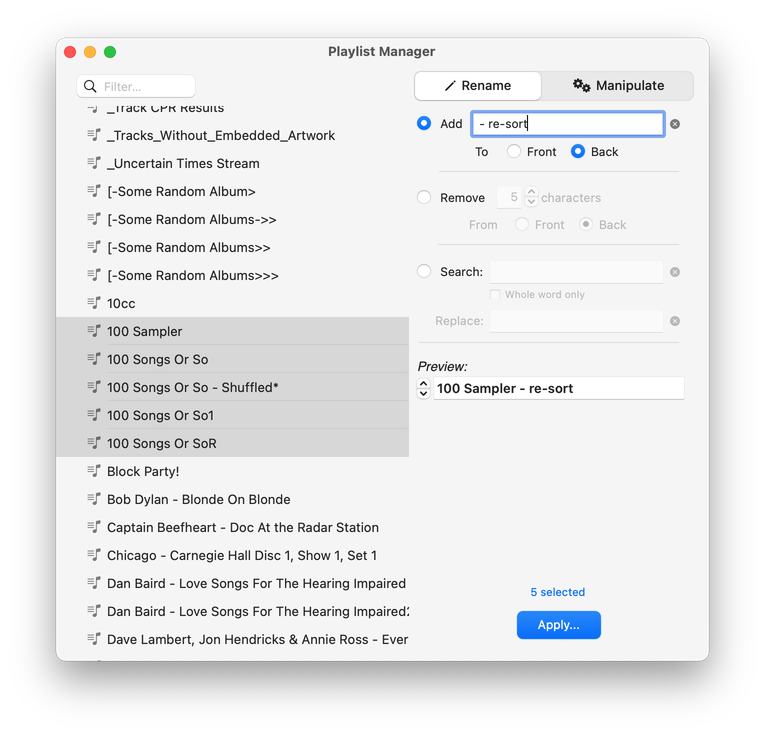
For macOS 10.15 and later only. The Music app only allows one playlist to be selected at a time. This applet can perform common useful tasks on a multiple selection of playlists: playlist title renaming (add text, remove text, search and replace text) and duplicate, delete, export, move and merge playlists.
This app is free to try full-featured in Demo Mode. While in Demo Mode, only up to 10 playlists can be manipulated per launch. If you like it you can purchase a code for $2.99 which will unlock the Demo Mode limitation. Launch the app and click "Register…" in its File menu to make an in-app purchase.
Latest version:
- Fixes a couple of UI regressions under macOS 11
- v3.2 (11/3/2020):
- Additional accommodations for macOS 11 Big Sur
More information for Playlist Manager v3.3 and download link is here.
NEW: Search Tower Records v1.0
This script will initiate a "search all" of the Tower Records website based on your choice of the Song Title or Artist or Album of the selected or playing Music app track. Results will be displayed in a new window in your default web browser.
Latest version:
- Initial release
More information for Search Tower Records v1.0 and download link is here.
UPDATED: Create Archive of Selected v3.1
For macOS 10.15 and later only. This script will create a .zip archive of copies of the files of the selected tracks and save it in a user-chosen location.
Latest version:
- Accommodations for macOS 11 Big Sur
- Performance, UI and security enhancements
More information for Create Archive of Selected v3.1 and download link is here.
NEW: Amazon Lookup v2.0
This script will look at the current selected track and take you to Amazon's web page for that track's Album. If nothing is selected, it will default to the current playing track. If nothing is playing it will not run. Works nicely with a keyboard shortcut.
Latest version:
- Accommodations for macOS 11 Big Sur
- Performance, UI and security enhancements
More information for Amazon Lookup v2.0 and download link is here.
