
 Apple Music Profile
 YouTube Channel
 RSS Feed
 Play Play
 Murph
Murph Yer Stack
 Block Party Weekend
 Elevendy
 Dupin v4.0.0
 Join Together
 M3Unify
 30 Most Recent RSS Feed
AppleScript
More About PDFs
In my post yesterday, I suggested using “PDF Adder” to add PDFs to your iTunes. Duh. I neglected to mention that also in the PDF Adder collection is a PDF Service Workflow called “Add to iTunes…”. When installed in your [username]/Library/PDF Services folder it appears as an option under the “PDF” drop-down in any app that supports a Print dialog. So, find a page in Safari, hit “Print” and select “Add to iTunes…”. It will ask for a name, artist, and album for the PDF and then add it to iTunes.
PDF Booklet via Safari
I’ve been messing with Wikipedia to get info for various artists (see Search Wikipedia). But I wanted to be able to save the info, perhaps even including it in iTunes for future reference. Can do. Today I tried this trick: use Safari to go to the Wikipedia page containing info on your favorite artist. Click “Print” in Safari’s File menu and then click “Save as PDF” in the PDF drop-down. Optionally, hit the “Preview” button in the Print dialog to see what the PDF will eventually look like after it’s saved and then save it as a PDF.
Once the PDF has been saved, use PDF Adder to add it to iTunes. The “PDF Adder” script in that collection will let you choose an existing PDF file and add it to iTunes and provide Album and Artist tags to the new PDF so that it will be sorted with the associated Album. If your iTunes Advanced>General Preferences is set to “Copy files to iTunes Music folder when adding to library” the PDF will be copied to your iTunes Music Library folder, and the original PDF can be Trashed.
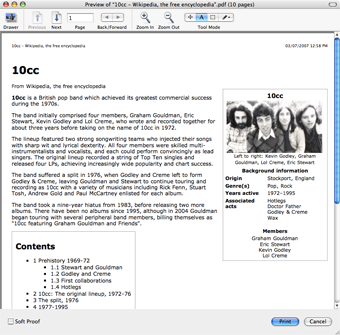
As far as Wikipedia goes, it appears they use a “print.css” file that fomats the page for printing. This maintains formatting while eliminating the sidebars and such. Other sites may do so as well–like the one you’re looking at now ;).
How To Write Your First AppleScript
Perceval McElhearn has posted How To Write Your First AppleScript at Macinstruct. It’s a nice intro for those of you who want to get started. BTW: Perceval is the descendant of my good friend and Mac aficionado Kirk McElhearn. The nut don’t fall far from the tree.
Show Entire Library Workaround
For those of you iTunes 7.1 users who are dismayed by the inability to display the entire library (as noted in this post) here’s a workaround. Create a Smart Playlist whose only criteria is “Size is greater than 0” and click on Live updating. Name this new SP something obvious like “Everything” or “Full Library” or what have you. Then create a script like this, substituting the name of your SP where appropriate:
tell application "iTunes"
	set view of front browser window to playlist "Everything"
end tell

Save it to your iTunes Scripts folder and give it a shortcut so you can easily display the SP when necessary. Thanks to Correspondent George Dick for the idea.
NEW: Batch Set Tracks Sorting Tags
I don’t know who doped my corn flakes yesterday, but after iTunes 7.1 came out I’d swear the dictionary didn’t show the new sorting tags. Well, things have gotten back to normal here and I’ve got Batch Set Tracks Sorting Tags for you. This script will allow you to batch-set the new sorting tags (“Sort Name”, “Sort Artist”, “Sort Album Artist”, “Sort Album”, “Sort Composer”, “Sort Show”) of the selected tracks, rather than manually doing so one track at a time.
UPDATED: Tracks Without Artwork to Playlist v2.1
I was wondering why some people were still getting false positives when using Tracks Without Artwork to Playlist. Then it dawned on me that if a multiple library was loaded, the wrong iTunes Music Library.XML file was being checked! This new version corrects that problem.
UPDATED: Tracks Without Artwork to Playlist v2.1
I was wondering why some people were still getting false positives when using Tracks Without Artwork to Playlist. Then it dawned on me that if a multiple library was loaded, the wrong iTunes Music Library.XML file was being checked! This new version corrects that problem.
UPDATED: Remote Management Scripts v1.3
I’ve updated Remote Management Scripts, which is a collection of scripts that assist with managing/editing/copying shared tracks on a remote machine via the iTunes on a local machine. Nothing too major: I consolidated and streamlined some routines, changed the loginLib.scpt to allow the iTunes Music Library volumes for each machine to be listed (rather than in the individual scripts that require them), and provided an option to unmount volumes after scripts that mounted them have finished.
Thinking About Remote Management Scripts
NEW: Update Expired Podcasts
This Mac OS X Hints post proposes a solution to a problem I was having: iTunes will stop updating a podcast subscription if one of its episodes has not been played within five days (so that’s what happened). The poster provided an AppleScript solution, which, although admirably on the right track, was somewhat convoluted. Why not just plain update the podcasts! Update Expired Podcasts will batch-update every podcast subscription in your Podcasts playlist by simply “telling” iTunes to updatePodcast for each podcast subscription. The trick is getting a discrete list of podcast subscription names for the updatePodcast command; put ’em in a repeat loop and yer done.
