
 Apple Music Profile
 YouTube Channel
 RSS Feed
 Play Play
 Murph
Murph Yer Stack
 30 Most Recent RSS Feed
DIY
Show Track Count and Time of Selected Playlist
There's seems to be a bit of inconsistency with the way iTunes 11 displays playlist time information as DD:HH:MM:SS. Sometimes times are displayed in the Status Bar at the bottom and sometimes a decimal version will be displayed beneath the playlist's name at the top of the browser. I can't quite get a grasp on something like "7.6 days" though.
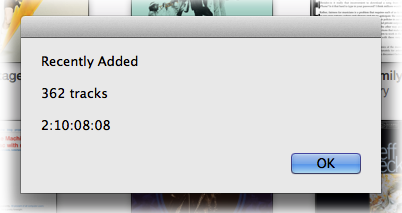
Here's a script you can attach a shortcut to that will simply display a dialog box listing the name of the selected playlist, the number of tracks it contains, and the time of the playlist as DD:HH:MM:SS:
tell application "iTunes"
set thePlaylist to (get view of front browser window)
display dialog (get name of thePlaylist) & return & return & ¬
(get index of last track) & " tracks" & return & return & ¬
(get time of thePlaylist) buttons {"OK"} default button 1 giving up after 300
end tell

I Hate GUI Scripting Except When I Don't
Sometimes the only way to script anything that isn't explicitly in an app's scripting definition is to use GUI Scripting. I always look for some other way before resorting to GUI Scripting since it can get pretty oogly and is dependent on the app's GUI; if the developer changes the GUI then the script can be rendered useless. With that said, a Correspondent writes:
"In iTunes, I utilize checkboxes to determine what songs are synced to my iPhone. I do not utilize playlists because I want to keep complete playlists in my iTunes library while still syncing them to my iPhone, minus any unchecked songs. The problem is that iTunes will not play unchecked songs continuously, which annoys me. I recently discovered, however, a preference called "Show list checkboxes". Unchecking this will hide the checkboxes column and allow me to play my songs uninterrupted, but when I want to sync my iPhone I have to show the checkboxes again so that it won't try to sync my entire huge library.
I was wondering if there was any way that you could create a script that toggles this preference on & off, in order to reduce the number of clicks required to switch between playing all of my music and syncing my iPhone. This would be much appreciated."
There's no explicit command to toggle this behavior, but this bit of GUI Scripting'll do it:
tell application "iTunes" to activate
tell application "System Events"
tell process "iTunes"
click menu item 3 of menu 2 of menu bar 1
click button 1 of UI element 5 of window 1
click UI element 25 of group 1 of window 1
click UI element 1 of window 1
end tell
end tell
You must have set up GUI Scripting using the instructions found here. And be warned that if the Preferences panel of iTunes changes in the future this script may no longer work.
As usual, works best with a keyboard shortcut.
Emulate Drag Playlist Folder to Make New Playlist
You can use the "Duplicate" option in a playlist's contextual menu to make an exact copy of the selected playlist. This works for regular and Smart playlists. You can also select a playlist and drag it in the Playlists section of the Source list to duplicate it as a regular playlist. Using this method will duplicate any kind of playlist as a regular playlist. This is especially useful for making a playlist from a Playlist Folder, which does not have "Duplicate" in its contextual menu.
But you may find it easier to run a script on a selected playlist to duplicate it, especially if you aren't wild about the drag-and-duplicate method which can be slippery. The script below will duplicate any selected playlist as a regular playlist. The new playlist will have the same name as the selected playlist, but you can edit this to include " copy" or something if you wish:
tell application "iTunes"
set selectedPlaylist to view of front window
set newPlaylist to (make new playlist with properties {name:(get name of selectedPlaylist)})
duplicate tracks of selectedPlaylist to newPlaylist
reveal newPlaylist
end tell
(The last command to reveal selects the new playlist; you may not want this.) Name it whatever you like and Save it as a compiled script in ~Library/iTunes/Scripts/. I've found this very handy for making playlists from Playlist Folders that contain several playlists (or sub-Playlist Folders of playlists). Works great with a keyboard shortcut.
Project: Gather Partially Played Tracks
I got an email from Correspondent Sherwood Botsford asking if there was any way to round up his partially played audiobooks. What he wanted to do was maintain a playlist of recently added audiobook tracks that he hadn't finished listening to and sync it to his iPhone. He'd gotten the recently added stuff okay by using a Smart Playlist. But Smart Playlists don't include any criteria for detecting how far along a track has been played, and Last Skipped may not necessarily have been set if a track was simply stopped rather than skipped.
If a track's "Remember playback position" setting in its Get Info's Options tab has been checkmarked—presumably, your audiobooks are "bookmarkable" by default or you have set the "remember" option manually—a track's bookmark property will contain the number of seconds the track had been played before it was stopped. Thus, if any tracks have a bookmark value greater than zero then they've been partially played.
So here's a script that will gather all those partially played tracks into a new playlist named "Partially Played" and that playlist can be the source for the Smart Playlist:
Custom Playlist Column Views, Sorta
Here's something I'm often asked which Correspondent Rob Falk put succinctly: "Is there a way to clone a playlist view...other than the Library [using Assimilate View Options]? I frequently need to create a playlist that has a specific set of columns, that are not the same as the library, and was looking for a way to automate that."
There sorta kinda is.
My first thought was to use AppleScript to just duplicate an existing playlist that already had the requisite view settings. (The duplicate command is typically used to copy a track from one playlist to another.) Unfortunately, when iTunes' AppleScript duplicate command is used to copy a playlist it—bafflingly—creates a new untitled and empty playlist using the properties and views of the Music library playlist. Same as just creating a new playlist. That doesn't seem right, does it? You'd think—well, I thought anyway—that using duplicate to copy a playlist would behave the same as the playlist contextual menu command "Duplicate" (control-click or right-click on the name of the playlist):
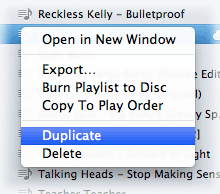
So, my next thought was...just use "Duplicate". The playlist will be perfectly duplicated, column views and all, and selected in the Source list. Now you'll have a new playlist named the same as the original with a "1" at the end and which is populated with the original's tracks (if it had any). You could create a bunch of playlists with columns set the various ways you like and then "Duplicate" them when you required one. Just rename the new duplicated playlist and delete any tracks. And that part can be automated.
The workflow, then, is to "Duplicate" a playlist manually with the contextual menu command and then run this script right afterwards:
Sync A Wi-Fi iPhone Follow Up
Several Correspondents have wired in to report that the Sync a Wi-Fi iPhone Once a Day With launchd tip is great and all but how can more than one Wi-Fi device be sync'd? Currently the script only targets a single iPhone or iPad. If you want to sync all connected devices you'll need a different script. (more…)
Sync a Wi-Fi iPhone Once a Day With launchd
A while back, I retired my iPhone 3GS to the bedside table after buying an iPhone 4. I use the 3GS pretty much as a glorified clock radio-iPod Touch. I have a few radio apps on it and the Digital Clock app. I also have it set to sync and back up over Wi-Fi to my main iMac so I manually initiate a sync when I need to update Podcasts and apps and what have you.
This manual syncing has become tiresome. (I mean, if I used a traditional clock radio, I wouldn't have to update its content manually, right?)
It's simple enough to write an AppleScript to sync a connected iPhone but I want the script to run on a regular basis without me having to fire it. I like to listen to Podcasts in the evening so sometime during dinner would be a good time to update the 3GS with any Podcasts that have arrived during the day. For this, I can create a launchd agent to fire the AppleScript that syncs the 3GS in the background. Here's how to get all that to swing: (more…)
