
 Apple Music Profile
 YouTube Channel
 RSS Feed
 Play Play
 Murph
Murph Yer Stack
 Block Party Weekend
 Elevendy
 Dupin v4.0.0
 Join Together
 M3Unify
 30 Most Recent RSS Feed
Managing Track Info
UPDATED: Show Me the Track Info v1.1
This script will display track info from the playing or selected track in a floating window that can be configured to show the information in a user-configured order. Eight sections within the window can be drag-arranged into their order of importance. The window can then re-sized to only display as much of the information as is necessary. Handy for quickly surveying tracks without having to click-click-click for the Music app's "Info Window".
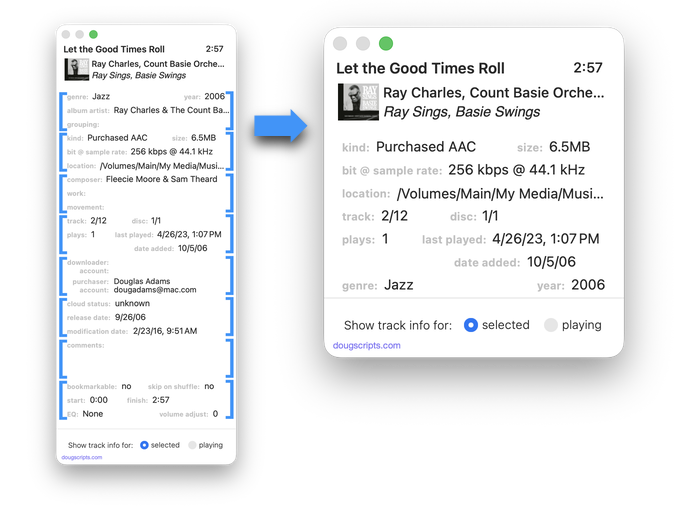
Latest version:
- Adds guides to sections
- Minor UI adjustments
- Improved info gathering
- Setting to enable/disable clickable section to reveal file
More information for Show Me the Track Info v1.1 and download link is here.
NEW: Who Da Album Artist v1.0
As you likely know, individual music tracks can each have their own individual artist tag. But there are situations when a single mega-artist is handy-like-a-handle for an album of tracks. Like "Various Artists" for compilation albums or "Ray Charles" if it's Ray with different artists on each track. That's why our Founding Fathers created the album artist tag.
Every discreet album in your collection should have an associated "album artist". It's what you'd see as the display artist on the cover or spine of a physical album, for example. Here in the digital future, where albums have been disintegrated into tracks, there is no "album"; the "album" information is born by the tracks it "contains" so the tracks can be re-integrated as an "album" in yer third-party devices there. Thus, the album artist tag is more like an "album tag", rather than a "track tag". Each track of an album should have the same text in its album artist tag. In fact, having mixed text in an album's tracks' album artist tags completely neutralizes the purpose of the mononymnic album artist tag. And some screwing up your music library royally is also nominally possible.
I thought I had album artist configurations handily and dandily in hand over the years. So I was recently in mid-to-high dudgeon after noticing a bunch of albums whose tracks had incorrect or inconsistent or missing album artist tags. CHAAAArrrristopher Columbus! Like I really wanna spend a lot of time going through my library looking for albums with problem album artist tags. So instead I spent what probably would have been the same amount of time making an app that would do the album artist wrangling for me.
Who Da Album Artist will scan your Music library and if it finds any album whose tracks' album artist tags are missing or inconsistent (more than one per album, for example), will give you the opportunity to enter the appropriate album artist and sort album artist tags.
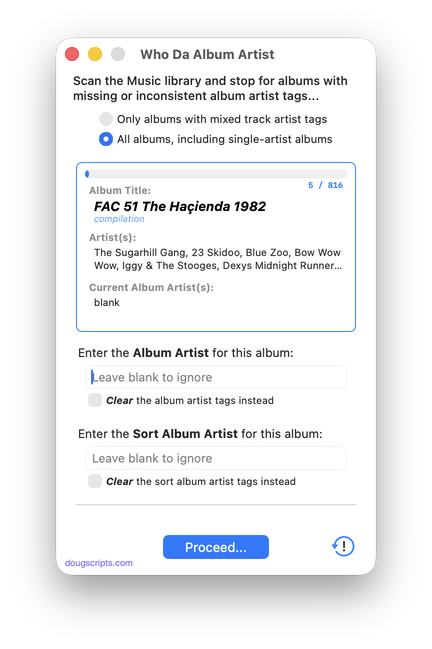
Latest version:
- Initial release
More information for Who Da Album Artist v1.0 and download link is here.
UPDATED: No Lyrics to Playlist v3.2
This script will scan the Music library or a selected playlist for tracks whose "Custom Lyrics" tags are blank and copy them to a new discrete playlist. Can also toggle to search only for tracks with lyrics.
(Please Note: The script can only discover tracks with "Custom Lyrics" provided by the user. There is no accounting for lyrics made available via Apple Music or iCloud/Sync Library. That data is inaccessible.)
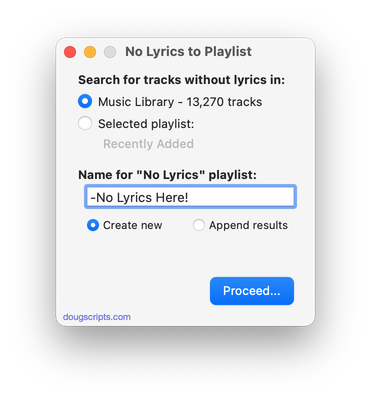
Latest version:
- Accommodations for macOS 26 Tahoe
More information for No Lyrics to Playlist v3.2 and download link is here.
NEW: Albumizer v1.0
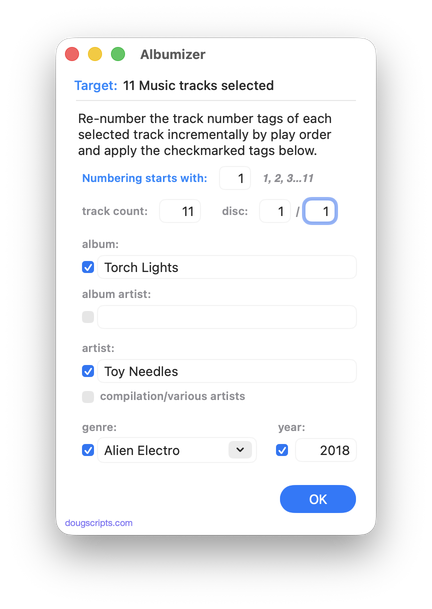
This script will renumber the track number tag of the selected tracks incrementally in their play order, as well as providing track count, disc number and disc count tags and, optionally, additional album-oriented tags.
Also see the simpler Albumize Selection or the more general Increment Number Tags.
Latest version:
- Initial release
More information for Albumizer v1.0 and download link is here.
NEW: Show Me the Track Info v1.0
You ever need to look at a track's Info panel and go hip-hopping through the panels to see what you need to know? You ever have to do this for a lot of tracks?
Show Me the Track Info will display track info from the playing or selected track in a floating window that can be configured to show information in a user-configured order. Eight sections within the window can be drag-arranged by their hierarchical importance. The window can then re-sized to only display as much of the information as is necessary. Handy for quickly surveying tracks without having to click-click-click for the Music app's Info panel.
Latest version:
- Initial release
More information for Show Me the Track Info v1.0 and download link is here.
UPDATED: De-Genre v6.0
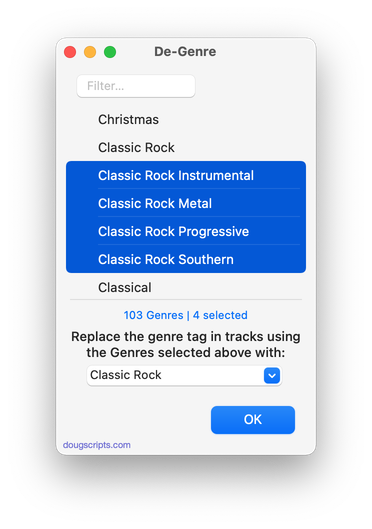
This script re-assigns the tracks of selected Genres to another Genre, ostensibly so that the original--and consequently any un-assigned-Genres--disappear from the Music app's Genre pop-up list. Of course, it can also be used simply to batch-edit Genres without having to assemble the tracks first.
As you may know, you can make superfluous Custom Genres vanish from the Genre pop-up list simply by eliminating a reference to them in your tracks; when no tracks are assigned to a particular Genre, that Genre will be dropped. (Note however that Music's original Genre names cannot be removed this way; only those accumulated from other sources or created by you.)
Latest version:
- Accommodations for macOS 26/Tahoe
- Adds sorting options
- Fixes toggle-size issue
More information for De-Genre v6.0 and download link is here.
UPDATED: Make Tags All Caps v2.6
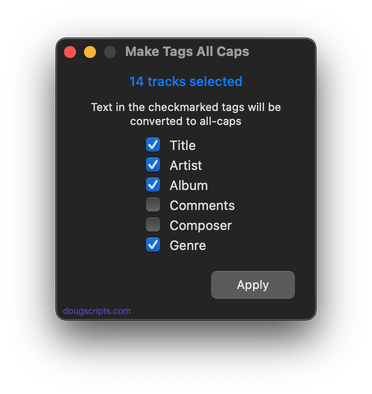
This script will change the text in your choice of the Title, Artist/Director, Show, Album, Album Artist, Genre, Comments, Composer and/or Lyrics tags of the selected tracks in the Music or TV app to ALL CAPS.
"I got a request from a DJ'ing Correspondent who had been manually changing some of his tags to all caps so they'd be easier to read on the decks under dim dance floor lights...." (more)
Latest version:
- Adds Album Artist and Custom Lyrics to choices
- v2.5 Oct. 22, 2025
- Accommodations for macOS 26/Tahoe and general maintenance
More information for Make Tags All Caps v2.6 and download link is here.
UPDATED: Make Tags All Caps v2.5
This script will change the text in your choice of the Title, Artist/Director, Show, Album, Comments, Composer and/or Genre tags of the selected tracks in the Music or TV app to ALL CAPS.
"I got a request from a DJ'ing Correspondent who had been manually changing some of his tags to all caps so they'd be easier to read on the decks under dim dance floor lights. (Are they still called "decks"?)..." (more)
Latest version:
- Accommodations for macOS 26/Tahoe and general maintenance
More information for Make Tags All Caps v2.5 and download link is here.
UPDATED: Delete Lyrics v3.2
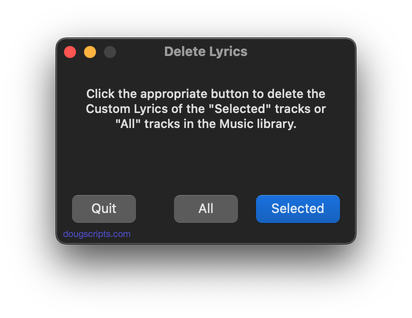
This script will delete the Custom Lyrics—i.e., lyrics text entered by the user—from the selected tracks. Assign it a keyboard shortcut.
Does not affect Lyrics provided by Apple Music; this data is inaccessible.
Latest version:
- Accommodations for macOS 26/Tahoe
- Adds stays-open-to-select-again feature
More information for Delete Lyrics v3.2 and download link is here.
UPDATED: Reset Tracks v1.2
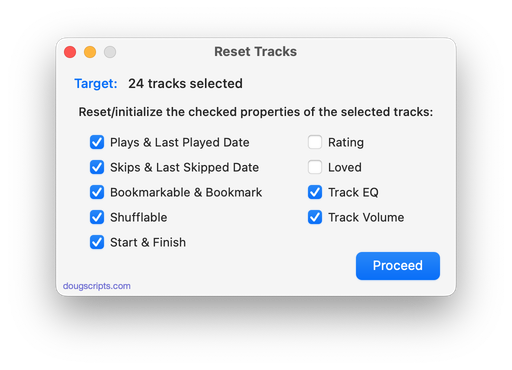
The Music.app has a "Reset" button in the Details panel of each track's Get Info window which will re-initialize some track properties such as Plays and Skips. This script allows the user to choose which of several additional Music.app tags to reset to initialized states, which can be selectively more or less thorough than the Music.app's Reset action. Also see the slightly more aggressive Reset Plays.
Sync library users should note Apple's "Bug-or-Feature" whereby changes to these tags don't always proliferate correctly, if at all.
Latest version:
- Accommodations for macOS 26/Tahoe
- Updated nomenclature
More information for Reset Tracks v1.2 and download link is here.
