 30 Most Recent RSS Feed
 Apple Music Profile
 YouTube Channel
 RSS Feed
 Play Play
 Murph
Murph Yer Stack
 Block Party Weekend
 Elevendy
 Dupin v4.0.0
 Join Together
 M3Unify
Managing Track Info
UPDATED: Make Tags All Caps v2.1
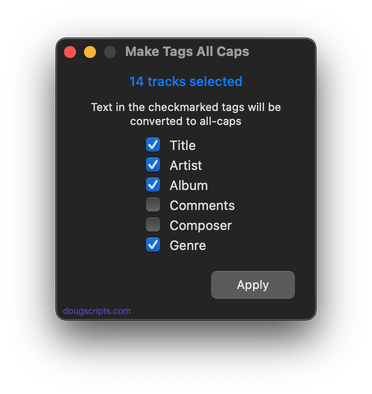
For macOS 10.15 and later only. This script will change the text in your choice of the Title, Artist, Album, Comments, Composer and/or Genre tags of the selected tracks in the Music app to ALL CAPS.
“I got a request from a DJ’ing Correspondent who had been manually changing some of his tags to all caps so they’d be easier to read on the decks under dim dance floor lights. (Are they still called “decks”?)…” (more)
Latest version:
- Fixes regression with setting Genre, if selected
- Accommodations for macOS 11 Big Sur
- Performance, UI and security enhancements
More information for Make Tags All Caps v2.1 and download link is here.
UPDATED: Remove Leading-Trailing Spaces v2.2
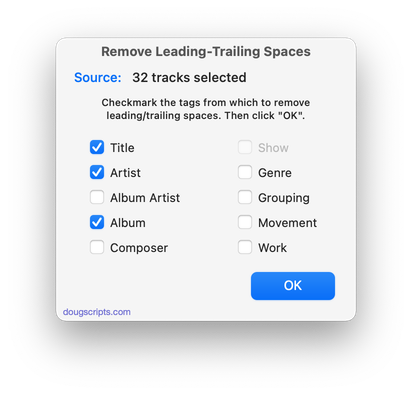
For macOS 10.15 and later only. This script will remove any number of extra space characters at the beginning and ending of chosen tags (Title, Artist/Director, Album Artist, Album, Composer, Genre, Grouping, Movement, Work and Show) in the selected tracks.
Latest version:
- Accommodations for macOS 11 Big Sur
- Performance, UI and security enhancements
More information for Remove Leading-Trailing Spaces v2.2 and download link is here.
UPDATED: Artist to Last-First v5.1
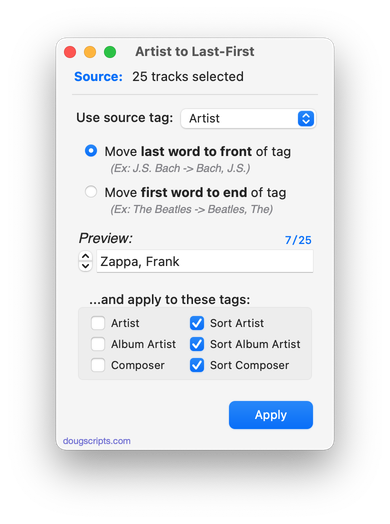
For macOS 10.15 and later only. This applet will parse the text of the chosen tag (Artist, Album Artist, Composer or one of their Sort siblings) of a selection of tracks:
Move the LAST word of the tag to the beginning, eg:
OR Move the FIRST word of the tag to the end, eg:
Then, the newly configured text can be copied back to your choice of Artist, Album Artist, Composer, Sort Artist, Sort Album Artist and/or Sort Composer tag(s).
Latest version:
- Accommodations for macOS 11 Big Sur
- Performance, UI and security enhancements
More information for Artist to Last-First v5.1 and download link is here.
UPDATED: Append to Selected Tag v5.3
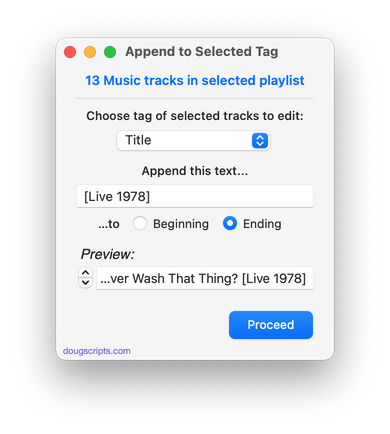
For macOS 10.15 and later only. Append the same user-entered text to the beginning or ending of the existing text in the chosen tag–Title, Artist, Album Artist, Album, Composer, Comments, Genre, Grouping, Show (or their Sort siblings), Work or Movement–in each selected track.
Latest version:
- Accommodations for macOS 11 Big Sur
- Performance, UI and security enhancements
More information for Append to Selected Tag v5.3 and download link is here.
UPDATED: Album Rating Reset v4.2
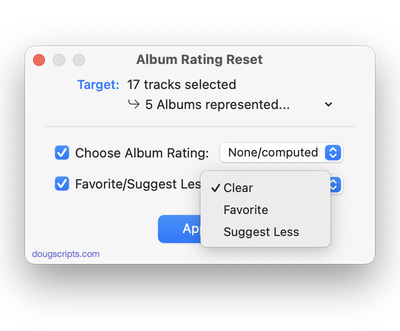
For macOS 10.15 and later only. This script will allow you to batch set or clear the Album Rating and/or Album Love/Dislike for the albums of the selected tracks or the albums associated with the tracks in a selected playlist (note that only a single track from any album need be selected in order to change the album rating or loved of the entire album). Handy for clearing batches of albums of their user-set album ratings, or re-rating batches of albums.
Latest version:
- Accommodations for macOS 11 Big Sur
- Performance, UI and security enhancements
More information for Album Rating Reset v4.2 and download link is here.
UPDATED: Proper English Title Capitalization v4.3
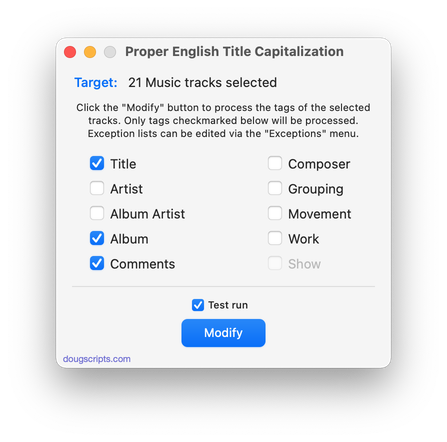
For macOS 10.15 and later only. Capitalizes the first letter of each word in your choice of the Title, Artist, Album Artist, Album, Comments, Composer, Grouping, Movement, Work, or Show tags of the selected tracks, but based on conventional rules of title capitalization in the English language. Thus, “what it feels like for a girl (above and beyond 12” club mix)” becomes “What It Feels Like for a Girl (Above and Beyond 12” Club Mix)”. Two user-editable Exception Lists can handle words that should not be title-capped or modified. Test Run feature enables you to see what would be changed displayed in a separate Test Run Log window.
Latest version:
- Accommodations for macOS 11 Big Sur
- Adds “Check for Update…” to App menu
- Performance, UI and security enhancements
More information for Proper English Title Capitalization v4.3 and download link is here.
UPDATED: Remove n Characters From Front or Back v6.4
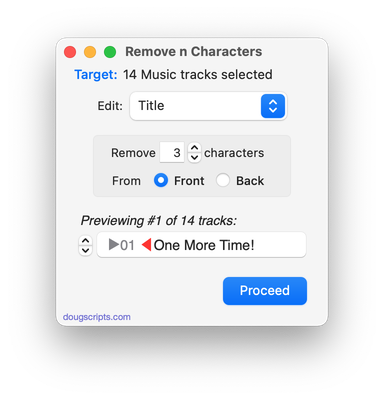
For macOS 10.15 or later. This script lets you delete a specified number of characters from either the beginning or the ending of the Title, Album, Album Artist, Artist/Director, Category, Comments, Composer, Episode ID, Grouping, Show (or their “Sort” siblings), Movement or Work tag of each selected track. For example, delete the initial digits and the space from “01 First Track”, “02 Second Track”, and so on.
This app is free to try full-featured in Demo Mode, with the exception that only up to five tracks can be processes per launch. You can purchase a code for $1.99 which will remove this restriction. Launch the app and click “Register…” in the its File menu to make an in-app purchase.
Latest version:
- Accommodations for macOS 11 Big Sur
- Performance, UI and security enhancements
More information for Remove n Characters From Front or Back v6.4 and download link is here.
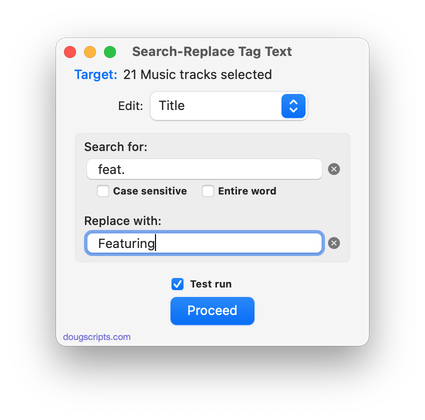
UPDATED: Search-Replace Tag Text v6.4
For macOS 10.15 and later only. Performs a search-and-replace on the text in your choice of track tags in the Music or TV app (Title, Artist/Director, Album Artist, Album, Composer, Comments, Genre, Grouping, Show, Movement or Work) in the selected tracks or all the tracks in the selected Playlist. Features case sensitivity and whole word match options and “Test run” preview.
This app is free to try in Demo Mode. In Demo Mode only up to 5 tracks can be processed per launch. You can purchase a code for $1.99 which will remove the 5-track Demo Mode restriction. Launch the app and click “Register…” in the its File menu to make an in-app purchase.
Latest version:
- Fixes regression with toggling Test Run window visibility
- Fixes issue working with CD tracks
- Accommodations for macOS 11 Big Sur
- Performance and UI enhancements
More information for Search-Replace Tag Text v6.4 and download link is here.
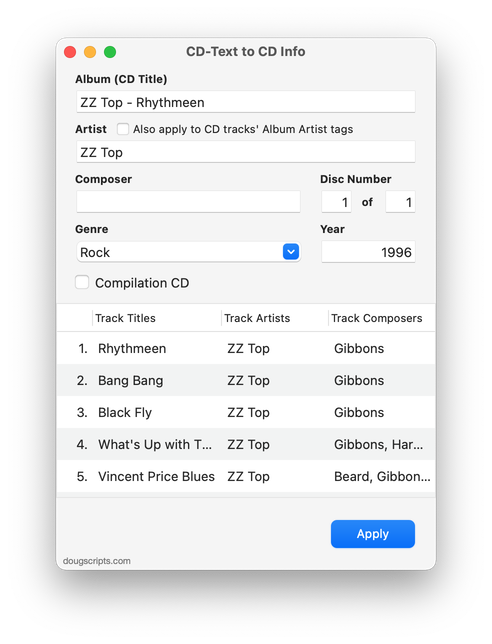
UPDATED: CD Text to CD Info v5.3
For macOS 10.15 and later only. This applet will attempt to extract the CD Text information from the selected audio CD in the Music app and apply it to the CD’s disc and track tags.
Some commercial CDs and commercial CD burning software (including the Music app) can use CD Text as a method of including text data on an audio CD. This data can include Artist (Performer), Album, Composer, Track Title, and Genre info. See the Read Me for more information.
Latest version:
- Accommodations for macOS 11 Big Sur
- Performance and UI enhancements
More information for CD Text to CD Info v5.3 and download link is here.
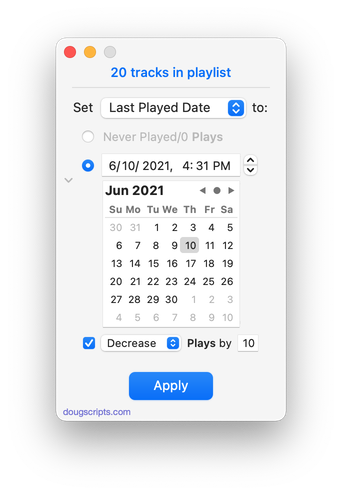
UPDATED: New Last Played Date v5.1
For macOS 10.15 and later. Set Last Played/Last Skipped date of selected tracks to a new date, with option to increase or decrease Plays/Skips, or set to no date and no Plays/Skips.
Also see Add or Subtract Play Count.
iCloud Music Library/Apple Music users should be aware of a potential bug.
Latest version:
- Accommodations for macOS 11 Big Sur
- Performance and UI enhancements
More information for New Last Played Date v5.1 and download link is here.
