
 Apple Music Profile
 YouTube Channel
 RSS Feed
 Dupin
Dupin Join Together
 M3Unify
 30 Most Recent RSS Feed
Managing Files
UPDATED: Show Me The Metadata v3.3
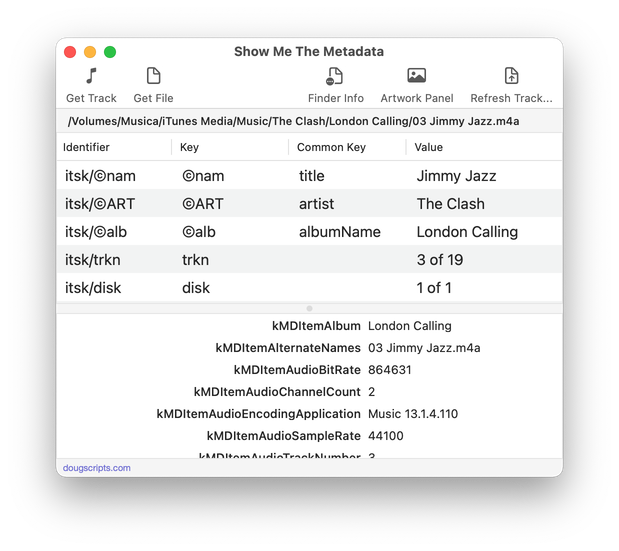
This script will display the audio metadata and the Spotlight metadata for the file of a selected track in the Music app or user-selected audio file, or a drag-and-dropped Music track or audio file. Includes additional features to display embedded artwork and activate the Finder's Information Window for the file.
Latest version:
- Maintenance and minor performance fixes
More information for Show Me The Metadata v3.3 and download link is here.
UPDATED: File Renamer v5.2
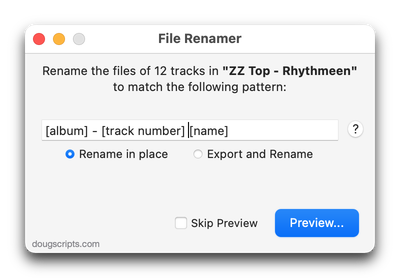
This script will rename the files of the selected tracks (or the files of the tracks in the selected playlist) using a substitution pattern that you formulate from the tracks' tag data. Optionally, export a copy of the files to a chosen location and rename the files in that location.
Works optimally with "Keep Media folder organized" un-checked.
Latest version:
- Fixes issue with checking a media app for new selections
- Maintenance and minor fixes for Sonoma
More information for File Renamer v5.2 and download link is here.
UPDATED: Media Folder Files Not Added v2.5
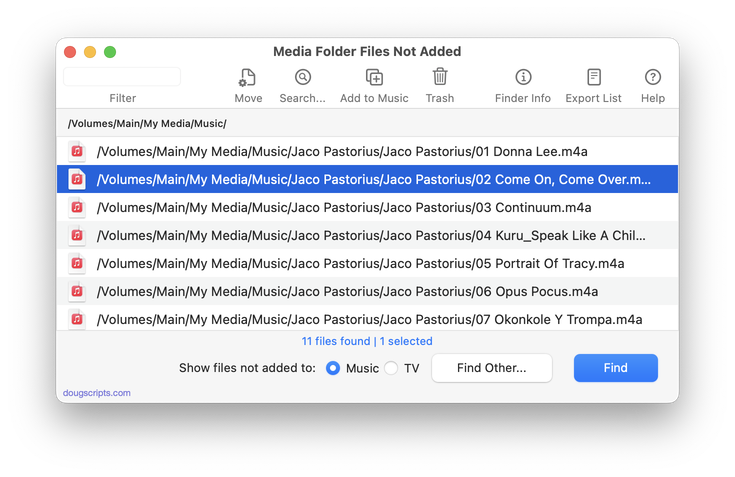
This application will list the file paths of the media files in your designated "Media" folder which are not associated with any tracks in the Music or TV app's track library. Additionally, a different parent folder can be user-selected and its contents will be compared to the current library. Includes options to Filter within results, Move a selection of found files to a user-chosen folder, Search for related tracks in Music app, Add (or drag-and-drop) a selection of found files to Music or TV, move them to the Trash and Export a text file listing the file paths.
Also see Super Remove Dead Tracks and List MIAs.
Latest version:
- Adds "Search..." feature to try and find related tracks in the Music app
More information for Media Folder Files Not Added v2.5 and download link is here.
UPDATED: Media Folder Files Not Added v2.4
This application will list the file paths of the media files in your designated "Media" folder which are not associated with any tracks in the Music or TV app's track library. Additionally, a different parent folder can be user-selected and its contents will be compared to the current library. Includes options to Filter within results, Move a selection of found files to a user-chosen folder, Add (or drag-and-drop) a selection of found files to Music or TV, move them to the Trash and Export a text file listing the file paths.
Also see Super Remove Dead Tracks and List MIAs.
Latest version:
- Maintenance and minor performance fixes
- Accommodations for macOS Sonoma 14
More information for Media Folder Files Not Added v2.4 and download link is here.
UPDATED: Find Empty Media Folders v3.3
This applet will traverse the Media folder looking for and displaying any sub-folders that are either empty or that only contain unplayable items, such as text or image files.
Also see Media Folder Files Not Added.
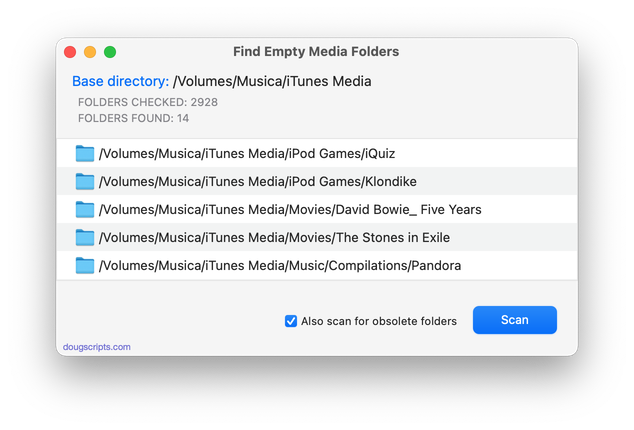
Latest version:
- Maintenance and minor performance fixes
- Accommodations for macOS Sonoma 14
More information for Find Empty Media Folders v3.3 and download link is here.
UPDATED: Export Files From Playlists v3.5
This applet will export copies of the files of the tracks in one or more selected playlists to a single user-selected folder.
Also see M3Unify, an app that provides many more options for exporting/converting files from the Music app.
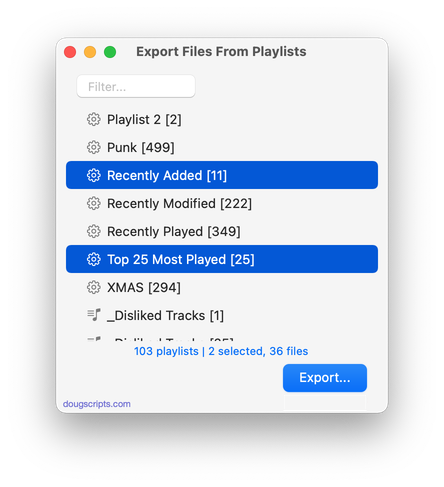
Latest version:
- Maintenance and minor performance fixes
- Accommodations for macOS 13 Ventura
More information for Export Files From Playlists v3.5 and download link is here.
UPDATED: Track CPR v4.3
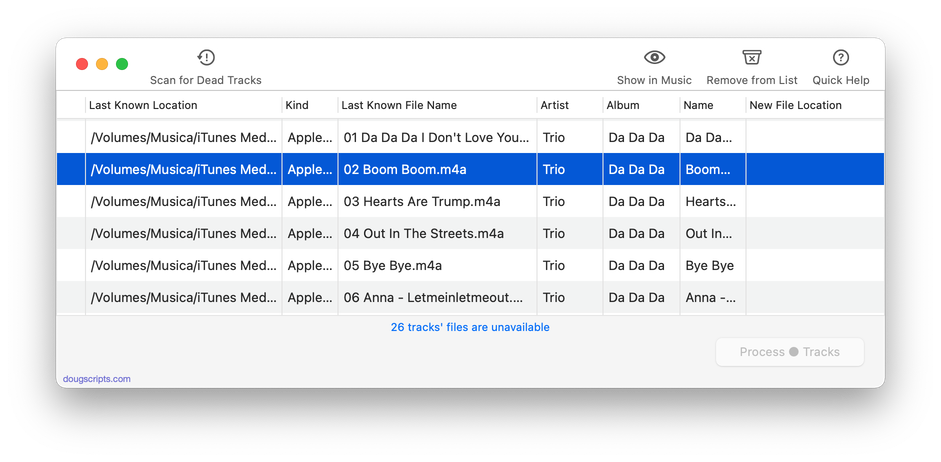
This script will assist with re-associating replacement files with dead tracks. The Music app can perform this task, too, but only one track at a time.
The process takes 3 steps:
- The script finds and lists the "dead" tracks in the Music library
- User drag-and-drops potential replacement files to the window; a viable replacement file is one whose name, album and artist metadata matches a dead track's
- Re-associate viable replacement files with their matched track entries
The Read Me contains additional important details and cautions.
Latest version:
- Maintenance and minor performance fixes
- Accommodations for macOS 13 Ventura
More information for Track CPR v4.3 and download link is here.
UPDATED: Drop A Few My Way v5.5
Drag and drop audio files to this droplet to have the Music app convert them with an encoder selected on the fly, restoring the Preferences-set encoder afterwards, and save them to a user-selected location. The converted files/tracks are removed from the Music app, as though it "never saw them". Includes option to delete the source audio files.
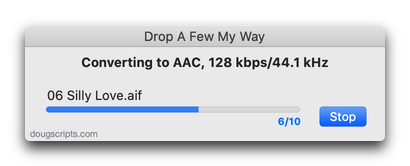
Latest version:
- Maintenance and minor performance fixes
- Accommodations for macOS 13 Ventura
More information for Drop A Few My Way v5.5 and download link is here.
UPDATED: Convert and Export v6.1
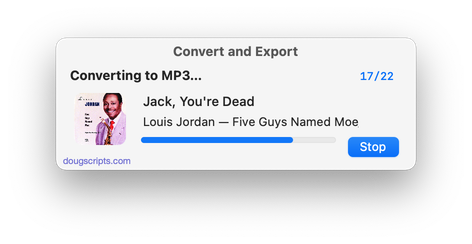
This script converts the files of the selected tracks in the Music app using an encoder chosen on-the-fly (restoring your Preferences-set encoder afterwards). The newly converted files are then moved to a new location of your choice, and their tracks removed from Music. The read me doc contains additional important information.
Latest version:
- Maintenance and minor performance fixes
- Accommodations for macOS 13 Ventura
More information for Convert and Export v6.1 and download link is here.
UPDATED: Re-Locate Selected v3.3
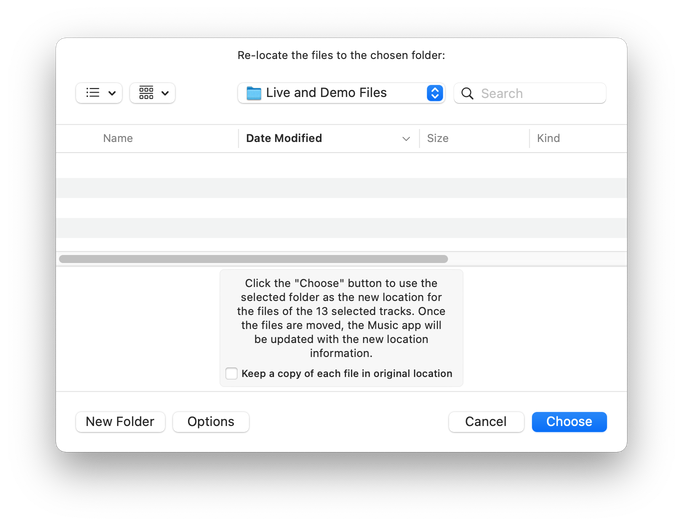
This script will re-locate the files of the selected tracks from their current location to a single user-chosen folder. The Music app (or TV app) will be updated with each track's new location and all of each track's meta-data will be preserved. Optionally leave a copy of each file in its original location (albeit disassociated from any Music or TV app tracks).
Latest version:
- Maintenance and minor performance fixes
- Accommodations for macOS 13 Ventura
More information for Re-Locate Selected v3.3 and download link is here.
