 30 Most Recent RSS Feed
 Apple Music Profile
 YouTube Channel
 RSS Feed
 Play Play
 Murph
Murph Yer Stack
 Block Party Weekend
 Elevendy
 Dupin v4.0.0
 Join Together
 M3Unify
Managing Playlists
UPDATED: Delete Empty Playlists v3.0
I have just updated Delete Empty Playlists to v3.0. The previous version would simply delete any empty playlists it found. But I frequently found that I wanted to keep a few, especially if they were Smart playlists with criteria that would just be a pain to re-create.
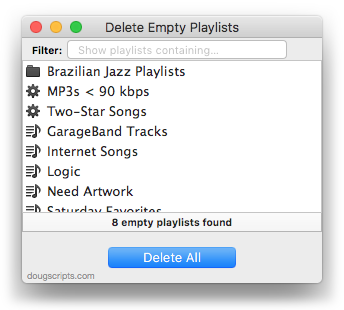
This latest version can, certainly, delete all the empty playlists it finds. But it can also delete just the ones that are selected in the list. Additionally, specific playlists can be isolated by filtering for specific text in their names.
Delete Empty Playlists is free to use with a donation nag and is available to download from this page.
Refresh Smart Playlist Scripts
I still like me them Smart Playlists, arguably one of the best features of iTunes. I mostly use them for organizing and sorting purposes. For example, I have a bunch that segregate tracks by various iCloud Status. But I also maintain a handful that I actually play. And sometimes it’s advantageous to refresh them by removing all their tracks and letting them repopulate with different tracks. These sorts of Smart Playlists use “Live updating” and “Limit to” settings in their criteria—iTunes will prevent the removal of tracks from a Smart Playlist if it contains all the tracks from the library that meet its criteria.
Anyway, here’s one new and one updated script to assist with refereshing Smart Playlists:
Refresh Selected Smart Playlist v1.0 will remove the tracks from a single Smart Playlist selected in iTunes. It works effortlessly when you assign it a keyboard shortcut.
Refresh Smart Playlists v2.0 has been resurrected from a version I had abandoned. It’s an applet that will display all the user-created Smart Playlists in iTunes so you can select the ones you want to batch-refresh:
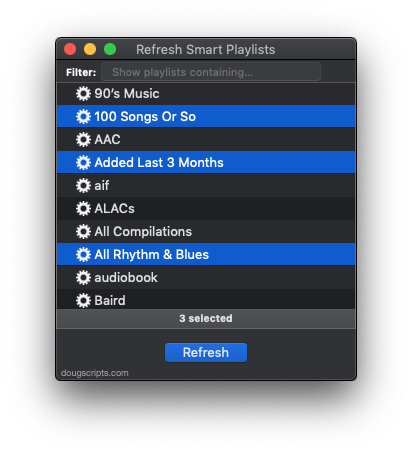
Both are free to download and use, but a donation for my efforts will always leave you with a satisfied feeling afterwards.
UPDATED: Loved Playlists v1.2
Loved Playlists will enable you to view the Love/Dislike status for “loveable” iTunes playlists and batch-edit these settings for one or more playlists at a time.
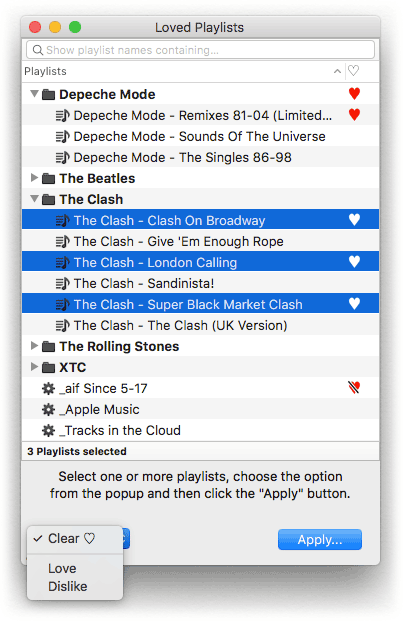
Apple has not provided a means to see what playlists have been Loved/Disliked; you’d have to click the ellipsis menu (“…”) or contextual menu (right-click anywhere in the playlist header) to see if Love is checkmarked or Dislike has a minus sign.
This latest version allows the Love/Dislike status of Playlist Folders to be changed. Pre-12.5.1 versions of iTunes had a bug that prevented this with AppleScript.
NEW: Loved Playlists v1.0
The only time you can see if a Playlist has been Loved is to view it in Playlist View, whereby a heart icon will appear in the upper right corner of the browser window. So here’s an applet, Loved Playlists, that will list all the “loveable” playlists (plain, Smart and Folder) and display the appropriate icon (it will also accommodate the Dislike feature available in iTunes 12.5, currently in beta.):
As you probably have noticed, there is also an option to batch-edit these settings for one or more selected playlists.
Loved Playlists is free to download, with a donation requested. It is for OS X 10.10 (Yosemite) and later only.
Name New Playlist From Selection
(This a repost from October 25, 2011. The previous post reminded me of it.)
I use the iTunes File > New > Playlist from Selection command a lot to create temporary playlists. Actually, I use the Shift-Command-N shortcut more often than clicking the command in the File menu. But I’m irritated at all the dancing I have to do to name the new “untitled playlist”. It takes my attention away from what I was intending to do with the tracks. So, I rigged the script below to the keyboard shortcut Shift-Command-N—and, luckily, it works. Sometimes assigning a shortcut that iTunes is already using doesn’t override the original command. The script does exactly what “Playlist from Selection” does except now I can enter the name for the playlist before it’s created.
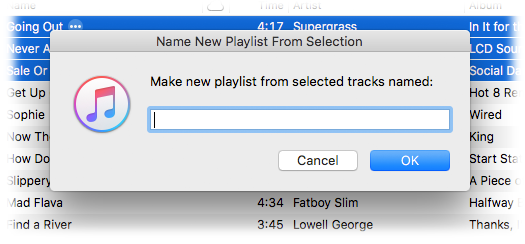
Here’s the script:
tell application id “com.apple.iTunes”
try
set sel to selection
set theSource to container of view of front browser window
if sel is {} then error
set opt to (display dialog ¬
“Make new playlist from selected tracks named:” default answer ¬
“” with title “Name New Playlist From Selection” with icon 1)
set newName to (text returned of opt)
if newName is “” then error
on error
return
end try
set newPlaylist to (make new playlist at theSource with properties {name:newName})
repeat with t in sel
try
duplicate t to newPlaylist
end try
end repeat
reveal newPlaylist
end tell

I named it “Name New Playlist from Selection”, saved it to ~/Library/iTunes/Scripts/ and gave it the shortcut using these instructions.
NEW: New Playlist from Selection to Folder
New Playlist from Selection to Folder will create a new playlist with the selected tracks in a chosen Playlist Folder—rather than at the top level where you’d otherwise have to locate it and drag it to a Playlist Folder.
Just select some tracks and then launch the script (you could assign the script a keyboard shortcut).
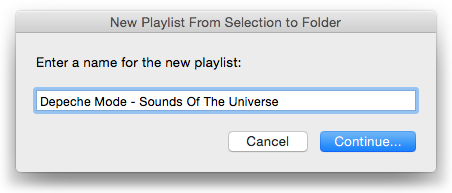
Enter a name to use for the new playlist and click “Continue…”. A second panel listing the current Playlist Folders in iTunes will appear:
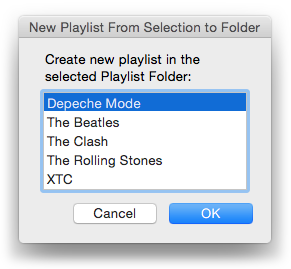
Select a Playlist Folder from the list and click “OK”. The new playlist containing copies of the selected tracks will be created in the Playlist Folder.
More info and download is on this page.
UPDATED: Show In Playlists v1.4
Show In Playlists is a stay-open applet that monitors iTunes and detects when library tracks have been selected and then displays a heirarchical list of the playlists containing the selected track(s) (emulating iTunes’ “Show In Playlist”).
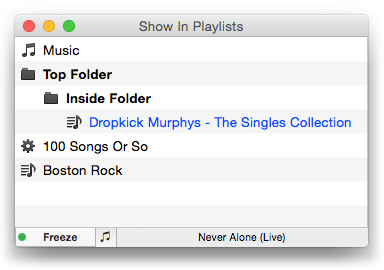
It can also be set to monitor only playing tracks (excepting “For You” and “New” Apple Music, alas). Clicking a playlist in the list chooses it in iTunes, and if a single track had been selected then it will be selected in the chosen playlist. Additionally, the monitoring routine can be toggled off temporarily so that the current list of playlists remains fixed yet still selectable.
This latest version fixes a problem resolving old and new-style iTunes Library.xml data which may have caused playlists to display erroneously.
Show In Playlists is free to use for ten days and $1.99 thereafter. This is a free update for registered users. More information and download is on this page.
Playlist Time to Playlist Name
Here’s a simple script that was inspired by a question Kirk got asked in his Ask the Tunes Guy column in Macworld last week. A user lamented that the playlist length (that is, its total time) is not available in the Music app on iOS. Kirk recommended adding this information to the playlist name in iTunes and then re-syncing. A good solution but kind of a chore. This script will do the renaming part for you.
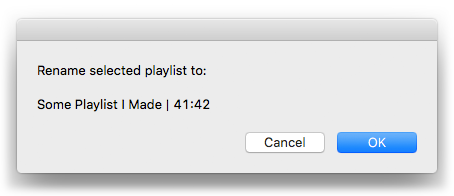
Just select a playlist in iTunes and launch the script. It will display a confirmation dialog and then rename the playlist by appending the time length to its current name:
tell application “iTunes”
try
set thisPlaylist to view of front browser window
if special kind of thisPlaylist is none then
set newName to (my fixName(thisPlaylist’s name) & ” | ” & thisPlaylist’s time) as text
— confirm
try
display dialog “Rename selected playlist to:” & return & return & newName
on error
return
end try
tell thisPlaylist to set name to newName
else
error
end if
on error m number n
try
display dialog “Can’t change the selected playlist’s name.” buttons {“OK”}
end try
return
end try
end tell
to fixName(n)
if n does not contain “|” then return n
return text 1 thru ((offset of “|” in n) – 2) of n
end fixName
Couple of things to note: only user-created scripts (plain and Smart) can be affected. Also the script uses the “pipe” character to separate the actual name with the appended data. When you run the script again on a playlist that has previously been affected by the script, it uses the “|” as a marker to erase the appended text; thus, the playlist name can be updated if the contents changes at a later date. So, if you happen to already use “|” in your playlist names you may have a problem. You can edit the script in Script Editor to change each of the occurrences of “|” to some other text character that you aren’t likely to use.
UPDATED: Assimilate View Options v4.0 (and Some Gripes)
Assimilate View Options takes advantage of the iTunes behavior whereby a newly created playlist has the same visible columns as the Music library playlist. Select a playlist in iTunes and launch the script. That playlist will be re-created with the same columns available in its Songs View as are available in the Music library playlist.
This latest version will only work with iTunes 12.2 or later on OS X 10.10 or later. Because Things Are Different Now. An older version from 2012 is still available that will probably still work with pre-Yosemite/pre-iTunes12.2 versions.
Working on this script exposed me to some funny quirks with the latest version of iTunes. First, programmatically speaking, there is no way to tell the difference between a Genius and Smart playlist. In fact, (programmatically speaking) they appear as identical types. They both have a smart property set to true. Their playlist properties in the XML file both have Smart Info and Smart Criteria; and if this data for a Genius playlist is exported and re-imported, it does not produce a Genius playlist of tracks but just an empty Genius playlist. Buh?
Next, there is likewise no way to tell that a playlist downloaded from Apple Music (which will appear under a “Apple Music Playlists” header in—what used to be known as—the Source List) is such a thing. And if you duplicate it, the copy will appear with your regular playlists. Don’t use Assimilate View Options with these playlists.
And while I’m sort of griping here, must new playlists default to Playlist View as the initial view? I really like Playlist Views as an option and I’m all for cutting down on Preference Pane Clutter, too, but a popup with my favored initial view couldn’t take up that much space, could it?
Oh, and Santa? ‘Scriptable playlist description?
Script of the Day: Dumb Down Genius Mix Playlist
Dumb Down Genius Mix Playlist will copy the tracks of a playing Genius Mix playlist to a new “dumb” (regular) playlist. You can subsequently copy the contents of additional Genius Mix playlists to the new playlist, refill it, or create more. (Each Genius Mix playlist only contains about 70 tracks maximum, which is why you may have several, say, “Rock Mix” playlists.)
More information and download is on this page.
Previous Scripts of the Day. Subscribe to my RSS feed or follow @dougscripts on Twitter to get daily “Script of the Day” notifications.
