 30 Most Recent RSS Feed
 Apple Music Profile
 YouTube Channel
 RSS Feed
 Play Play
 Murph
Murph Yer Stack
 Block Party Weekend
 Elevendy
 Dupin v4.0.0
 Join Together
 M3Unify
Managing Playlists
UPDATED: Random Full Albums to Playlist v1.2
If you’re like me, you may occasionally prefer to listen to full albums back-to-back. Back in the day, this device assisted with doing that:
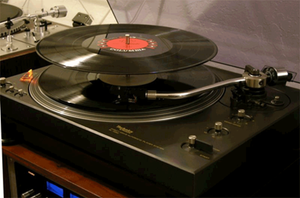
I haven’t got one of those anymore (I got rid of the five-disc CD changer, too). But I’ve got this script that sorta works the same way. Without having to get up to flip the stack…or even pick the records.
Random Full Albums to Playlist v1.2 will assemble a user-set number of randomly selected full albums to a playlist. And by “full album”, I mean a set of music tracks with the same album name, track count, and disc number, where the number of tracks from each album is equal to the common track count.
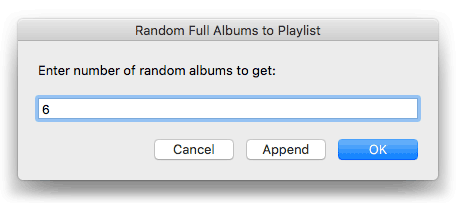
This latest version is a maintenance update and I added an option to run it again without re-launching if you don’t like the selection. Of course, the whole point is that it’s a random selection of albums, so you’re kind of cheating by running it again like that.
More information and download is on this page.
Script of the Day: Merge-Delete Playlists
Merge-Delete Playlists will allow you to merge the track contents of two or more playlists or delete any number of playlists at once, including Smart, Genius, and Playlist Folder playlists.
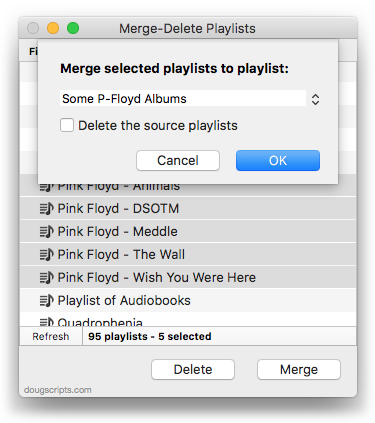
The merge feature will prevent the same tracks that may appear in different source playlists from being duplicated and has an option to delete original playlists. The delete feature only deletes the playlist; tracks, of course, remain in the library.
More info and download is on this page.
Previous Scripts of the Day. Subscribe to my RSS feed or follow @dougscripts on Twitter to get daily “Script of the Day” notifications.
NEW: Make Playlists By Years
Make Playlists By Years will create a new music track playlist for every year (or range of years) based on the Year tags of tracks in the Music Library. Optionally, Year playlists can be sorted into Playlist Folders by decade or filtered by a single Genre. (Accurate tagging is a must. Tracks with empty Year tags are ignored.)
In this screenshot, I’ve created playlists of the years 1970-2015 for the tracks in the “Pop” Genre and moved them to corresponding Playlist Folders named by decade:
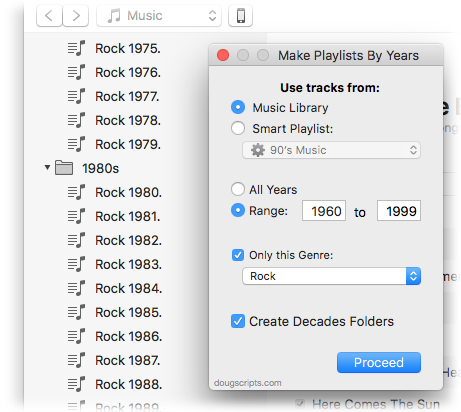
All of the created playlists will be placed into a “Playlists By Years” Playlist Folder. The “Rock” playlists were created previously.
It can take a few moments for larger playlists to be assembled (200+ tracks). But, depending on the number of playlists it needs to create, the whole operation can be pretty brisk.
You’ll notice that the playlists the applet creates are named with a final “.” (dot). This is in order to distinguish them from any other playlists that are similarly named. See, the applet may re-create those playlists on subsequent runs and if it needs to create, for example, a new “Rock 1977.” playlist it will delete every playlist with that name (otherwise, I’d have a dozen “Rock 1977.” playlists in no time). So the distinguishing dot is just to make them somewhat different from the obvious.
Of course, if you want to preserve the playlists it creates, just duplicate and/or rename them.
More information and download is on this page.
(Be sure to see Playlist Manager which has batch-delete and batch-rename playlists functions; and Rescue Playlists from Folder and Move Playlists to Folder which remove/move playlists from/to Playlist Folders.)
Script of the Day: Duplicate Playlist Folder as Playlist
Duplicate Playlist Folder as Playlist will copy all the tracks in a selected Playlist Folder to a new “plain” playlist, essentially duplicating the tracks as viewed when the Playlist Folder is selected.
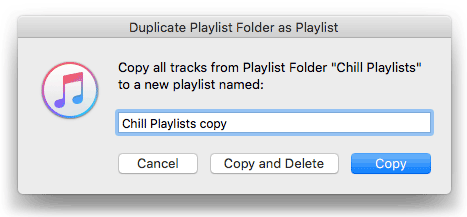
Optionally, it can delete the selected source Playlist Folder and its contents (of course, the tracks remain in your library, but any playlists and sub-Playlist Folders it contains can be deleted).
More info and download is on this page.
Previous Scripts of the Day. Subscribe to my RSS feed or follow @dougscripts on Twitter to get daily “Script of the Day” notifications.
Script of the Day: Playlists Info
Playlists Info will display a sortable list of playlists from the selected source (the local library or a mounted device) along with their size, time and number of tracks. Additionally, the script can export a text file listing that information heirarchically.
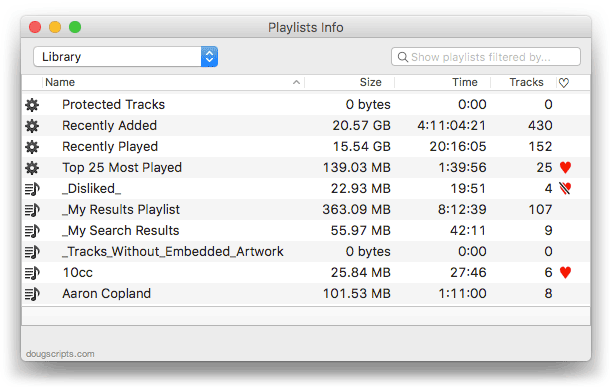
By default it will display the playlists in the local iTunes library. But in the screenshot above, I’ve selected to view the playlists on my iPod touch. The window will stay open over iTunes. Double-clicking a playlist in the list will select it in iTunes.
More information and download is here.
Subscribe to my RSS feed or follow @dougscripts on Twitter to get daily “Script of the Day” notifications.
UPDATED: Make Playlists By Tag v2.0
Make Playlists By Tag v2.0 will create Music track playlists based on each selected entry of a specified tag. That is, create individual playlists by Artist, Album Artist, Album, Composer (and their “Sort” siblings), Genre, or Year.
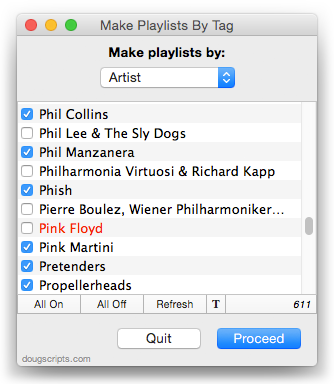
In the screenshot above, the script will create a playlist for each checkmarked Artist.
This latest version is essentially a maintenance update for better compatibility with Yosemite and also fixes an issue where tags containing white space characters would appear as blank; now the script ignores such tags.
OS X 10.8 and later only. More info and download is here.
UPDATED: Show In Playlists v1.1
Show In Playlists displays a persistent floating window that will list the playlists containing the selected or playing tracks in iTunes.
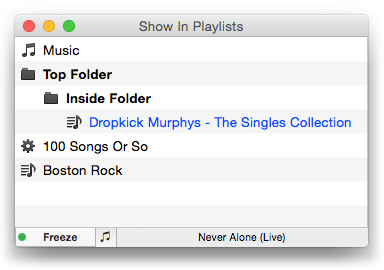
This latest version adds a toggle to monitor just selected tracks or just playing tracks. I also had to pull support for OS X 10.8 since it doesn’t seem to like a few modern coding features. I may not be able to fix that.
Here’s a short video showing how to make it go:
Show In Playlists is free to use for ten days and $1.99 to purchase. More information and download is here.
NEW: Show In Playlists
Show In Playlists puts up a floating window that lists the playlists that contain the current track selection. Whenever you select a track in iTunes, bam! The playlists that contain it will be listed:
It’s sort of like iTunes’ own “Show In Playlist” without the right-clicking and scrolling. In the screenshot, I’ve selected a track in the “Dropkick Murphys – The Singles Collection” playlist and the window displays the other playlists that contain the selected track. Select multiple tracks, as you might for an entire album or artist, and only the playlists that contain the entire track selection will be listed.
You can go through a list of tracks pretty fast. But I’ve also found it handy just having it hang-out off to the side of iTunes when I’m working on tracks. I’ve found a few strays that way.
Clicking a playlist in the list selects it in iTunes and, if there’s just a single track in the selection, that track will be selected in the selected playlist.
The routine can be toggled off (“Freeze”) such that the current list of playlists will remain fixed and selectable, so you can refer to the playlists in the list or navigate tracks and playlists in iTunes without the list updating.
Show In Playlists is free to try full-featured for ten days, $1.99 to purchase. More info and download is here.
NEW: Playlists Info
Playlists Info will display a sortable list of playlists in the current library (or in the selected source) along with their size, time and number of tracks. I’ve been finding this handy for eyeballing playlist sizes when managing music between iTunes and devices.
Additionally, the script can export a text file listing that information.
More info and download is here.
UPDATED: Batch Export Playlists v1.4
iTunes can only export a single playlist at a time using the File > Library > Export Playlist… command. My mouse finger’s inter-phalangeals are achy just thinking about exporting more than a few that way. Batch Export Playlists v1.4 will export each selected plain, Smart, and Genius playlist as individual XML or M3U files to a user selected directory. Such files can be re-imported into iTunes again later or into other devices or apps.
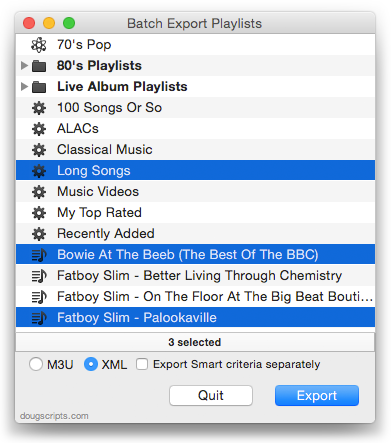
As a bonus, Smart playlist XML files can be exported as two files, with one containing just the Smart criteria.
This latest version adds a heirarchical view for Playlist Folders which more closely emulates iTunes’ playlist view and has some minor tweaks for better compatibility with OS X 10.10 and iTunes 12.
More information and download is here.
