 30 Most Recent RSS Feed
 Apple Music Profile
 YouTube Channel
 RSS Feed
 Play Play
 Murph
Murph Yer Stack
 Block Party Weekend
 Elevendy
 Dupin v4.0.0
 Join Together
 M3Unify
Managing Playlists
Emulate Drag Playlist Folder to Make New Playlist
You can use the “Duplicate” option in a playlist’s contextual menu to make an exact copy of the selected playlist. This works for regular and Smart playlists. You can also select a playlist and drag it in the Playlists section of the Source list to duplicate it as a regular playlist. Using this method will duplicate any kind of playlist as a regular playlist. This is especially useful for making a playlist from a Playlist Folder, which does not have “Duplicate” in its contextual menu.
But you may find it easier to run a script on a selected playlist to duplicate it, especially if you aren’t wild about the drag-and-duplicate method which can be slippery. The script below will duplicate any selected playlist as a regular playlist. The new playlist will have the same name as the selected playlist, but you can edit this to include ” copy” or something if you wish:
tell application "iTunes"
set selectedPlaylist to view of front window
set newPlaylist to (make new playlist with properties {name:(get name of selectedPlaylist)})
duplicate tracks of selectedPlaylist to newPlaylist
reveal newPlaylist
end tell

(The last command to reveal selects the new playlist; you may not want this.) Name it whatever you like and Save it as a compiled script in ~Library/iTunes/Scripts/. I’ve found this very handy for making playlists from Playlist Folders that contain several playlists (or sub-Playlist Folders of playlists). Works great with a keyboard shortcut.
UPDATED: Playlist Manager v1.1
Playlist Manager v1.1 can perform common useful tasks on a multiple selection of playlists: rename (add text, remove text, search and replace text), toggle repeat and shuffle, duplicate, delete, export, merge.
This latest version fixes a problem with renaming playlists that are contained in Playlist Folders and now allows “blank” to be used as the replace text in the Search and Replace tool.
NEW: Playlist Manager
I create, reuse, and recycle playlists frequently and my playlists rarely remain static. A hindrance in my playlist management is the inability to select more than one playlist at a time to, say, delete or rename them. Well, I got around to fixing that with Playlist Manager.
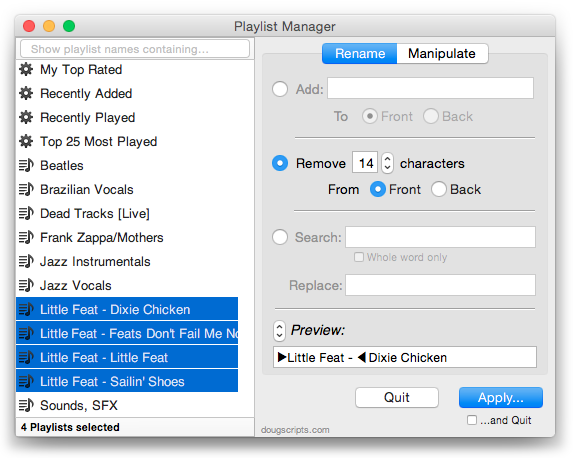
This applet can perform common useful tasks on a multiple selection of playlists: rename (add text, remove text, search and replace text), toggle repeat and shuffle, duplicate, delete, export, merge.
UPDATED: Drop to Add and Make Playlists v2.2
Drop to Add and Make Playlists v2.2 will accept a single dropped folder containing media files and will add each file to iTunes and then distribute the tracks to playlists named using your choice of the tracks’ “Artist – Album” tags or the name(s) of the folder(s) containing the file.
This latest version fixes a problem with trying to process files that cannot be added to iTunes.
Custom Playlist Column Views, Sorta
Here’s something I’m often asked which Correspondent Rob Falk put succinctly: “Is there a way to clone a playlist view…other than the Library [using Assimilate View Options]? I frequently need to create a playlist that has a specific set of columns, that are not the same as the library, and was looking for a way to automate that.”
There sorta kinda is.
My first thought was to use AppleScript to just duplicate an existing playlist that already had the requisite view settings. (The duplicate command is typically used to copy a track from one playlist to another.) Unfortunately, when iTunes’ AppleScript duplicate command is used to copy a playlist it—bafflingly—creates a new untitled and empty playlist using the properties and views of the Music library playlist. Same as just creating a new playlist. That doesn’t seem right, does it? You’d think—well, I thought anyway—that using duplicate to copy a playlist would behave the same as the playlist contextual menu command “Duplicate” (control-click or right-click on the name of the playlist):
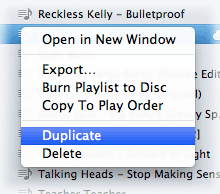
So, my next thought was…just use “Duplicate”. The playlist will be perfectly duplicated, column views and all, and selected in the Source list. Now you’ll have a new playlist named the same as the original with a “1” at the end and which is populated with the original’s tracks (if it had any). You could create a bunch of playlists with columns set the various ways you like and then “Duplicate” them when you required one. Just rename the new duplicated playlist and delete any tracks. And that part can be automated.
The workflow, then, is to “Duplicate” a playlist manually with the contextual menu command and then run this script right afterwards:
NEW: Make Playlists By Tag
I’m finding it difficult to describe what this script does despite its seeming obviousness.
Make Playlists By Tag will create new playlists based on a particular tag. For example, in the screenshot below “Artist” is selected in the popup:
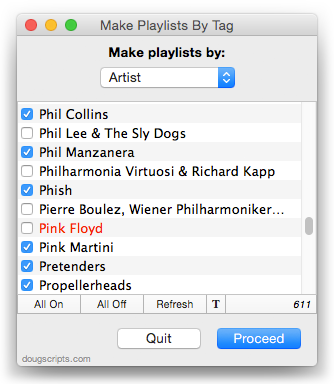
(You can also choose Album Artist, Album, Composer and their “Sort” siblings, Genre, or Year.) Each artist is listed with a checkbox. When the Proceed button is clicked, each checkmarked entry will be used as the name of a new playlist and every track whose artist tag is that entry will be copied to it. And so on if “Year” or “Album Artist” was selected.
As it happens, “Patti Smith Group” and “Pearl Jam” already exist as playlists so they are distinguished in the list by being colored red. I may not want to re-create these.
I’m not sure if I would use it to create a playlist of every Artist or Album; that may bloat iTunes’ database.
A great companion to this app is Merge-Delete Playlists, which was just updated with some minor fixes.
Thousands of Empty Playlists? Redux
So there’s this glitch with iTunes Match that somehow creates thousands of empty playlists. I posted earlier about this and snippeted a simple script to scratch the empties from your iTunes. Too simple since it appears to get really bogged down trying to examine playlists while iTunes is deleting them. Correspondent Lowell Stewart suggested deleting in batches to give the processing some breathing room, and I’ve incorporated this in an update to Delete Empty Playlists. It’s definetly speedier using Lowell’s suggestion.
If you’ve been affected by an iTunes Match Empty Playlist Glitch then use Delete Empty Playlists v2.0.
Smart Playlist to Gather Upgradeable iTunes Match Tracks
Macworld’s Jason Snell describes in this article how to upgrade tracks with iTunes Match to 256kbps AACs. iTunes Match will allow you to re-download these types of files even if the matched tracks are lesser quality. To gather these lesser-quality matched-tracks together, Jason describes how to create a Smart Playlist with the correct criteria. I’ve created that Smart Playlist and exported it and have included it in a script which, when run, will add that Smart Playlist to your iTunes for you. Here is the direct download link. Just download and double-click the script; make sure iTunes is running. Be sure to read Jason’s article to understand the rest of the details.
Name New Playlist From Selection
I use the “New Playlist from Selection” command a lot to create temporary playlists. Actually, I use the Shift-Command-N shortcut more often than clicking the command in the File menu. But I’m irritated at all the dancing I have to do to name the new “untitled playlist”. It takes my attention away from what I was intending to do with the tracks. So, I rigged the script below to the keyboard shortcut Shift-Command-N—it works, luckily; sometimes assigning a shortcut that iTunes is already using doesn’t override the original command. The script does exactly what “New Playlist from Selection” does except now I can enter the name for the playlist before it’s created.
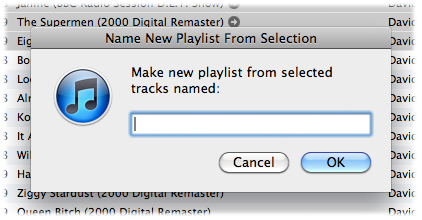
Here’s the script:
(more…)
UPDATED: Assimilate View Options v3.0
Assimilate View Options v3.0 re-creates a selected playlist so its View Options (visible columns) are the same as the main Music library (taking advantage of the fact that new playlists acquire the Music library’s View Options). Works only with regular playlists and Smart playlists.
This latest version works with playlists inside a folder playlist.
Assign it a keyboard shortcut for ease of use.
