 30 Most Recent RSS Feed
 Apple Music Profile
 YouTube Channel
 RSS Feed
 Play Play
 Murph
Murph Yer Stack
 Block Party Weekend
 Elevendy
 Dupin v4.0.0
 Join Together
 M3Unify
Managing Playlists
NEW: Duplicate Playlist Folder as Playlist
iTunes turns fourteen years old today which makes it about a month older than this website. And I think I’ve only just noticed that Playlist Folders don’t have a duplicate command. (Technically, Playlist Folders were introduced in September 2007 with version 5.0. I’m still surprised I hadn’t noticed. I probably just forgot. Yeah. That’s it.) Recently, I wanted to get rid of a bunch of Playlist Folders and dump their tracks into plain playlists and I figured a duplicate command might do that.
I suppose it’s easy enough to just select all the tracks in a selected Playlist Folder and use “Playlist From Selection” (Shift-Command-N) but I also wanted to delete the original Playlist Folder in the same swoop. And doing all that that turns into a mittful of keypresses and mouse-arounds. Which makes my scripty-sense tingle.
Duplicate Playlist Folder as Playlist will copy all the tracks in a selected Playlist Folder to a new “plain” playlist, essentially duplicating the tracks as viewed when the Playlist Folder is selected.
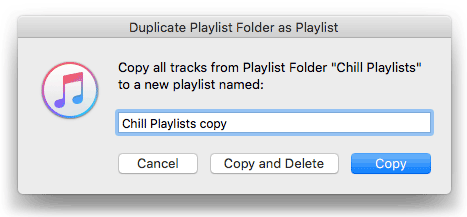
Optionally, it will delete the selected source Playlist Folder and its contents (of course, the tracks remain in your library, but any playlists and sub-Playlist Folders it contains will be deleted).
Codesigned, free, and nagless, more info and download is here.
Son of Latest Batch of Updates
Like last week, I hadn’t gotten around to posting individual blurbs on all the updated stuff from this week (November 9-14). So, briefly:
Drop to Add and Give Info v3.0 – drop files onto this droplet and it will supply a Get Info-type interface to add basic tags to the tracks once they’re added to iTunes. Better Yosemite support.
PDF Adder v5.0 – applet/droplet and PDF Service enable you to supply some basic tags to PDFs added to iTunes, the latter is a PDF Service workflow accessible from any app’s Print Dialog. Yosemite support, minor tweaks.
Make PDF Booklet v3.0 – assists with creating lists of track data exported as a text-only PDF. Support for Yosemite.
This Tag That Tag v4.2 – copy, swap and append data between tags of selected tracks. Fixed a progress indicator that wouldn’t indicate progress. I hate when that happens.
Delete Selected Files v2.1 – removes selected tracks and can move their files to the Trash or delete them immediately. Fixes a problem when canceling and progress would not cancel.
Drop to Add and Make Playlists v3.0– drop folders of media files onto this droplet and it will add the files to iTunes and create playlists for the tracks based on the names of the folders. Adds better support for Yosemite.
All HD and SD to Playlists v2.0 – creates two playlists containing, respectively, all the SD video tracks and all the HD video tracks in the library. Mostly just a maintenance update since last update in 2009.
Make An EQ Preset Script v3.0 – creates a new AppleScript applet using data from the selected EQ Preset. When that applet is launched it will re-create the EQ Preset in any iTunes (on a Mac). Handy way to archive EQ Presets. This is a major maintenance update, added better options in the applet for renaming.
Subscribe to the 30 Most Recent Scripts RSS or my Twitter feed @dougscripts to stay updated on script releases.
Latest Batch of Updates
So busy slapping ’em together that I hadn’t posted I’d updated ’em. Here’s the last few updated scripts (October 29 – November 8):
Set Video Kind of Selected v5.0 – change the video kind property of the selected tracks to your choice of “Home Video”, “Movie”, “Music Video” or “TV Show”. Additionally, “Show Name”, “Season Number”, and incremental “Episode Number” can also be set or cleared for each selected track.
Convert and Replace v2.0 – convert the selected tracks using an encoder chosen on-the-fly (the encoder’s current Preferences-set options will be in effect) and replace the originals throughout the playlists of your entire library with the newly converted versions. Additionally, you can opt to Trash/delete or keep the original files and tracks.
Trackographer v4.0 – stay-open applet will monitor iTunes and send tag and time-of-play information of each track that plays (including iTunes Radio and internet radio streams if they provide track info) to a text file. Preferences can be set to include or not include various basic tags and to create a plain text file or a tab-delimited text file which can be imported into a spreadsheet.
Multi-Item Edit v2.1 – mostly bug fixes; edit most track tags (and some additional options) in a single window which emulates the pre-iTunes 12 “multiple items” format; that is, a checkbox adjacent to each tag allows you to select which changes are to be applied to the selection’s tags.
Delete Selected Files v2.0 – remove each selected track from all playlists and Trash or immediately delete their corresponding files. Some iTunes delete commands will not move files from outside the “iTunes Media” folder to the Trash. This script worksaround that.
Find Truncated Tracks v2.0 – assists with segregating iTunes Match tracks that appear to get cut-off when played (due to a possible bug which Kirk describes here). Then these truncated tracks can be deleted and re-downloaded intact (by you, not the script).
Playlist Manager v2.0 – iTunes only allows one playlist to be selected at a time. This applet can perform common useful tasks on a multiple selection of playlists: rename (add text, remove text, search and replace text), duplicate, delete, export, merge.
Search Results to Playlist v2.0 – search a chosen category (Library, Music, Movies, etc) or the selected playlist for user-entered text by All, Song, Artist, Album, or Composer tag and copy the track results to a Search Results playlist, which will be created automatically if necessary. Can optionally re-create or append to the Search Results playlist on each run. Floats over iTunes while active for easy access.
UPDATED: Random Full Albums to Playlist
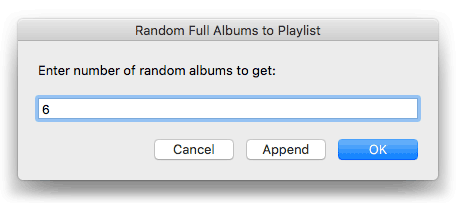
Random Full Albums to Playlist v1.1 will assemble a user-set number of randomly selected full albums to a playlist.
This version fixes a problem whereby only the last disk in a multi-disk collection would ever be selected. Now, only a single disk in such a collection will be selected.
More information and download is here.
UPDATED: Not In Any Playlist v2.0
I don’t necessarily encourage using playlists as longer-than-semi-temporary organizers. In fact, you could trash all my playlists right now and I wouldn’t care. But if the thought of doing that on your own library makes your spine melt at about L5 then you might have OCD want to try meditation Not In Any Playlist.
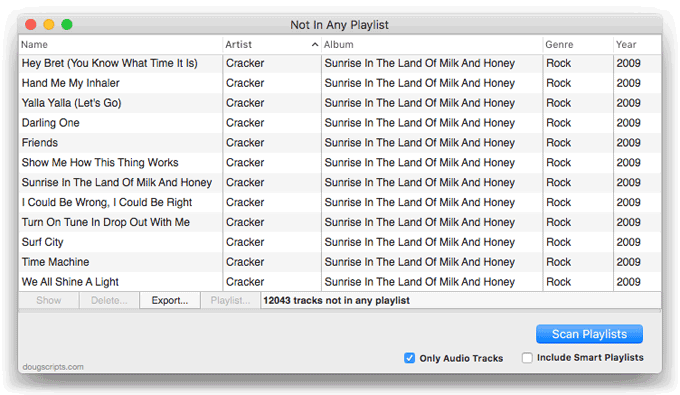
This applet will scan iTunes for tracks that are not assigned to any user-created playlists and display them. Includes options to export the list as a text file, ignore Smart playlists, ignore non-Music tracks, and copy selected tracks to a new or existing iTunes playlist.
Not In Any Playlist is free to try full-featured for 10 days. More info and download here.
NEW: Make Mega Playlist
Make Mega Playlist will allow you to create a “mega” playlist built by appending the tracks of chosen playlists to it in their play order; the effect being that the contents of the mega playlist will play in “playlist” order.
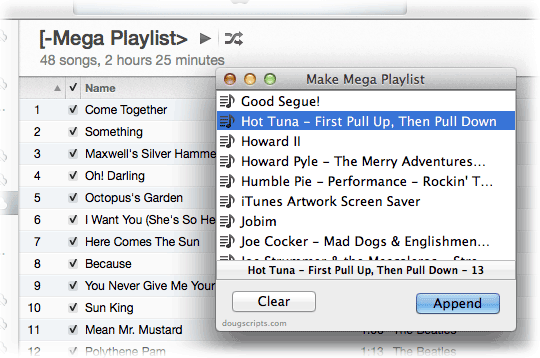
Kirk McElhearn wrote about this script in this Ask the iTunes Guy column at Macworld.
More information and download is here.
NEW: Random Full Albums to Playlist
I saw this picture while browsing the other day:
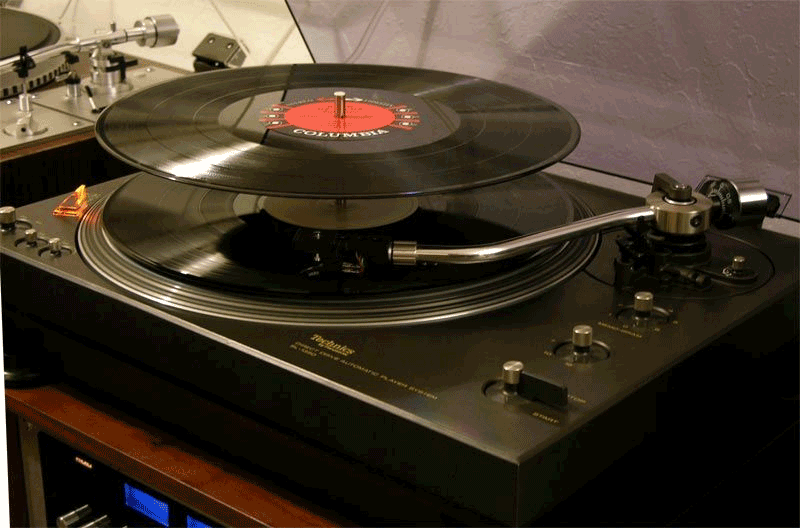
Remember when the sides of multi-disc albums would be assigned based on how they would be stacked and flipped on the changer? A three-disc album would be sided as 1/6, 2/5, 3/4. With a changer you only had to get up once to flip “Woodstock” (Side 4 had Santana and Ten Years After, which made the effort worth it).
Anyway.
In the spirit of the venerable art of full-album listening, here’s Random Full Albums to Playlist.
Launch it and it will ask you to enter the number of albums you want in the playlist. It will then assemble a totally random collection of albums to a “Some Random Albums” playlist. The playlist will be re-created on each launch, unless you choose to append additional random albums to an existing “Some Random Albums” playlist.
More information and download is here.
NEW: Refresh Smart Playlists v1.0
For years my go-to Smart Playlist has been one called “100 Songs Or So”, which is essentially a bunch of tracks that haven’t been played in a few months (plus no Holiday tracks, songs shorter than ten minutes, and so on). Early on I figured out that the contents of “100 Songs Or So” could be refreshed by deleting all its tracks and allowing it to dynamically re-populate.
It was suggested to me recently that it might be advantageous to perform this kind of refresh on more than one SP at a time—say, just before you sync them to a device. Sometimes I wonder why I don’t think of these things.
Refresh Smart Playlists will display a panel from which you can select the Smart Playlists in iTunes that you want to re-populate. Click the refresh button and they’re instantly updated.
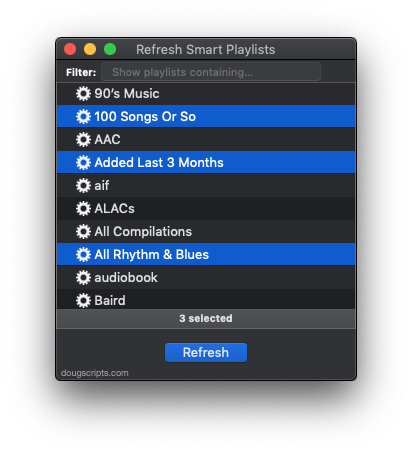
The Smart Playlists you’ve selected will be remembered the next time you launch the script so you can quickly refresh your favored SPs without having to select them each launch.
Not every Smart Playlist is “refreshable”, of course. For example, if a Smart Playlist already contains every track from the library that meets its criteria, its tracks can’t be deleted. A Smart Playlist that uses “Limit to” and “Live updating” criteria is more inclined to be dynamic.
More information and download is here.
UPDATED: Merge-Delete Playlists v3.3
Merge-Delete Playlists will allow you to merge the track contents of two or more playlists or delete any number of playlists at once, including Smart, Genius, and Playlist Folder playlists. The merge feature will prevent the same tracks that may appear in different source playlists from being duplicated and has an option to delete original playlists. The delete feature only deletes the playlist; tracks, of course, remain in the library.
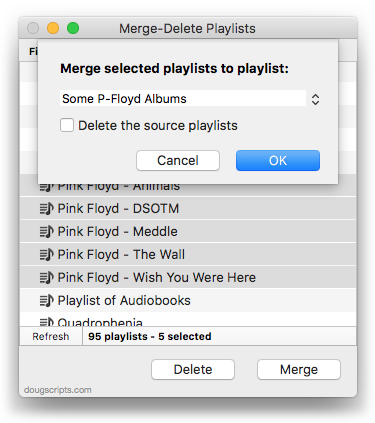
This latest version fixes issues running under Mavericks and fixes a problem re-enabling after a delete operation.
More information and download is here.
UPDATED: Assimilate View Options v3.1
Assimilate View Options v3.1 re-creates a single selected playlist so its View Options (visible columns) are the same as the Music library (taking advantage of the fact that new playlists acquire the Music library’s View Options).
This latest version worksaround iTunes 11’s shuffle/song repeat difficulties which tripped an error when trying to re-apply those settings and prevented the script from completing properly.
